Country operations
During registration some countries need special handling. This page covers pay on arrival, exemptions, reopening a submitted stage and recording a country's withdrawal.
Pay on arrival
By default a representative can pay an issued invoice online or by bank transfer (if bank transfer is switched on). Mawhiba can also allow a country to pay on arrival: the delegation pays at the registration desk in Saudi Arabia, by POS terminal or in cash, and finance confirms the money there.
- In the menu, choose Pay on arrival.
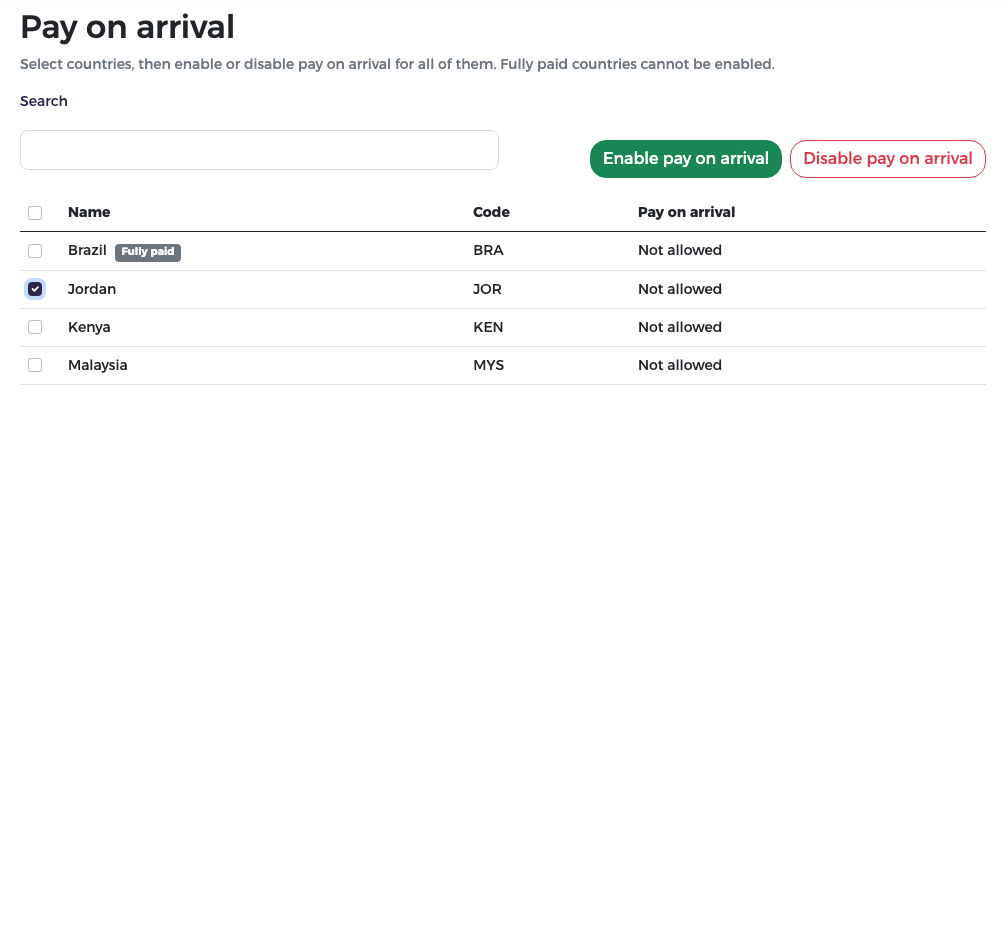
- Tick one or more countries (use Search to find them).
- Press Enable pay on arrival (or Disable pay on arrival) and confirm.
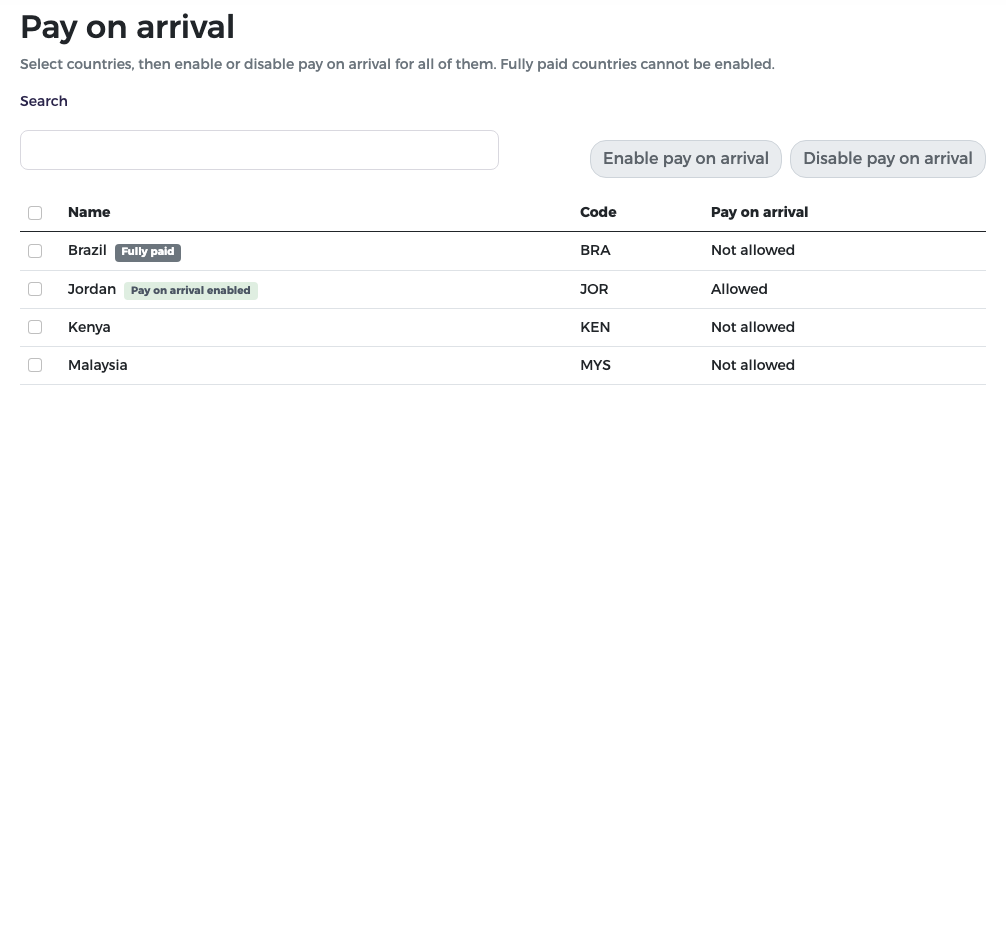
The Pay on arrival column changes to Allowed and the country gets the Pay on arrival enabled badge.
The representative now sees On Arrival as a choice on each issued invoice. They must tick an acknowledgement that they will pay on arrival.
Rules
- Countries already Fully paid cannot be enabled.
- A representative who chose pay on arrival may switch to another method as long as no money has been confirmed on that invoice.
- You can also allow it for one country from that country's Registration Settings page (see Setup).
Exemptions and invoice issue
As administrator you can review, return and issue proforma invoices and set exemptions exactly like the reviewer, for example when the reviewer is away. Choose Proforma invoice review or Exemption setup in the menu. On the exemption page, choose the Country first, then the invoice.
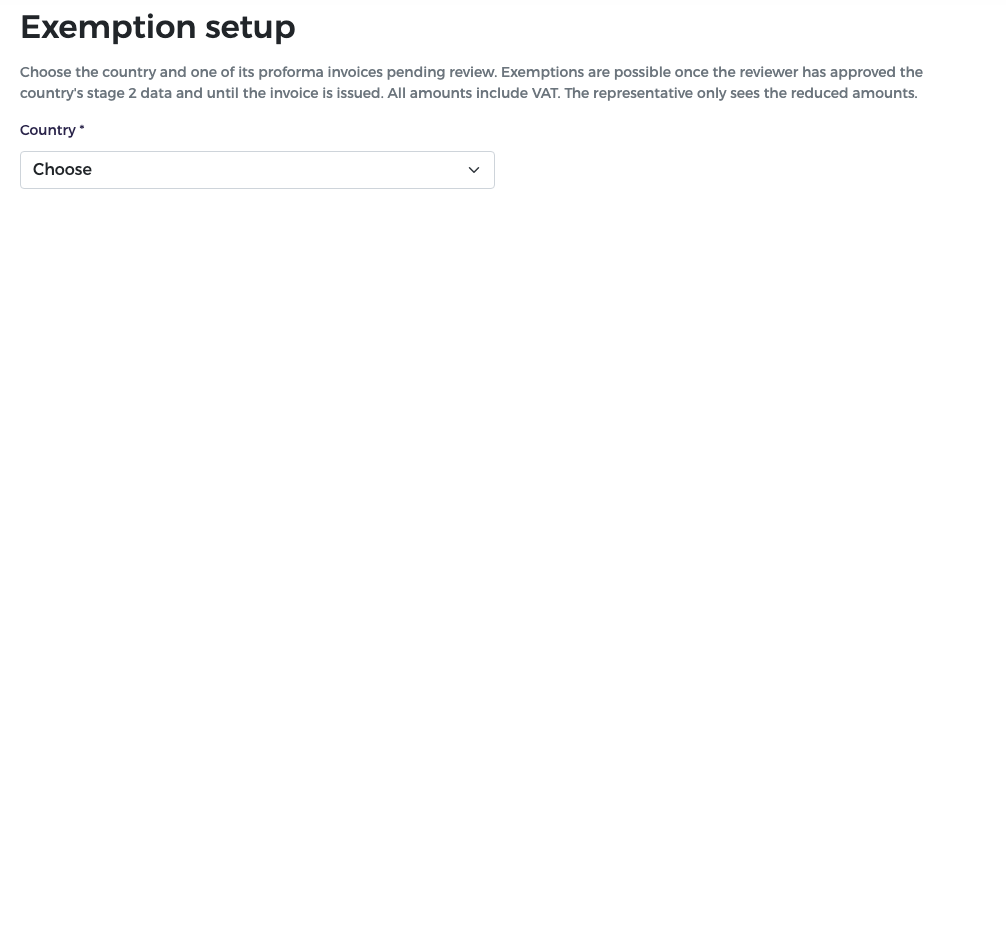
The steps and rules are described in Proforma invoices and exemptions. Remember: exemptions only after the country's stage 2 is approved and before the invoice is issued.
Withdraw a submitted stage
When a representative has submitted a stage and needs to change it, you can withdraw the submission. The form goes back to "saved" so the representative can edit it and submit again.
- In the menu, choose Withdraw submission.
-
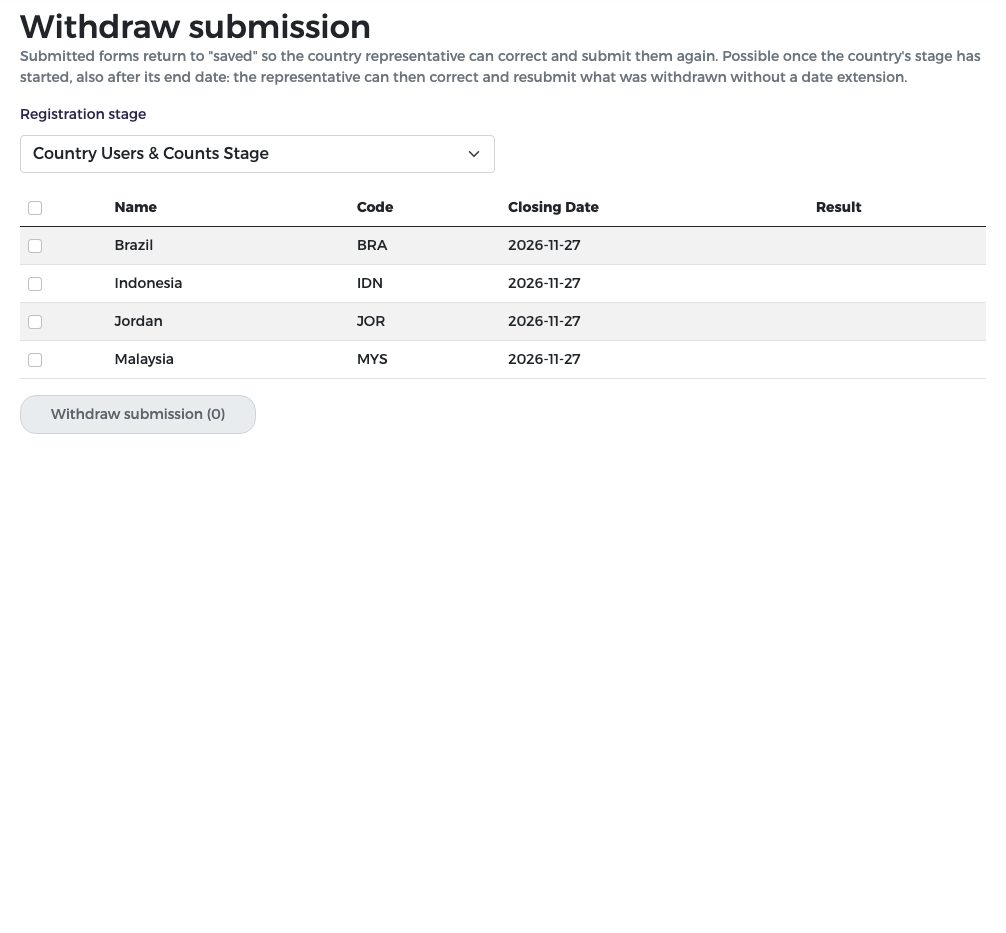
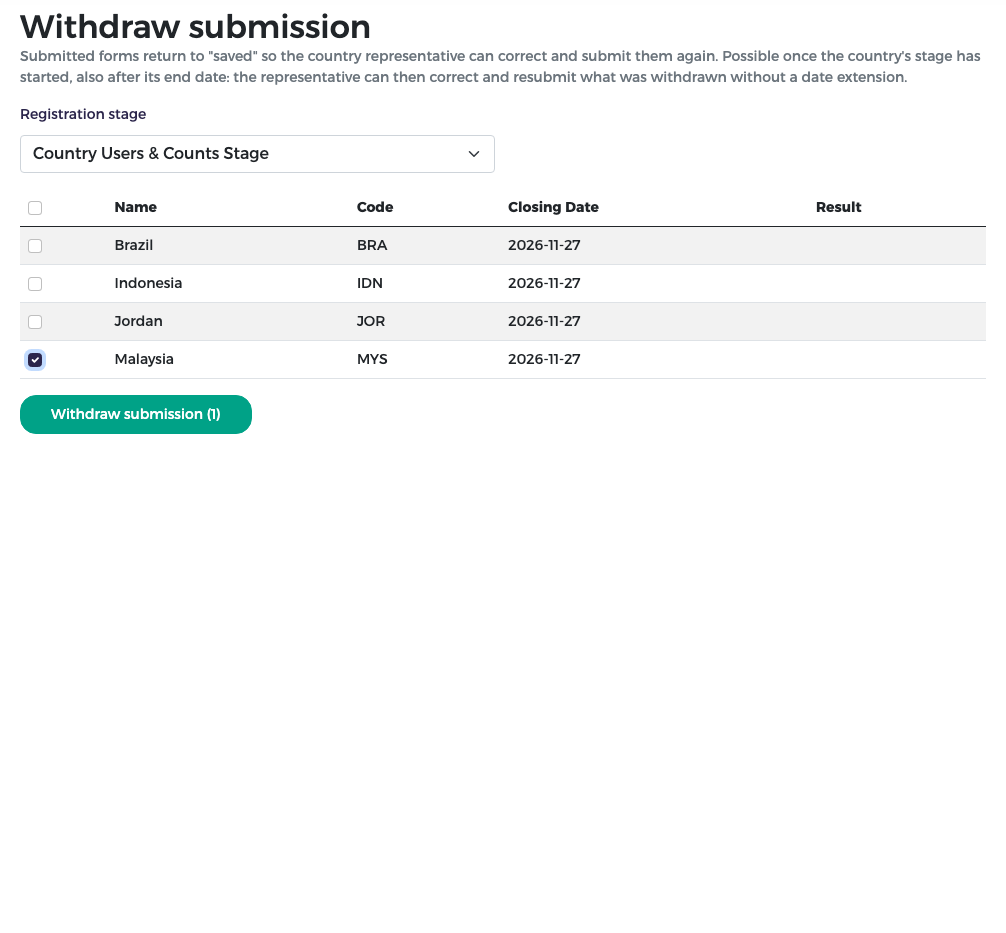
Choose the Registration stage. The list shows the countries that submitted it, with the stage's Closing Date for each.
- For the participants stage, an extra filter lets you choose the participant type (students, leaders, observers or visitors).
-
Tick the country (or several). The button shows how many: Withdraw submission (1).
-
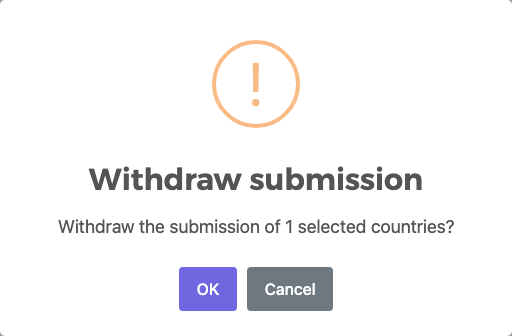
Press it and confirm.
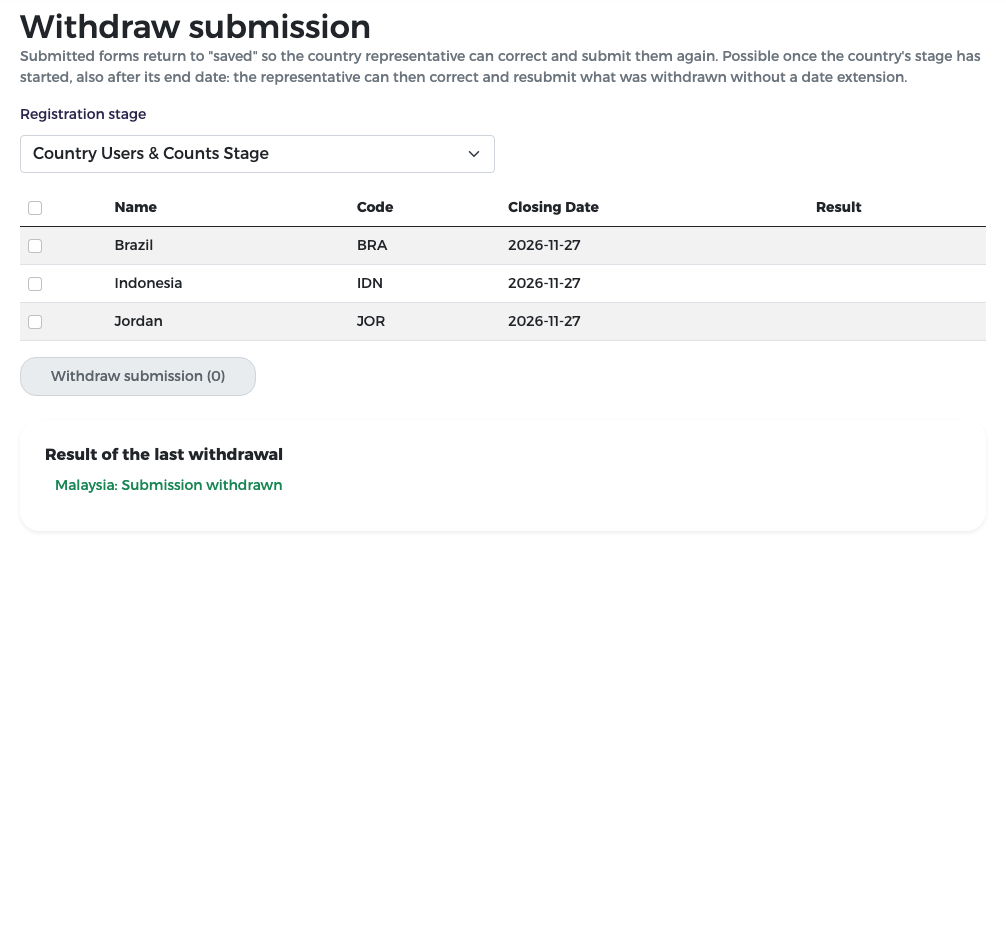
The Result column (and "Result of the last withdrawal") shows what happened for each country. The representative is informed by e-mail.
Also after the stage's end date
As the hint at the top of the screen says, withdrawing is possible once the country's stage has started, also after its end date. It is refused only if the stage is disabled for that country or has not started yet. A country whose stage has ended shows a Registration ended badge in the list.
After the end date, the representative can still correct the withdrawn form (or the withdrawn participants) and submit it again, but cannot add anything new: for example, a new participant, or removing or replacing a participant, still needs the stage to be open. If that is needed, first give the country new dates (see Setup).
What is not touched
For stage 2, participants the reviewer has already approved or returned keep their status; only those still waiting for review go back. Counts, invoices and payments are never changed by a withdrawal.
Withdraw a country
If a country will not take part after all, record its withdrawal. This is different from withdrawing a submission: the whole country is archived.
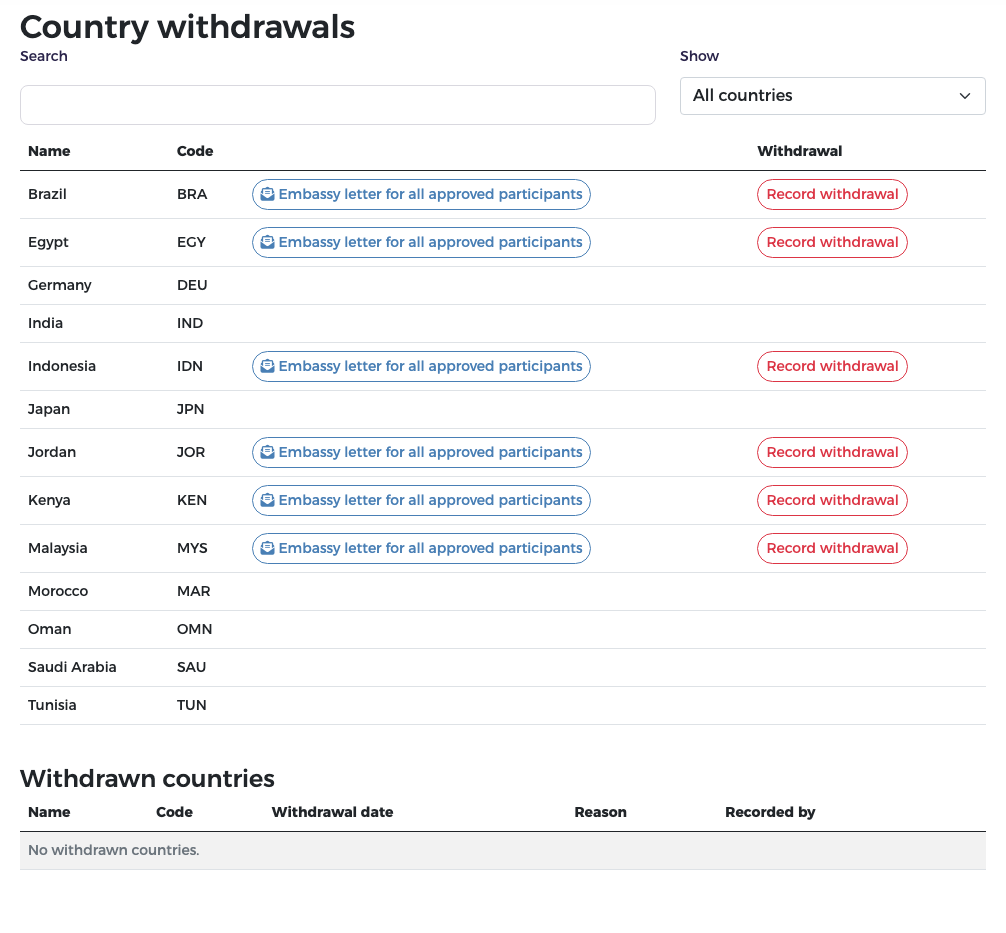
- In the menu, choose Country withdrawals.
-
Find the country and press Record withdrawal.
-
Read the warning, type the Reason and press Record withdrawal.
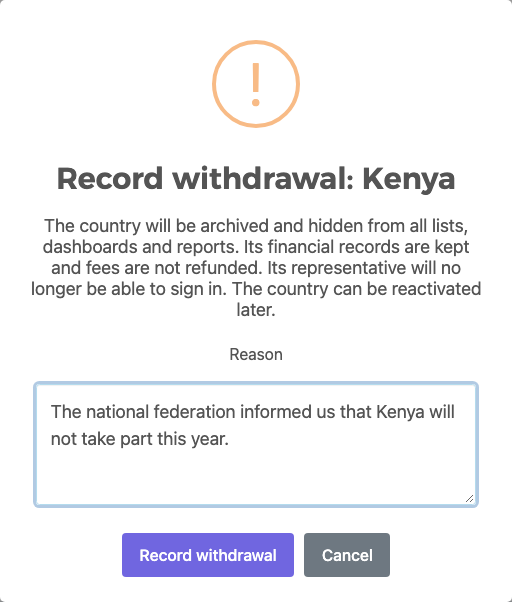
What happens:
- The country is archived and hidden from all lists, dashboards and reports.
- Its representative can no longer sign in.
- Its invoices and payments are kept; fees are not refunded.
- Finance can still include it in the payment reports and finance dashboard with the "include archived" option.
To see withdrawn countries, set Show to Withdrawn countries. Each one shows the withdrawal date, the reason and who recorded it.
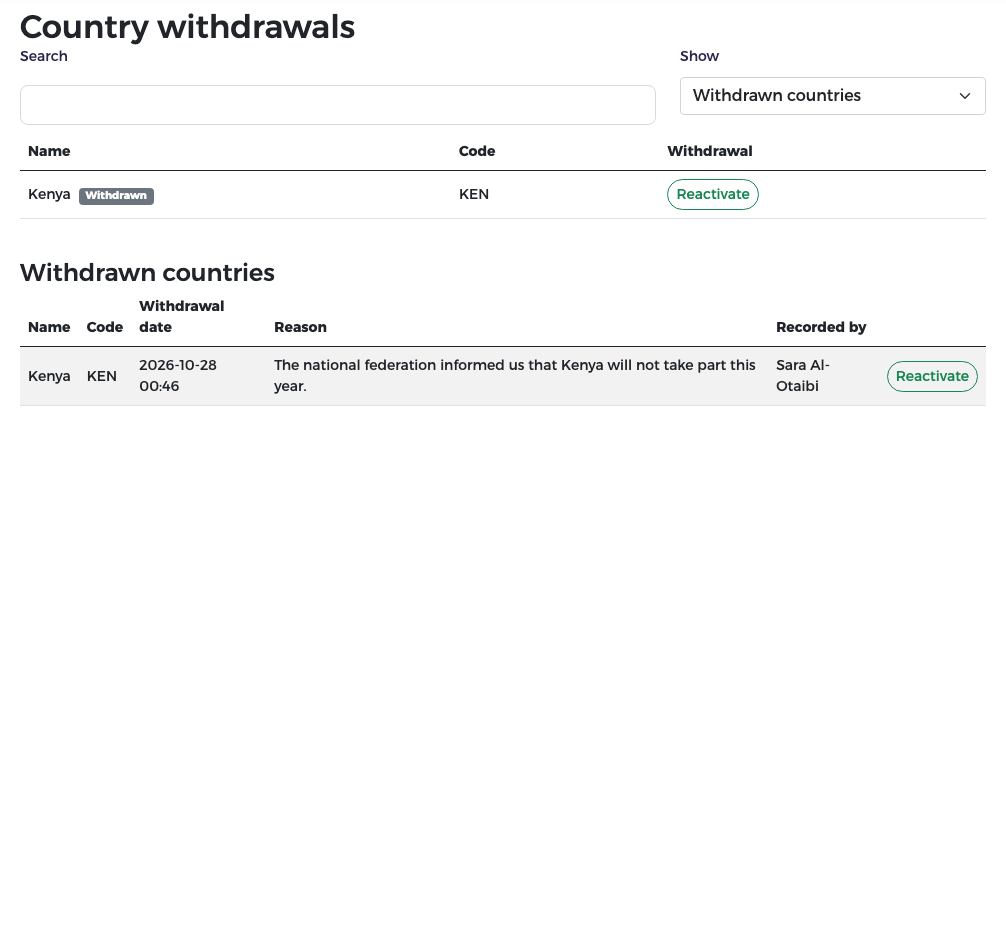
To bring a country back, press Reactivate and confirm. It appears again everywhere with all its previous data.
Other buttons on this page
Embassy letter for all approved participants opens the group letter of the country (see Monitoring). This page has no button for participant codes: to renumber a country's participant codes, use Fix codes on the country page (see Monitoring).