Stage 1 – representative data and participant counts
In stage 1 you tell the organisers who the coordinator is and how many people your country will send. The system uses these numbers to estimate your fees and to prepare the places you will fill in stage 2.
Open the stage
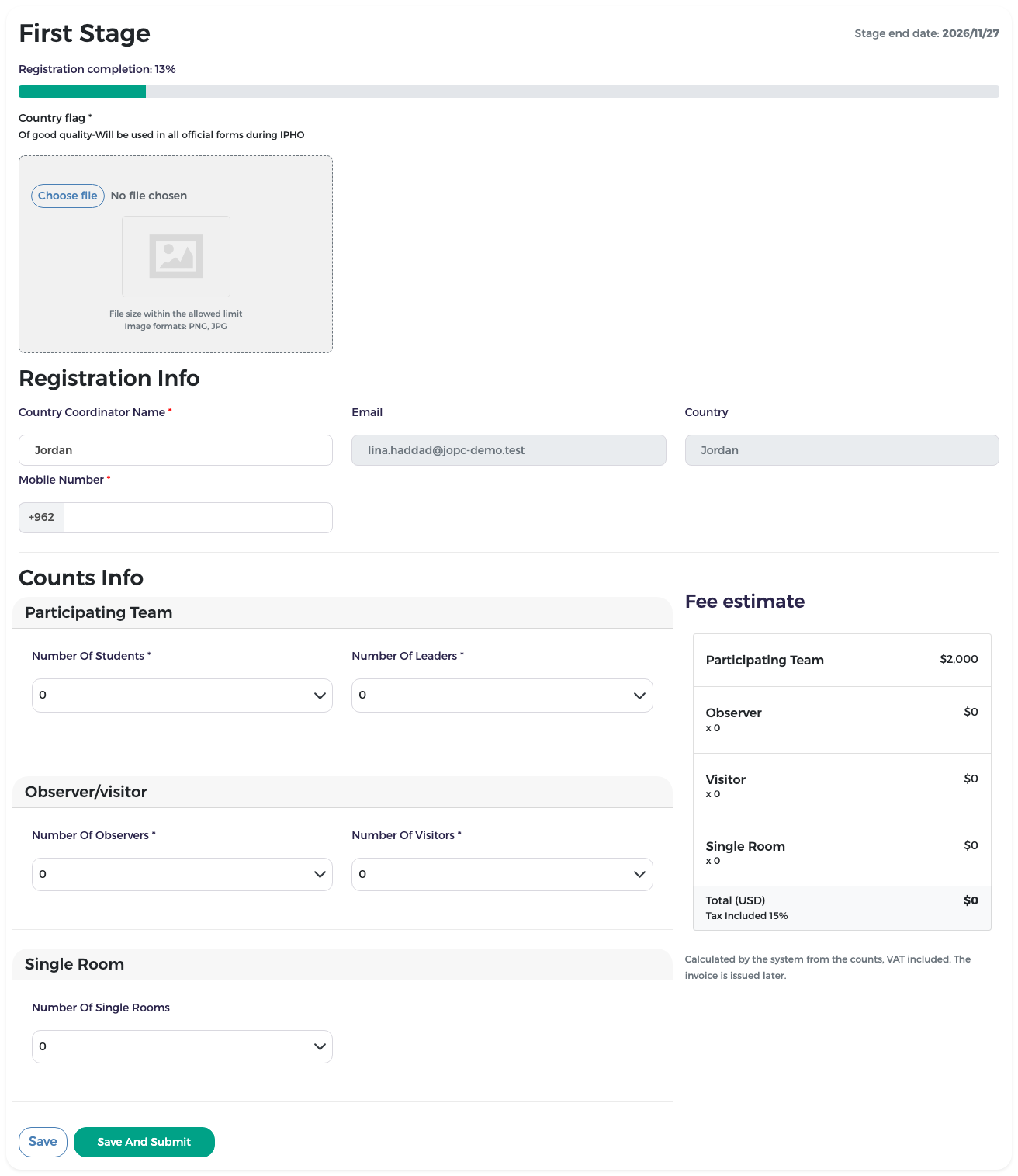
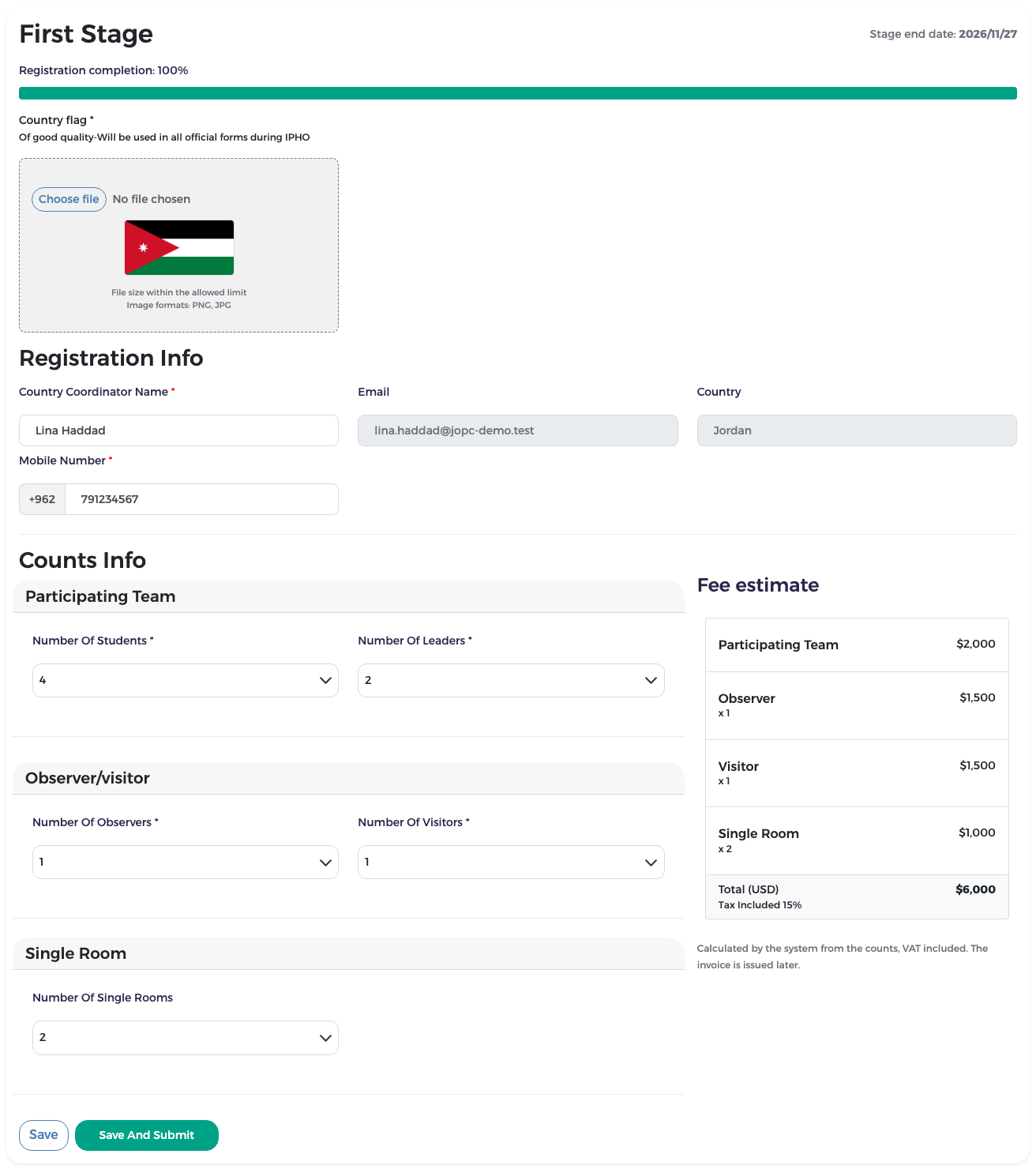
Click the First Stage tile at the top of the page. The page shows:
- Stage end date at the top right: the last day you can fill in and submit this stage;
- Registration completion: how much of the form is filled.
Fill in the form
Country flag
- Under Country flag, click Choose file and pick an image of your flag. Until you do, the box says No file chosen.
- Use a good-quality PNG or JPG image. The flag is used on all official forms during the Olympiad.
- Under the picture, two checks show what the file must meet: File size within the allowed limit and Image formats: PNG, JPG. If the file is refused, choose a smaller file or a PNG or JPG image.
Registration Info
- Country Coordinator Name: the field starts with your country name. Replace it with the full name of the coordinator (for example, Lina Haddad).
- Email and Country come from your account and cannot be changed here.
- Mobile Number: the country code is already filled in (for example +962). Type the rest of the number.
Counts Info
Choose the number of people of each type from the lists.
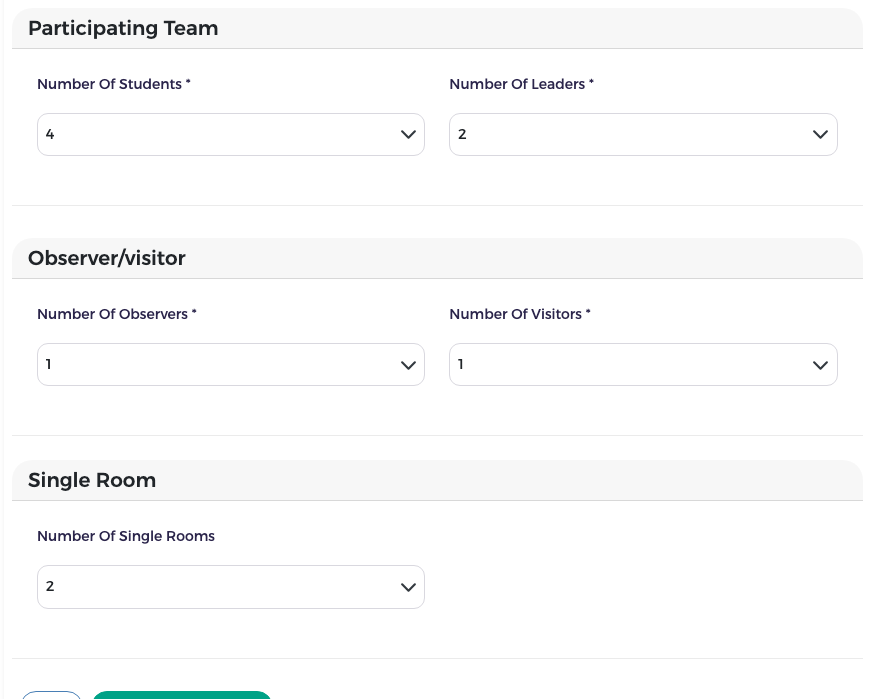
| Section | Field | Allowed numbers |
|---|---|---|
| Participating Team | Number Of Students | 0 to 5 |
| Participating Team | Number Of Leaders | 0 to 2 |
| Observer/visitor | Number Of Observers | 0 to 6 |
| Observer/visitor | Number Of Visitors | 0 to 10 |
| Single Room | Number Of Single Rooms | 0 up to the number of leaders + observers + visitors |
Countries taking part for the first time
A country that has not taken part before can register only observers and visitors. The student and leader fields are not offered.
Single rooms must all be used
Each single room you ask for here must be given to one leader, observer or visitor in stage 2. Students never get a single room. You will not be able to complete stage 2 while a single room is still unassigned, so only ask for the rooms you really need.
Fee estimate
On the right, the Fee estimate box updates as you change the numbers. It shows the price of the team package, of each observer, visitor and single room, and the Total (USD), Tax Included 15%.
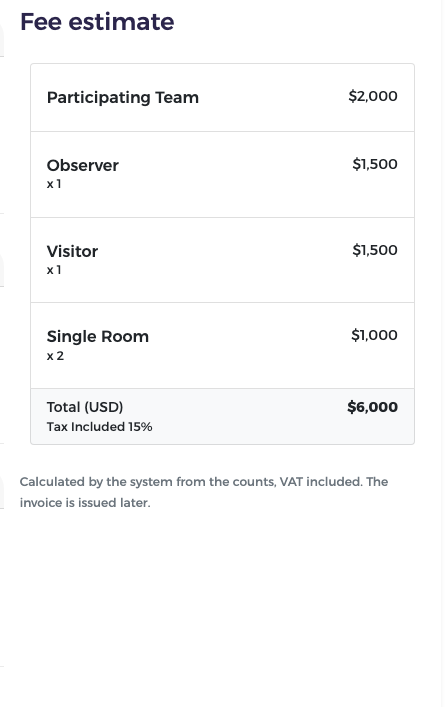
For example, Jordan registered 4 students, 2 leaders, 1 observer, 1 visitor and 2 single rooms. Its estimate was:
| Item | Amount |
|---|---|
| Participating Team (all students and leaders together) | $2,000 |
| Observer × 1 | $1,500 |
| Visitor × 1 | $1,500 |
| Single Room × 2 | $1,000 |
| Total (USD), VAT included | $6,000 |
Note
This is an estimate, calculated by the system from your counts. It is not an invoice and you cannot pay it yet. Your invoices are prepared after stage 2 (see Proforma invoices).
Save or submit
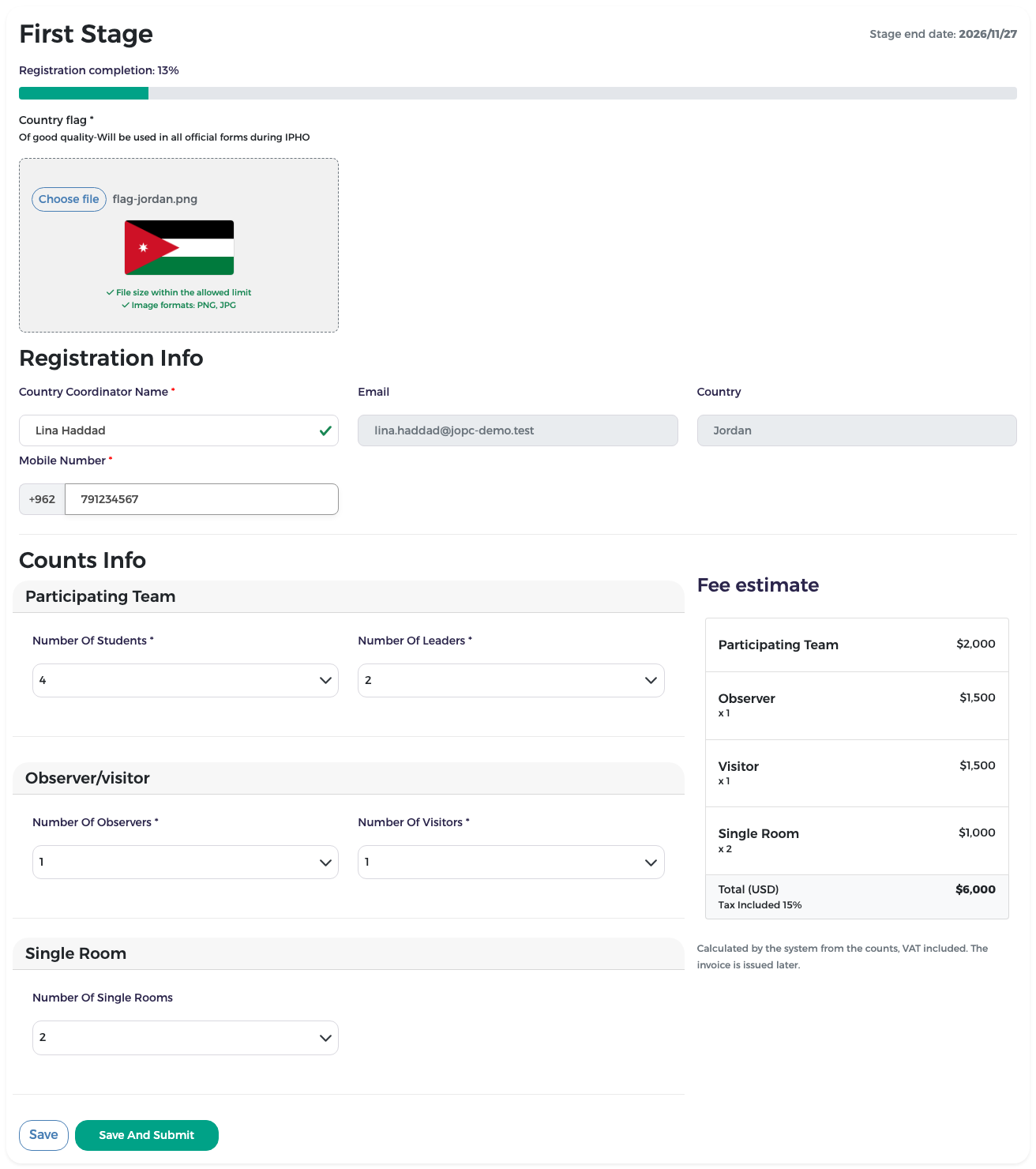
At the bottom of the form there are two buttons:
- Save keeps your work as a draft. Nothing is sent to Mawhiba. You can come back and change it until the stage's end date.
- Save And Submit saves and sends the stage to Mawhiba. After that, the form is locked.
To submit:
- Check every field and number carefully.
- Click Save And Submit.
-
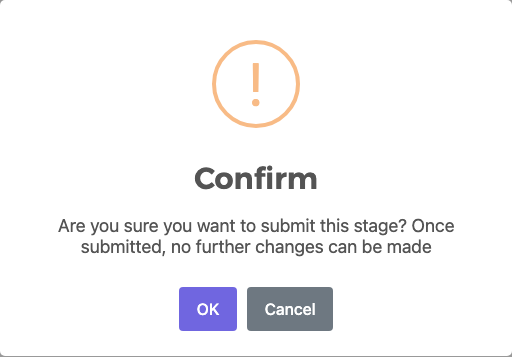
A Confirm window asks: "Are you sure you want to submit this stage? Once submitted, no further changes can be made". Click OK to submit, or Cancel to go back.
-
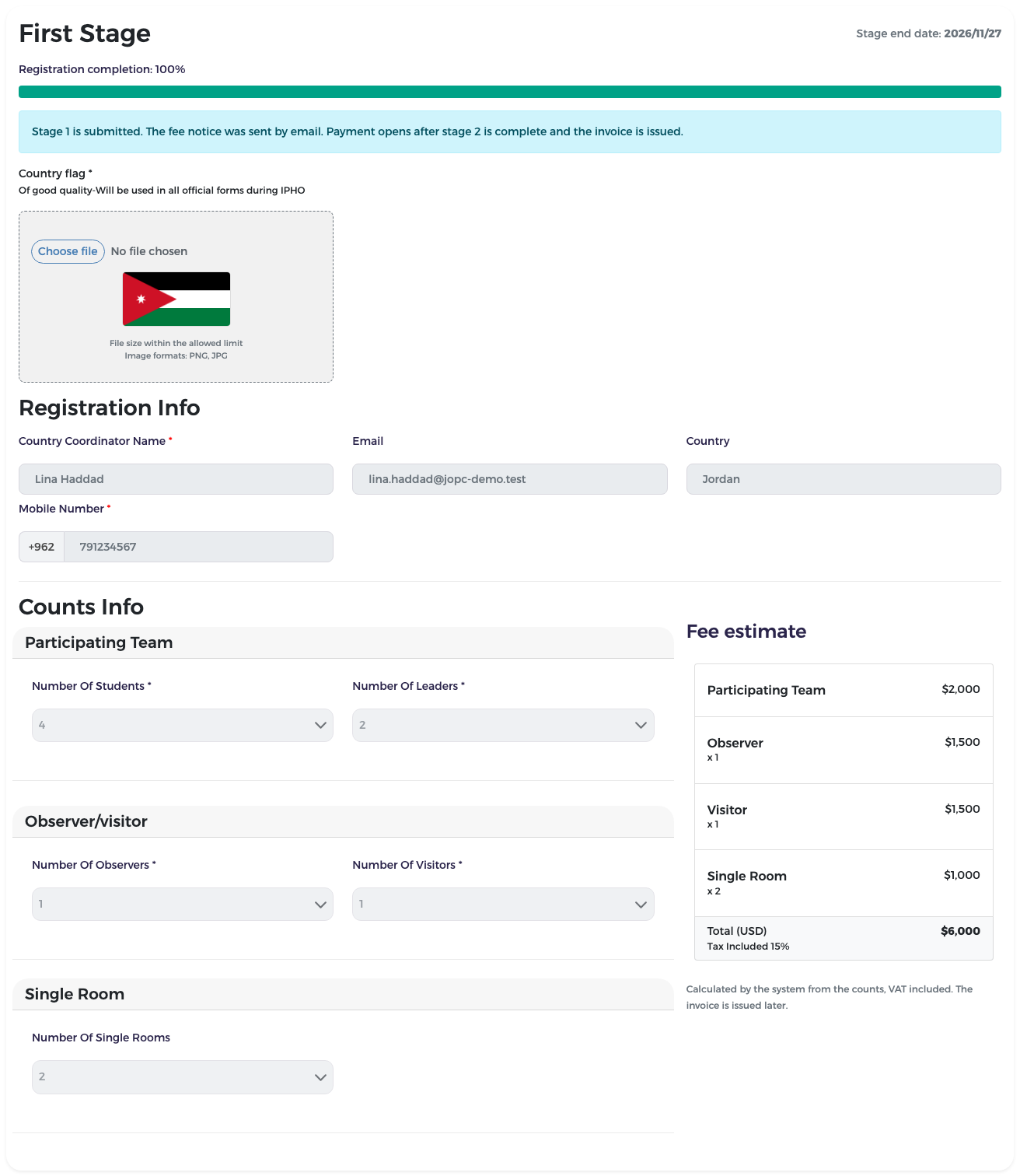
The form is now read-only. A blue note says: "Stage 1 is submitted. The fee notice was sent by email. Payment opens after stage 2 is complete and the invoice is issued."
You also receive an e-mail with the fee notice.
Need to change something after submitting?
You cannot reopen stage 1 yourself. Contact the organisers: an administrator can withdraw your submission, which returns the form to you as a draft. This is possible even after the stage's end date. Once your invoices have been issued, the numbers can stay the same or go down, but they can never go up.
After the stage's end date
After the end date you can no longer fill in or submit stage 1 for the first time, or change a stage you have already submitted. A yellow note at the top of the form explains this.
If the administrator withdraws your submission, you can still correct the form and submit it again, even after the end date. The yellow note then tells you that your submission was withdrawn for correction. Make your changes and click Save And Submit. Once resubmitted, the form is locked again.
What you see on the dashboard now
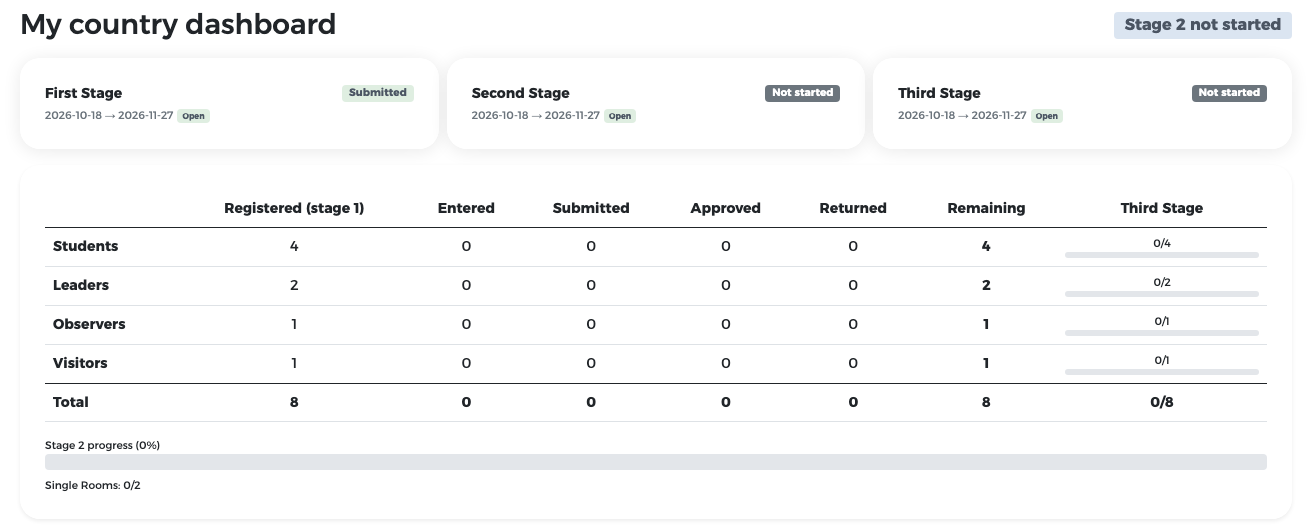
On My country dashboard, the First Stage card shows Submitted and the badge reads Stage 2 not started. The table lists, for each type, the number registered in stage 1 and how many remain to be entered in stage 2. Single Rooms: 0/2 means that none of the 2 single rooms is assigned yet.
Next step: Stage 2 – participants.