Getting started
This page is for everyone who uses the system. It explains how to get into the system for the first time, how to sign in and out, how to manage your password and how to change the language.
Two portals
The system has two separate entrances (portals). Use the link you received by e-mail.
| Portal | Who uses it | What you type in User Name |
|---|---|---|
| Country portal | Country representatives | The three-letter code of your country, for example JOR for Jordan |
| Administration portal | Mawhiba staff: administrators, reviewers, finance and receptionists | Your work e-mail address |
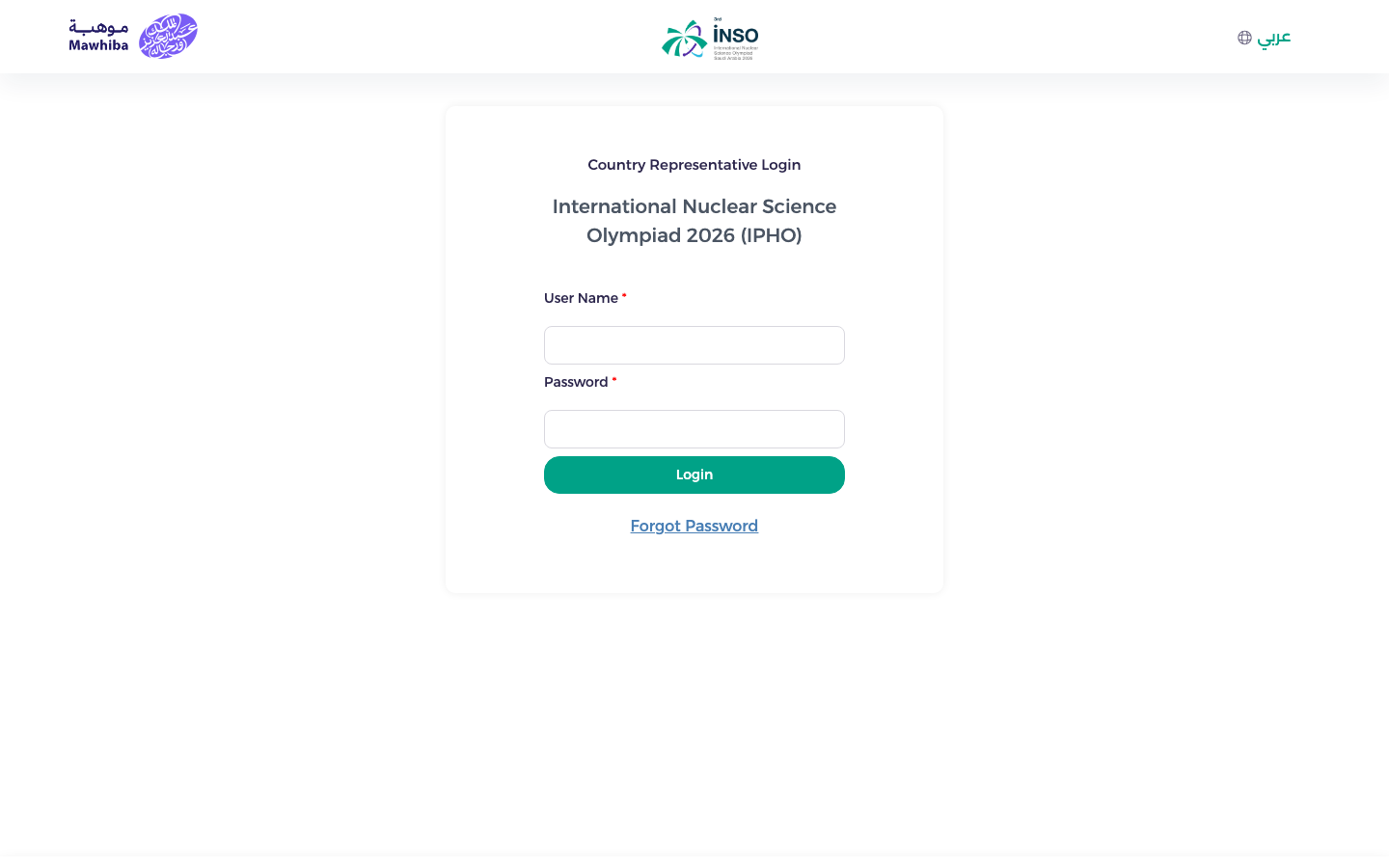
Both login pages look the same. The country portal says Country Representative Login at the top.
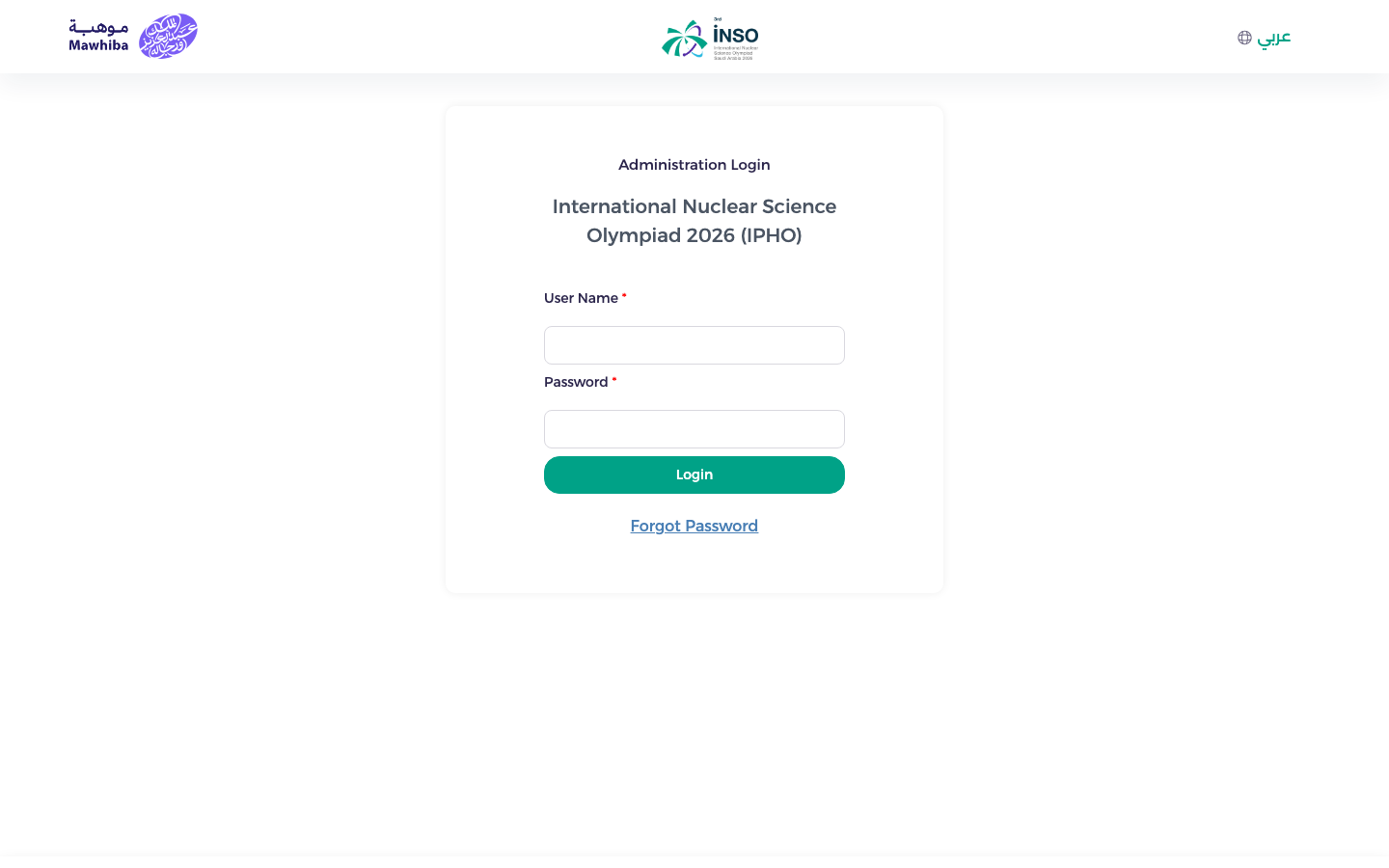
The administration portal is used by Mawhiba staff. It says Administration Login at the top. Staff type their e-mail address as the user name.
Tip
Save the link of your portal as a bookmark in your browser. Representatives cannot sign in on the administration portal, and staff cannot sign in on the country portal.
First sign-in: set your password
You do not receive a password by e-mail. Instead, when your account is created you receive a welcome e-mail with a link to set your own password.
- Country representatives receive an e-mail titled "Your IPhO 2026 account". It shows your user name (your country code) and a link Click here to set your password.
- Staff receive a similar "Your IPHO account" e-mail with a set-password link.
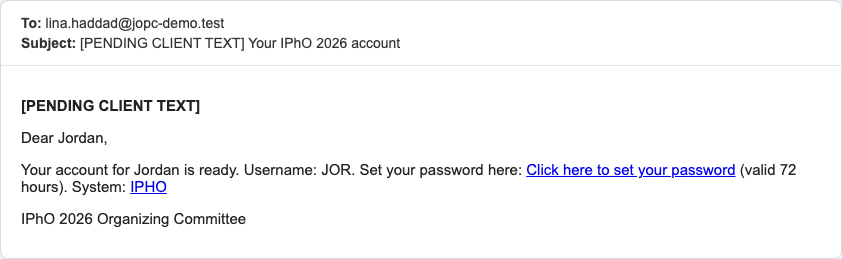
To set your password:
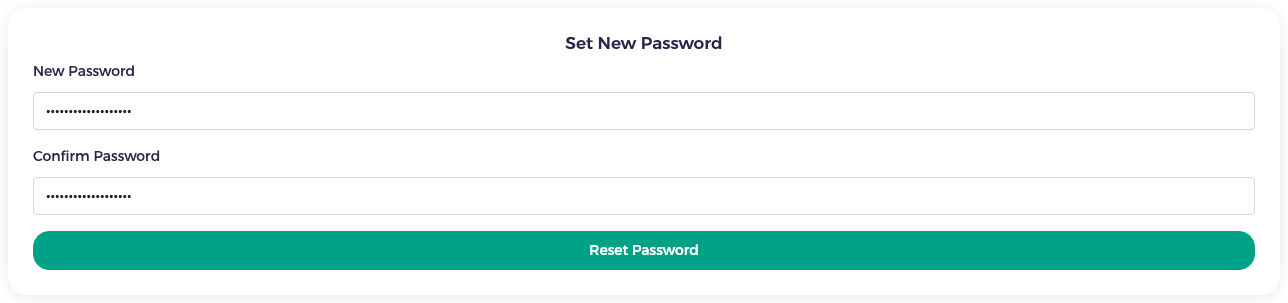
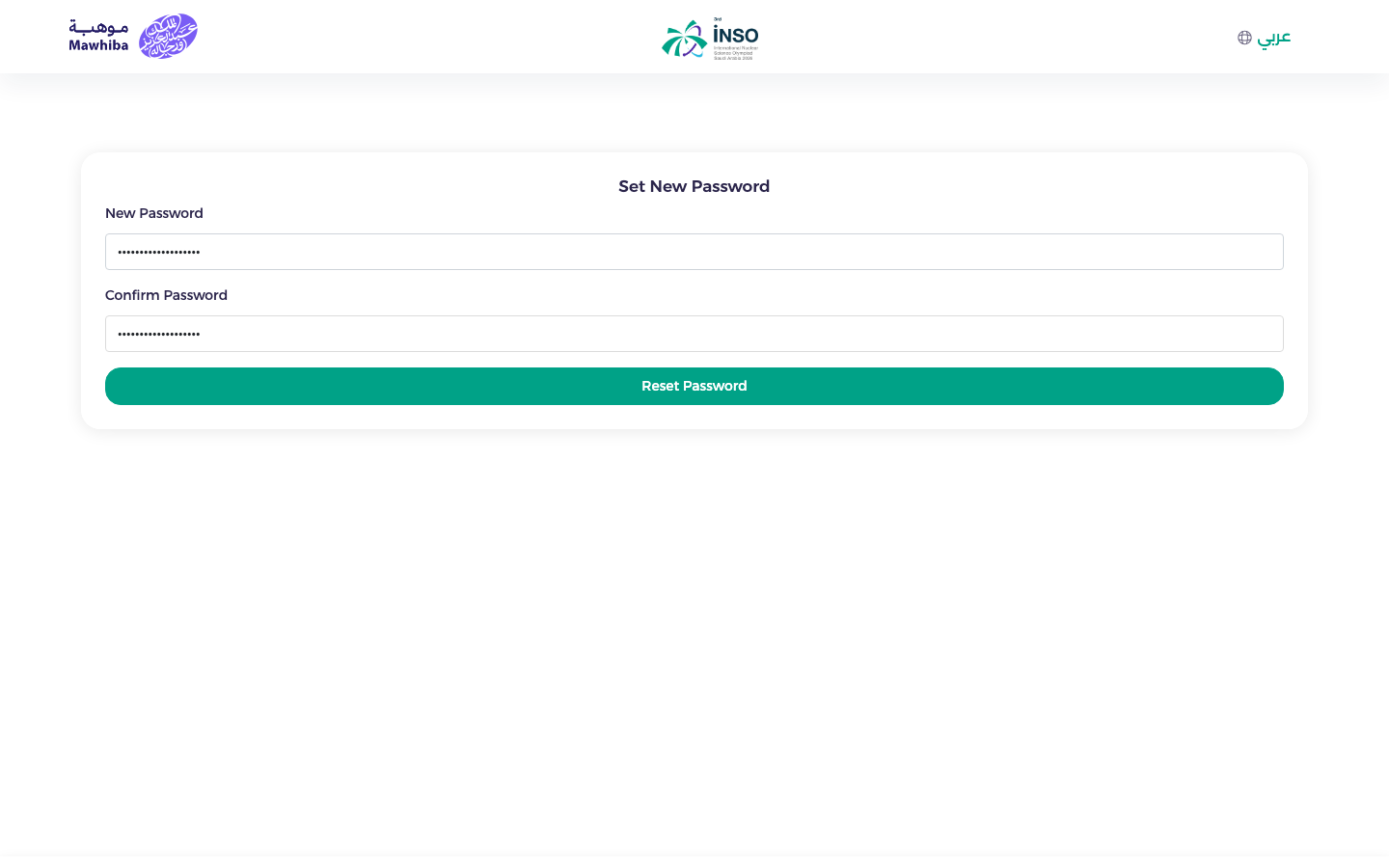
- Open the welcome e-mail and click Click here to set your password. The link opens the Set New Password page.
- Type your new password in New Password.
- Type the same password again in Confirm Password.
- Click Reset Password.
- Go to the login page of your portal and sign in with your user name and the new password.
The link works once, for 72 hours
The link in the e-mail is valid for 72 hours and can be used only once. If it has expired, ask for a new one with Forgot Password (see below) or ask the administrator to send the account again.
Sign in
- Open the login page of your portal.
- In User Name, type your country code (representatives) or your e-mail address (staff).
- In Password, type your password.
- Click Login.
Representatives land on My country dashboard. Staff land on the first page of their menu (for example, finance users land on the finance dashboard).
Switch the language
The system works in English and Arabic. The language link is at the top of every page, next to the globe icon:
- In English, the link reads عربي. Click it to switch to Arabic.
- In Arabic, the link reads English. Click it to switch back.
The whole page changes direction: Arabic pages read from right to left.

Note
Names, addresses and passport data you type are kept as you typed them. They are not translated.
Forgot your password?
- On the login page, click Forgot Password.
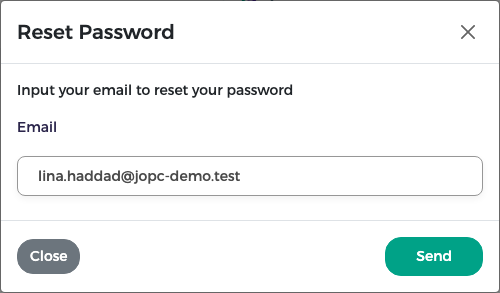
- The Reset Password window opens. Type the e-mail address of your account in Email.
-
Click Send.
-
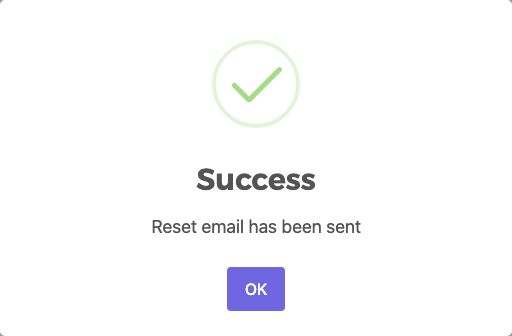
A Success message says Reset email has been sent. Click OK.
-
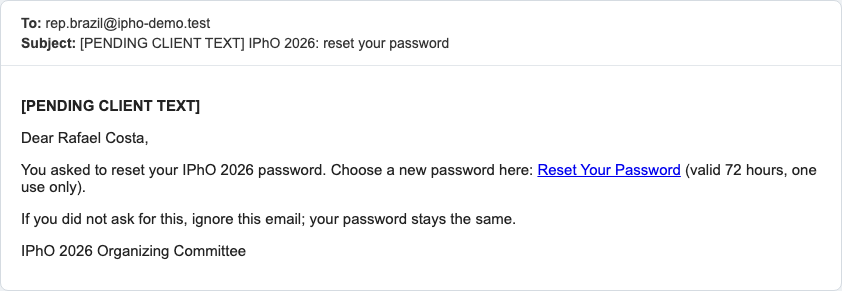
Open the e-mail "IPhO 2026: reset your password" and click Reset Your Password. The link is valid for 72 hours and works once. If you did not ask for a reset, ignore the e-mail: your password stays the same.
-
On the Set New Password page, type the new password twice and click Reset Password.
-
Sign in with the new password.
If the link does not work
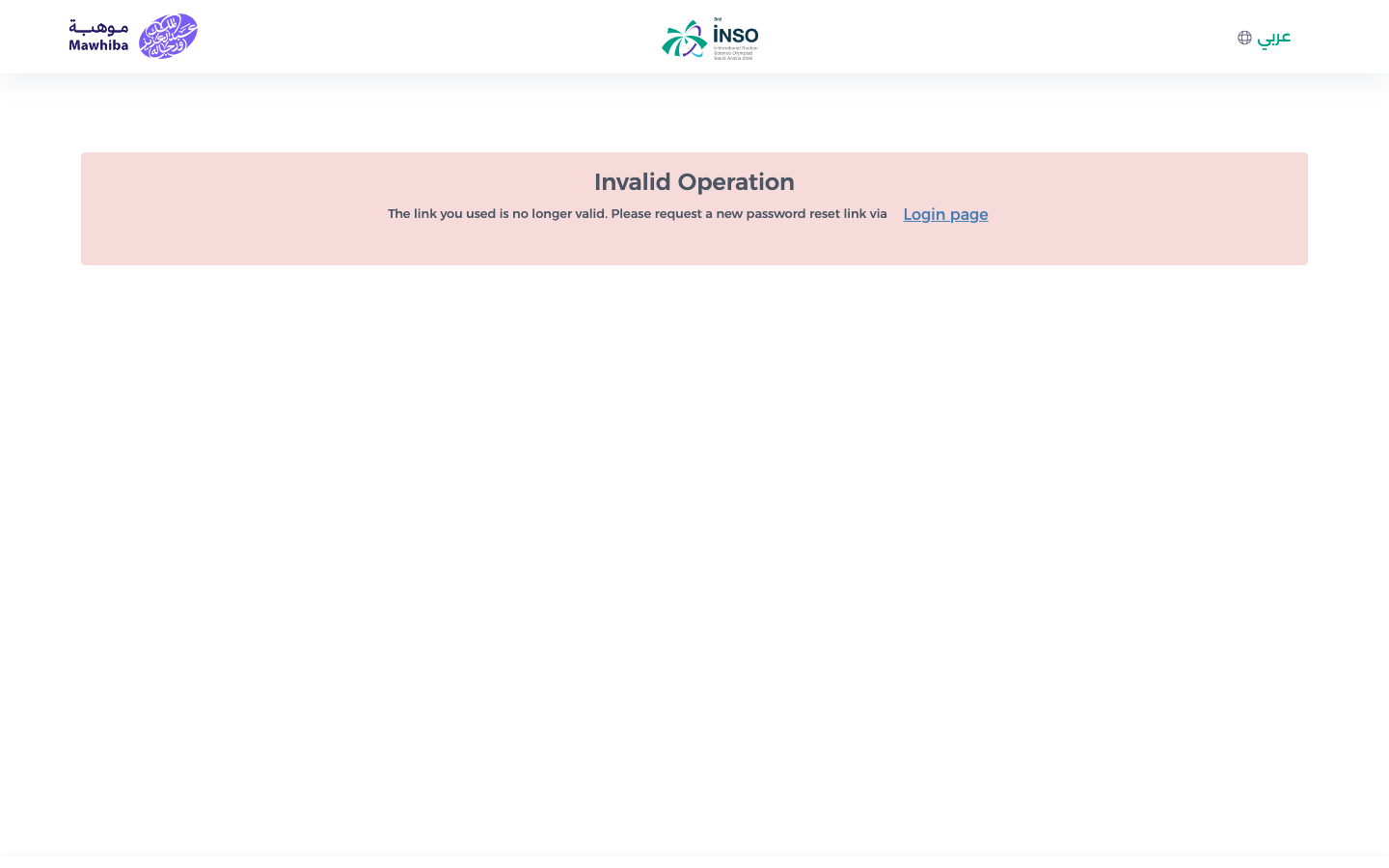
If you open a link that has expired or has already been used, the page shows Invalid Operation and the text "The link you used is no longer valid". Click Login page and ask for a new link with Forgot Password.
Tip
If you asked for several links, use the one in the newest e-mail.
Your user menu
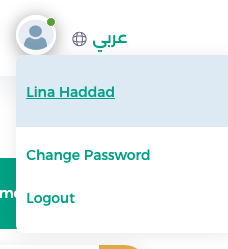
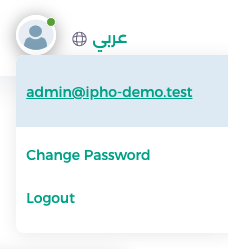
Click the round avatar at the top of the page to open your user menu. It shows:
- your name (representatives see the coordinator's name entered in stage 1; staff see their e-mail address);
- Change Password;
- Logout.
Change your password
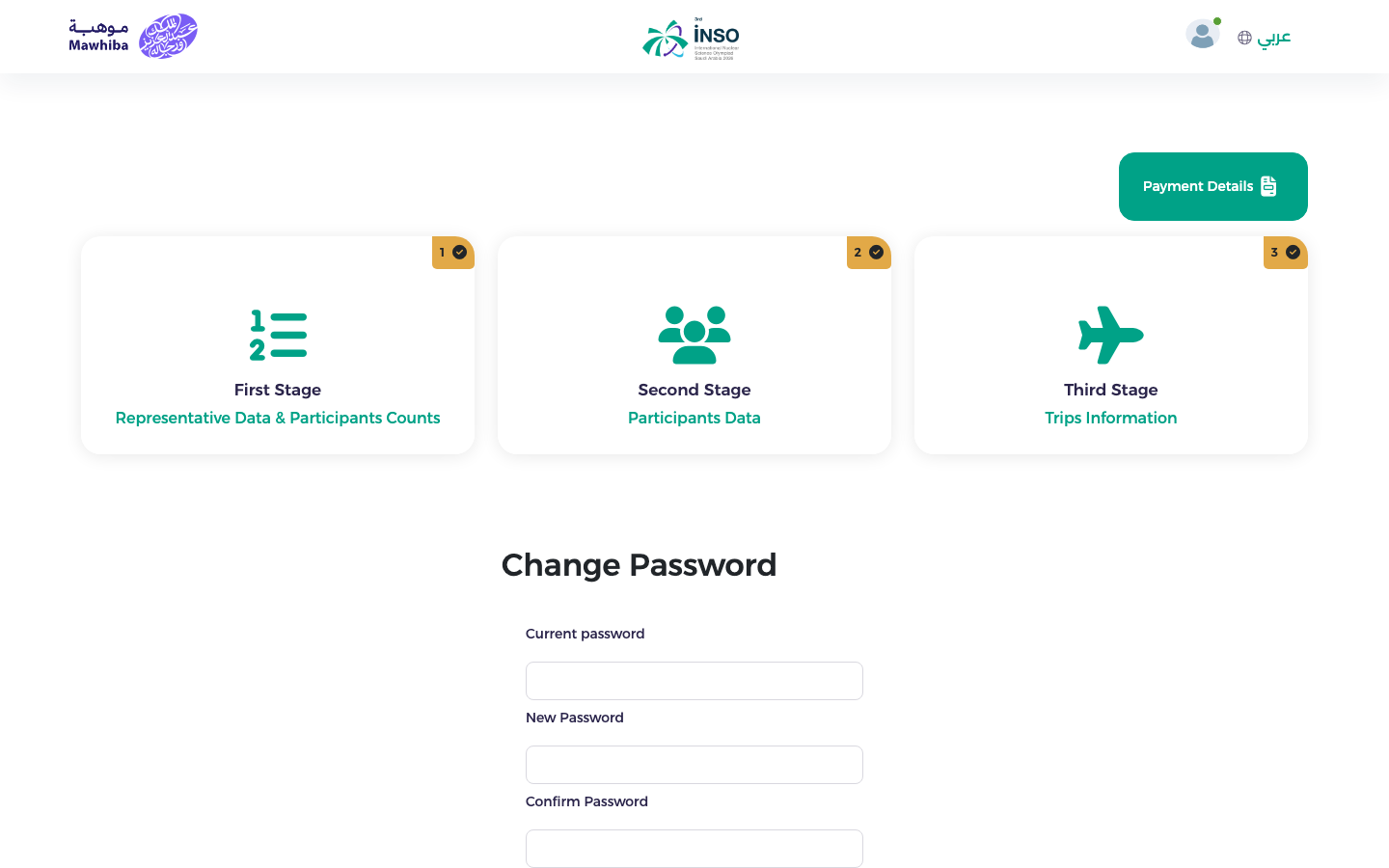
- Open the user menu and click Change Password. The Change Password page opens.
- Type your Current password.
- Type the new password in New Password and again in Confirm Password.
- Click Change Password.
Sign out
Open the user menu and click Logout. Always sign out when you use a shared computer.
Using the system on a phone
The system works in the browser of a phone or tablet. There is nothing to install.
-
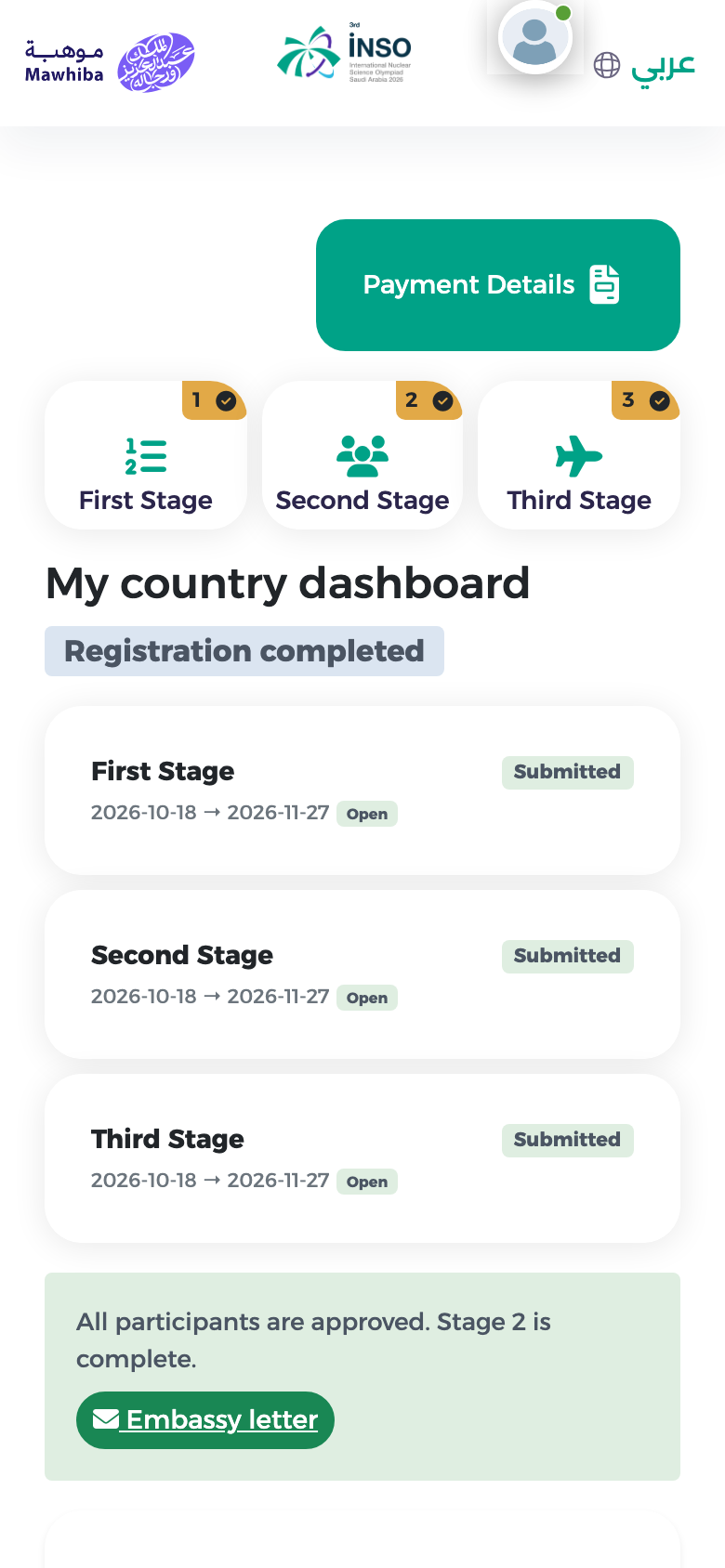
Representatives: the three stage tiles become a compact row at the top. The Payment Details button stays above them. Scroll down to see the dashboard.
-
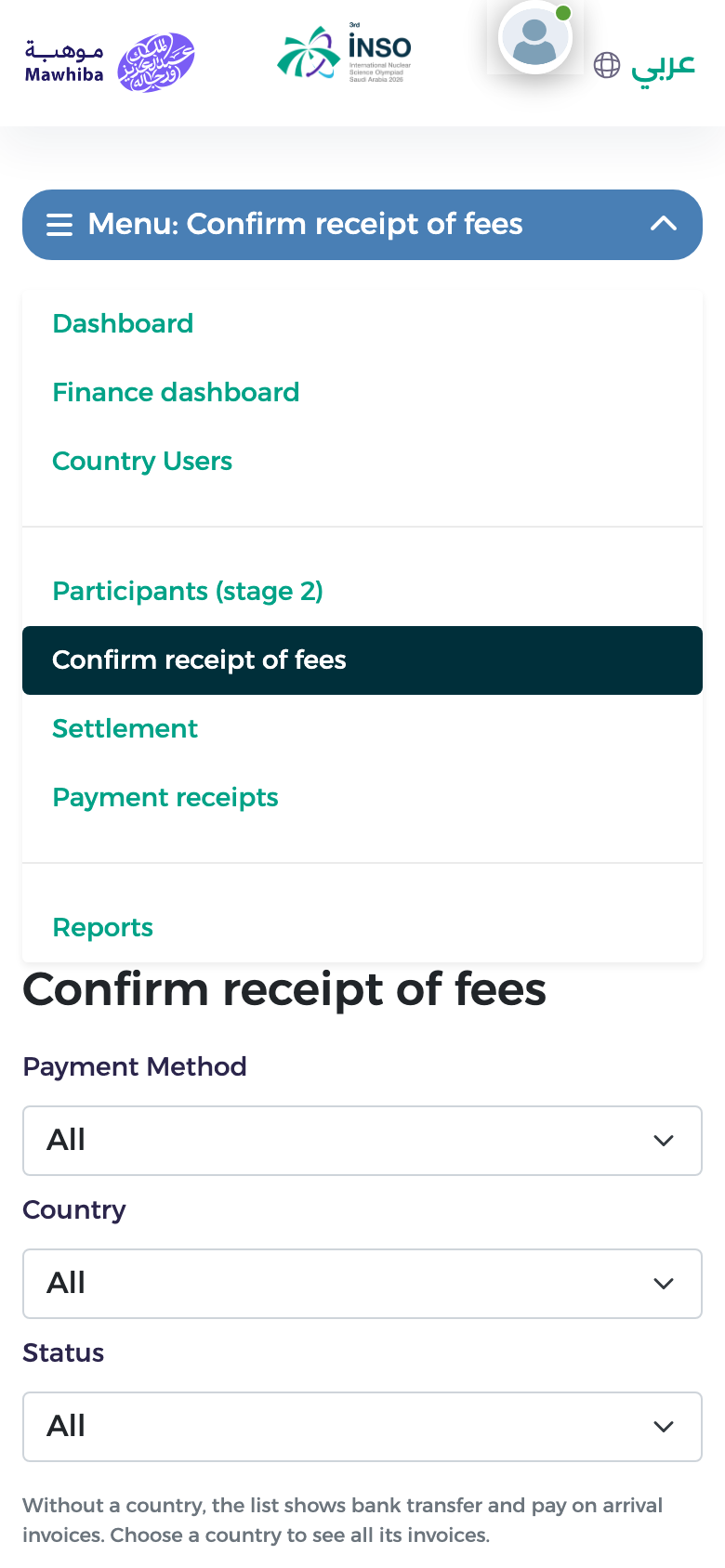
Staff: the side menu is folded behind a button that reads Menu: followed by the name of the current page. Tap it to open the menu, then tap a page.
Tip
Forms with many fields (participants, invoices) are easier to fill on a computer. On a phone, check that you have uploaded the files before you submit.