Stage 2 – participant data
In stage 2 you enter the personal and passport data of every person you registered in stage 1. Each participant is submitted on their own and checked by the Mawhiba reviewer. Stage 2 opens after you submit stage 1.
Open the stage
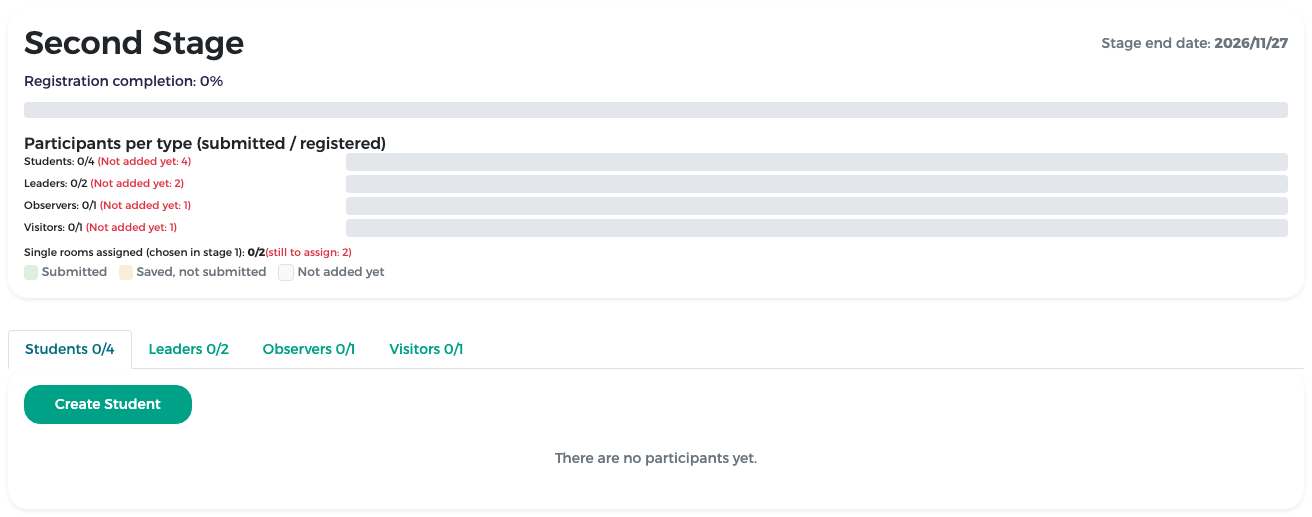
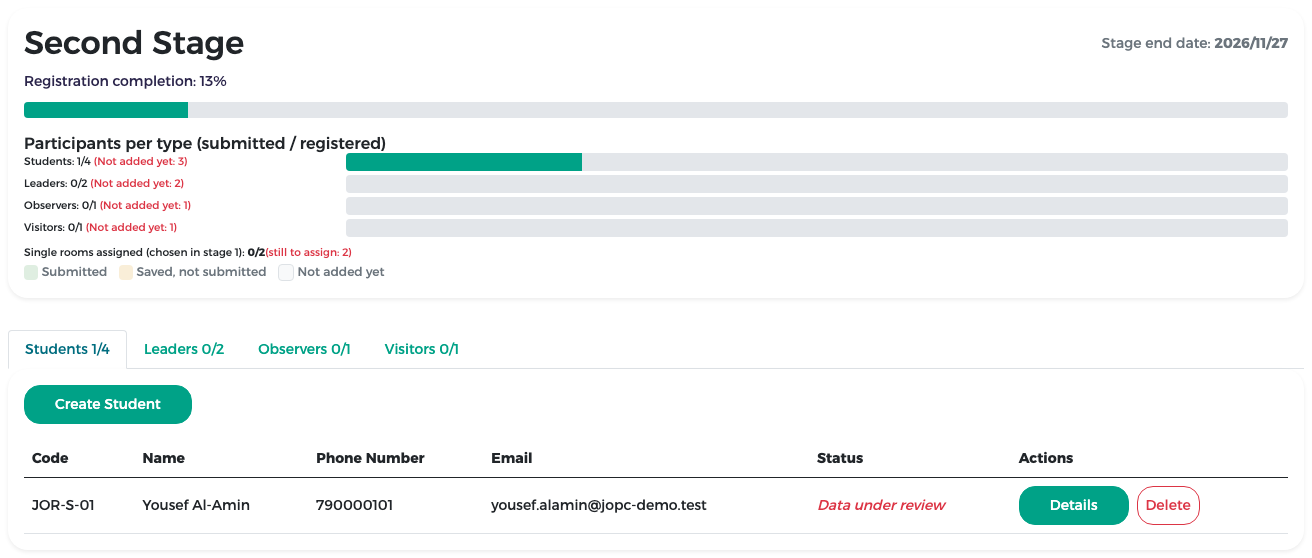
Click the Second Stage tile. The top of the page shows your progress:
- Registration completion: the share of participants already submitted.
- Participants per type (submitted / registered): one bar per type. Not added yet in red tells you how many people of that type you still have to create.
- Single rooms assigned (chosen in stage 1): for example 0/2 (still to assign: 2).
- The colour legend: green = Submitted, amber = Saved, not submitted, grey = Not added yet.
Below are four tabs, one per type: Students, Leaders, Observers and Visitors. Each tab shows how many are submitted out of the number registered (for example Students 0/4).
Note
You cannot add more people of a type than you registered in stage 1. If the Create button is missing on a tab, all places of that type are already used.
Add a participant
- Open the tab of the type you want (for example Students).
-
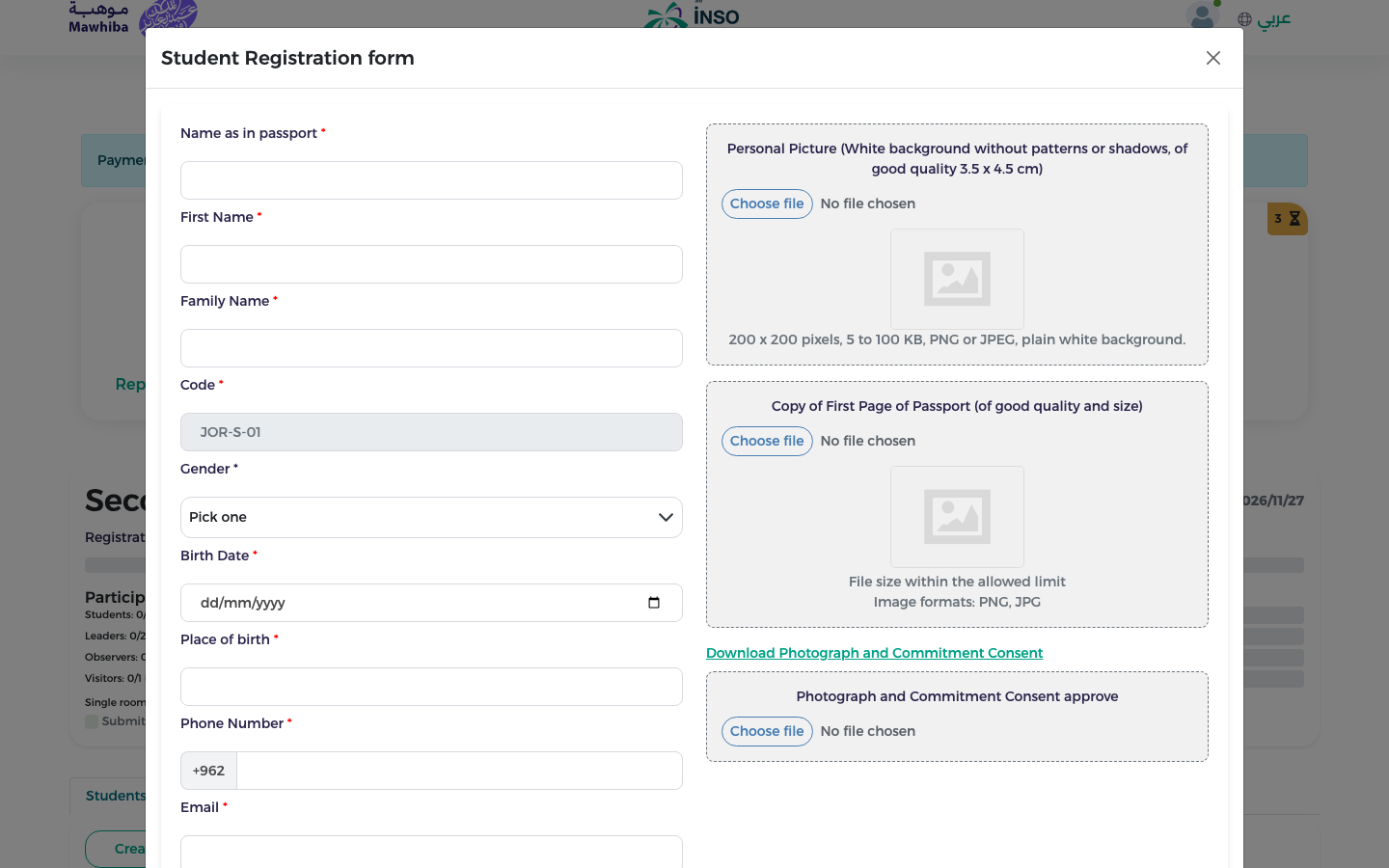
Click the create button (for example Create Student). The registration form opens. The Code (for example JOR-S-01) is filled in by the system.
-
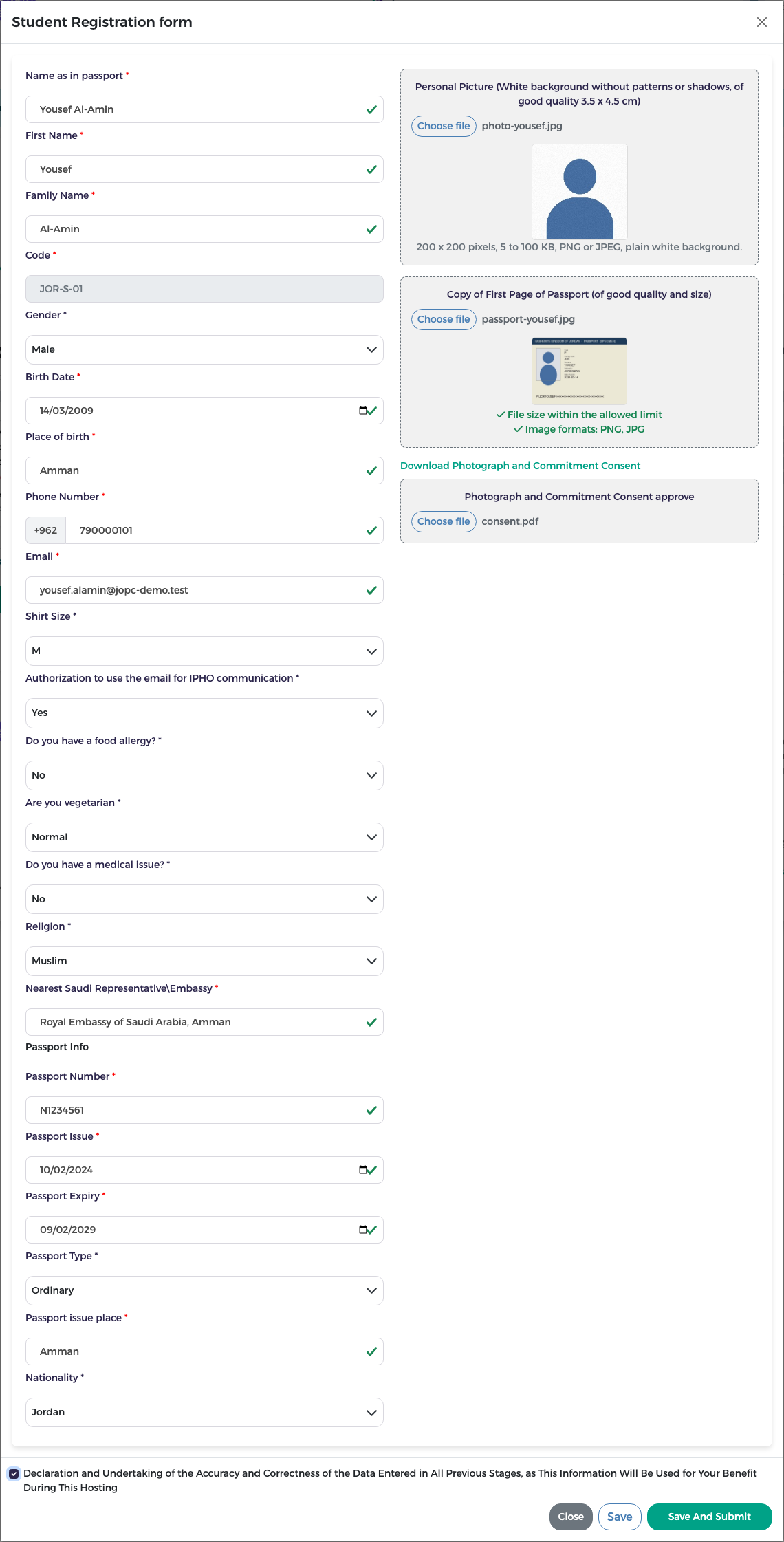
Fill in all fields marked with a red star. Type names exactly as they appear in the passport.
- Name as in passport, First Name, Family Name
- Gender, Birth Date, Place of birth
- Phone Number (the country code is already filled in) and Email
- Shirt Size and Authorization to use the email for IPHO communication
- Do you have a food allergy? (if Yes, describe it), Are you vegetarian, Do you have a medical issue?
- Religion
- Nearest Saudi Representative\Embassy: the Saudi embassy or consulate where the person will apply for the visa
- Passport Info: Passport Number, Passport Issue (date), Passport Expiry, Passport Type (Ordinary or Diplomatic), Passport issue place, Nationality
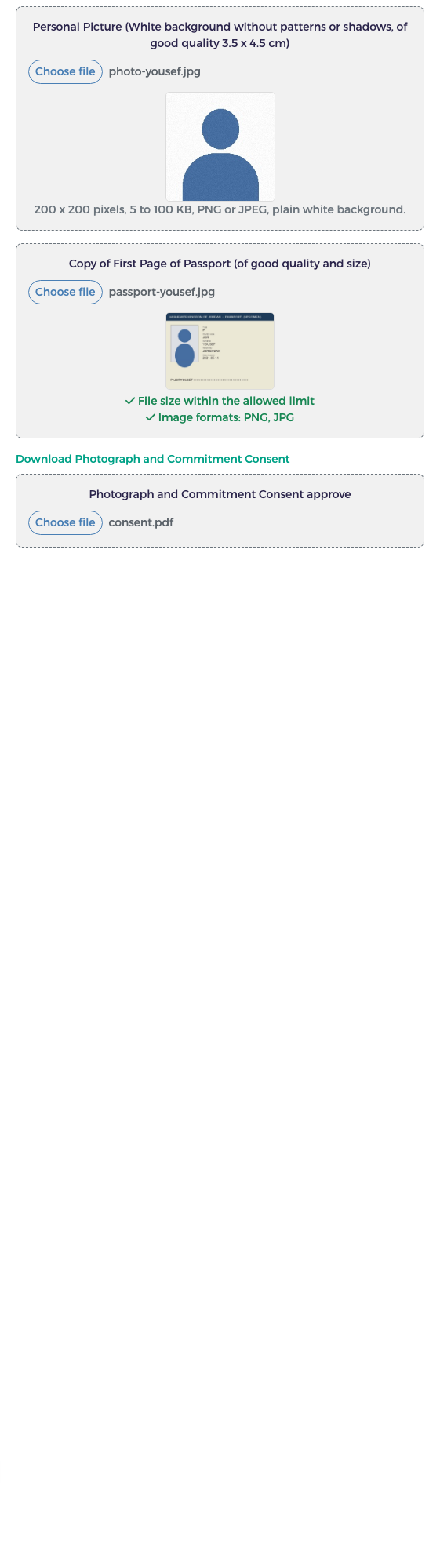
- Upload the files on the right (see below). For each file, click Choose file and pick the file; the name of the chosen file appears next to the button (until then it says No file chosen).
- Click Save to keep a draft, or tick the declaration and click Save And Submit (see the next sections).
The files to upload
| File | Requirements |
|---|---|
| Personal Picture | Plain white background, no patterns or shadows. 200 × 200 pixels, 5 to 100 KB, PNG or JPEG. |
| Copy of First Page of Passport | A clear colour scan of the photo page, PNG or JPG. Two checks under the image (file size and format) must turn green. |
| Photograph and Commitment Consent approve | First click Download Photograph and Commitment Consent, have the form signed, then upload the signed file here. |
If a file is refused
Look at the checks under the file. If File size within the allowed limit is not green, compress the file or scan it again at a lower quality. If Image formats: PNG, JPG is not green, save the scan as a PNG or JPG image.
Leaders, observers and visitors
The forms for leaders, observers and visitors have two extra fields:
- Prefix (for example Dr);
- Room Type: Single or Double. Choose Single for each person who gets one of the single rooms you asked for in stage 1.
Students have neither field: students always share rooms.
The main supervisor (leaders only)
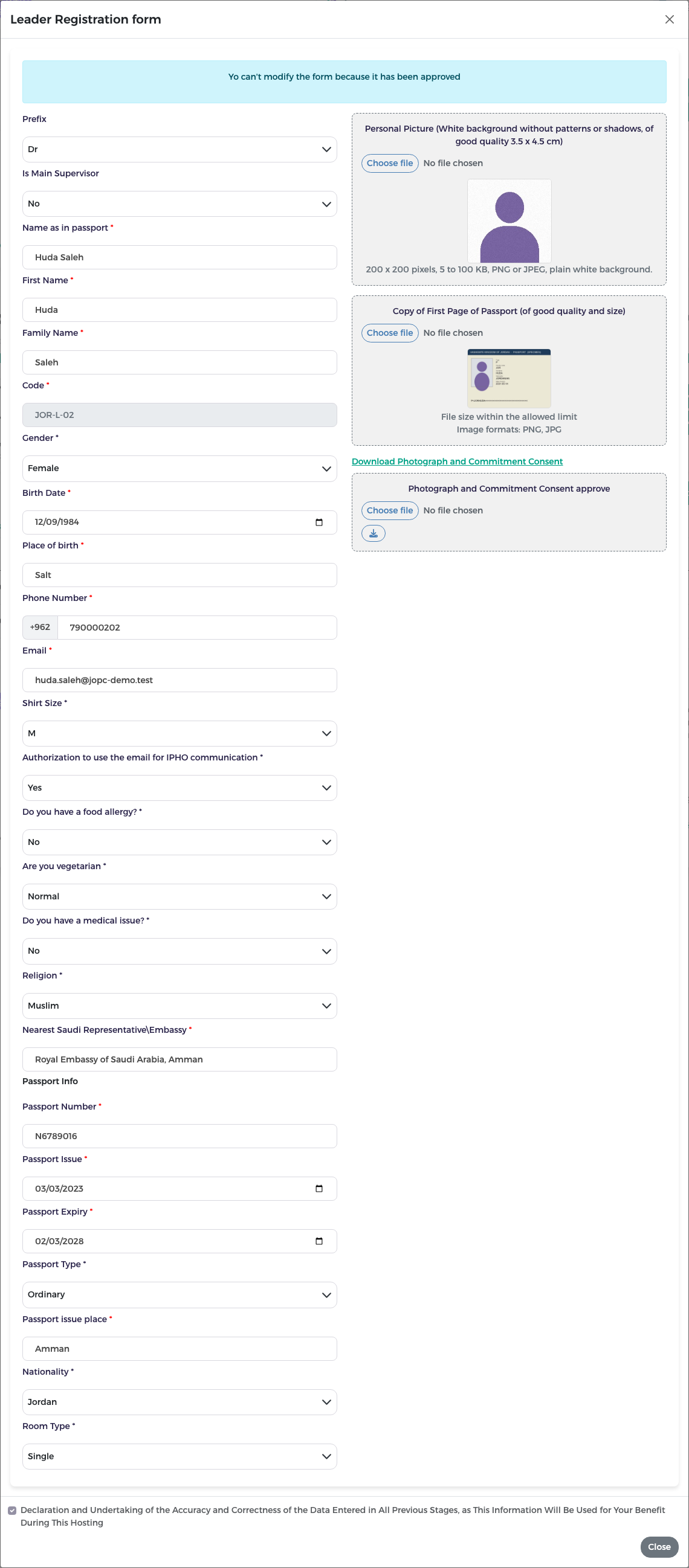
The leader form also has the field Is Main Supervisor (Yes or No). Choose Yes for the leader who is the main supervisor of your team.
- Only one leader per country can be the main supervisor.
- To make another leader the main supervisor, first open the current main supervisor and set Is Main Supervisor to No, then set the other leader to Yes.
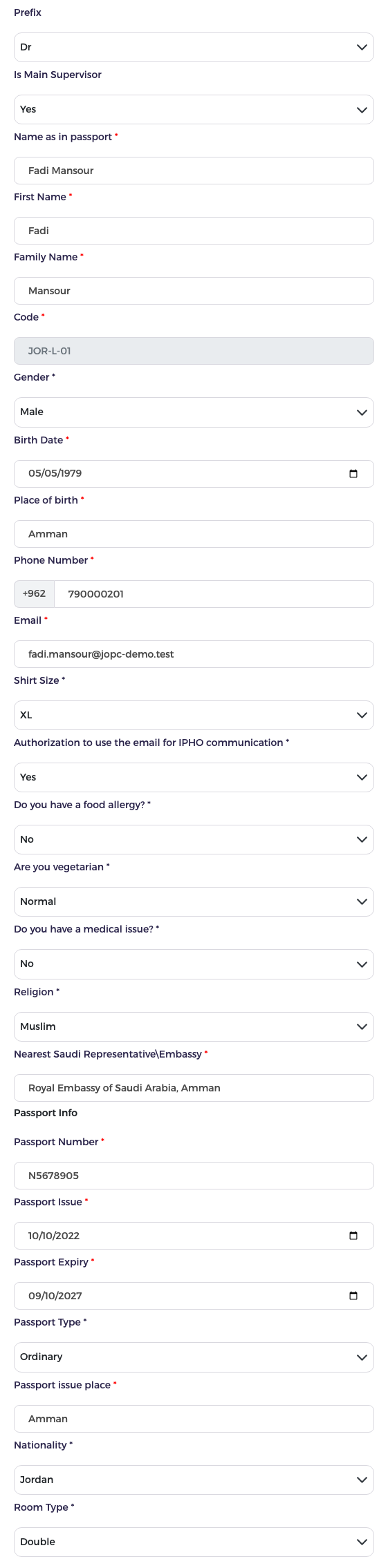
For example, Jordan made Dr Fadi Mansour the main supervisor; Dr Huda Saleh is set to No.
Save a draft
Click Save in the form when you do not have all the data yet. The participant appears in the list with the status Pending and an amber bar. Nothing is sent to the reviewer.
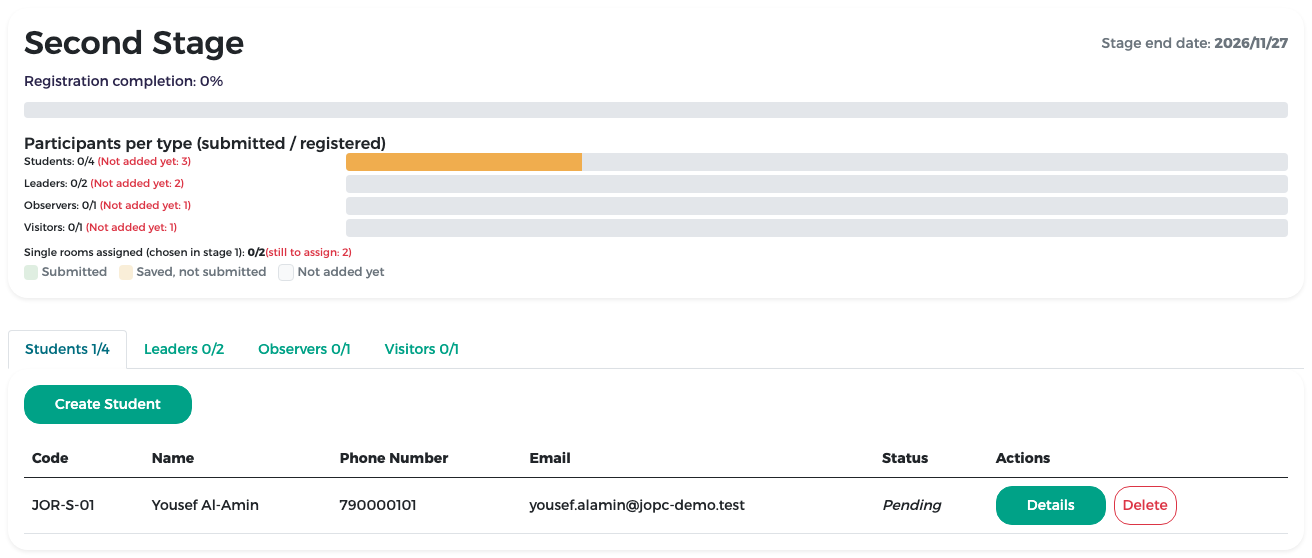
- Details reopens the form so you can complete it.
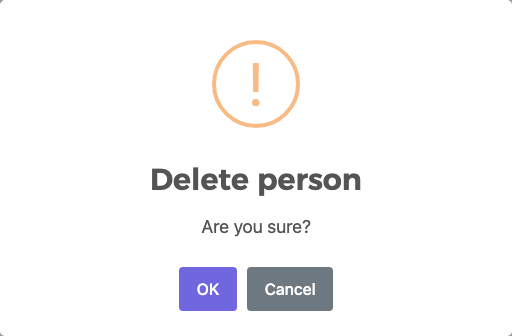
- Delete removes a participant you no longer need. A Delete person window asks "Are you sure?". Click OK to delete.
Submit a participant
Each participant is submitted on their own. You do not have to wait until everyone is ready.
- Open the participant with Details.
- Check all data and files.
- At the bottom, tick the declaration Declaration and Undertaking of the Accuracy and Correctness of the Data Entered in All Previous Stages…. The Save And Submit button works only after you tick it.
- Click Save And Submit.
The status changes to Data under review and the bar turns green. The reviewer will now check this person.
When you submit a participant, the system sends them an e-mail telling them they were added to the delegation. Saving a draft does not send this e-mail.
The single-room rule
All the single rooms you asked for in stage 1 must be assigned before stage 2 can be completed. If you submit the last participant while a single room is still free, the system refuses with this message:
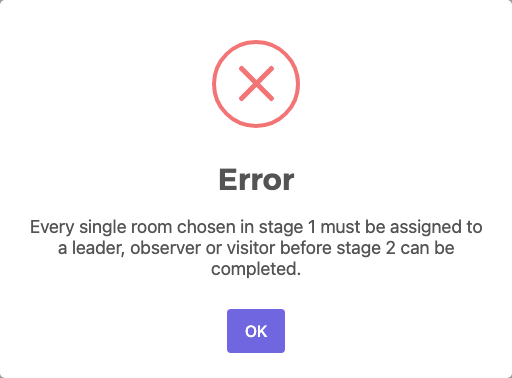
For example, Jordan asked for 2 single rooms. Lina gave one to Dr Huda Saleh and then tried to submit the visitor Dana Qasem with a Double room. The system refused, because one single room was still free.
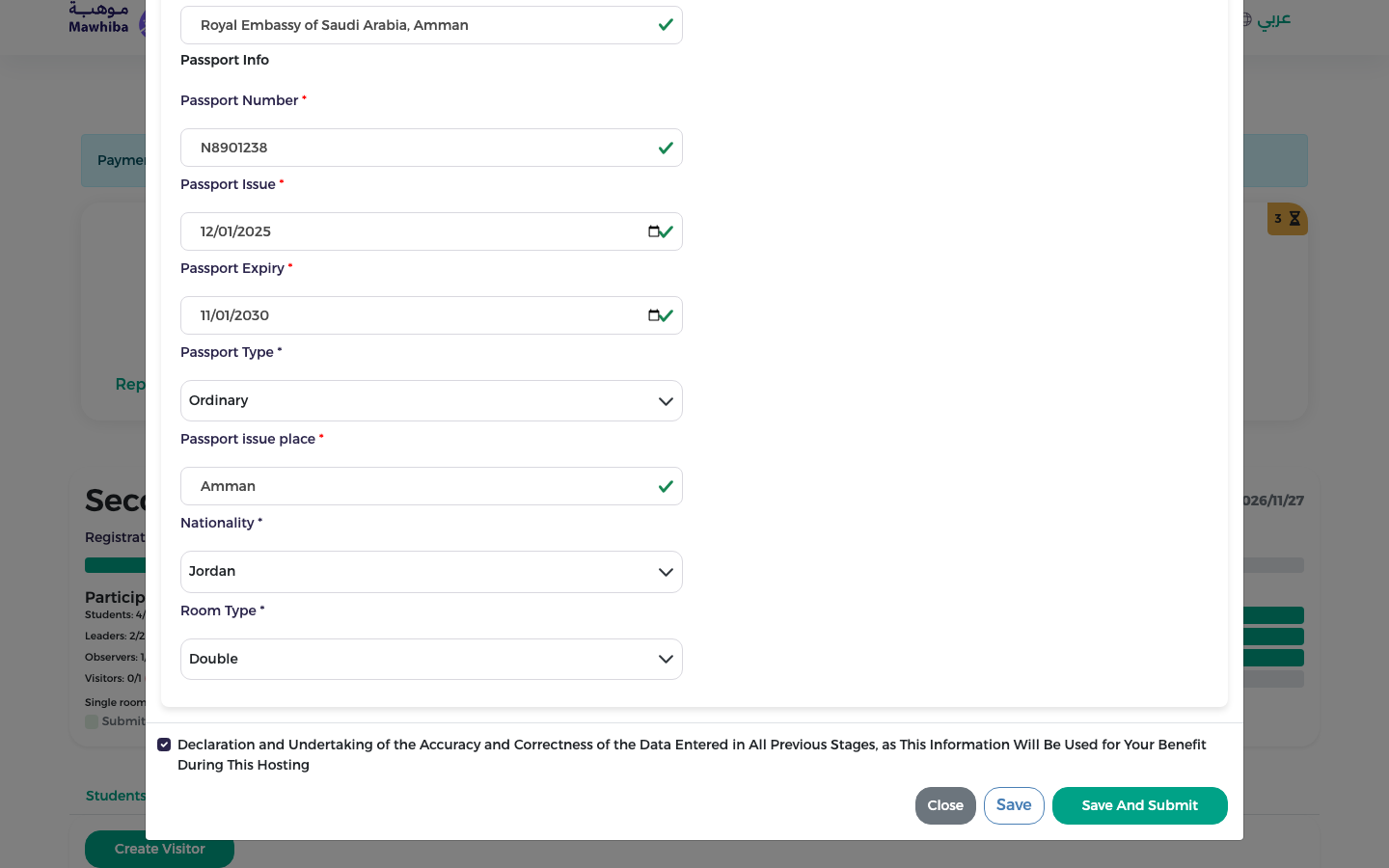
To fix it:
- Click OK to close the message. The form stays open.
- Change Room Type to Single for the right person.
- Click Save And Submit again.
Note
Drafts and earlier submissions are allowed while rooms are still free. The check happens when you submit the participant that completes stage 2.
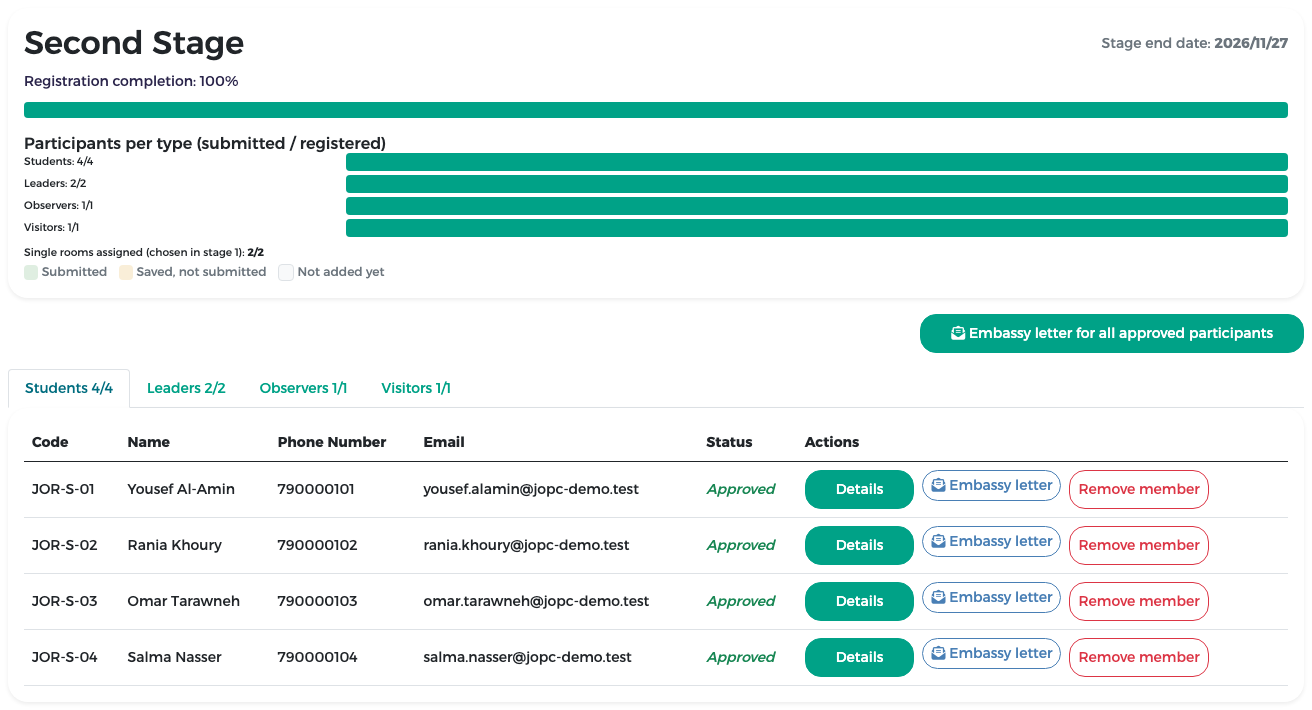
When everyone is submitted, the completion is 100 % and the page shows Single rooms assigned … 2/2.
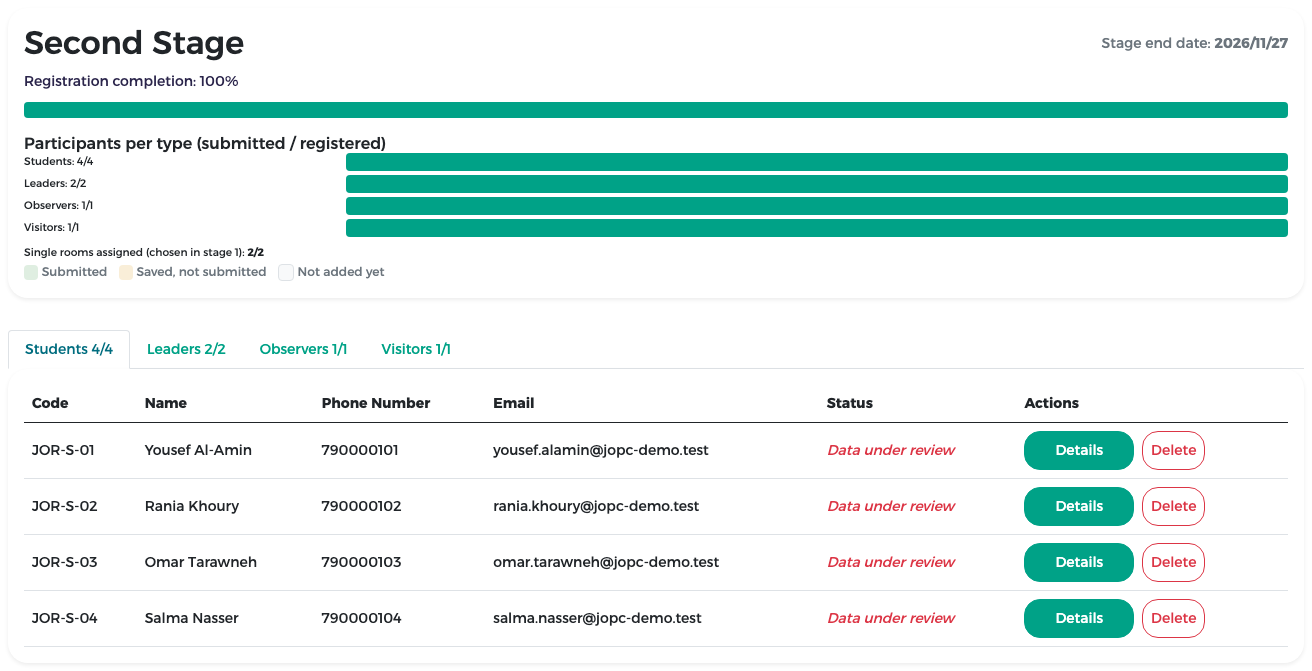
Use the tabs to check each type. For example, the Leaders tab:

When the reviewer returns a participant
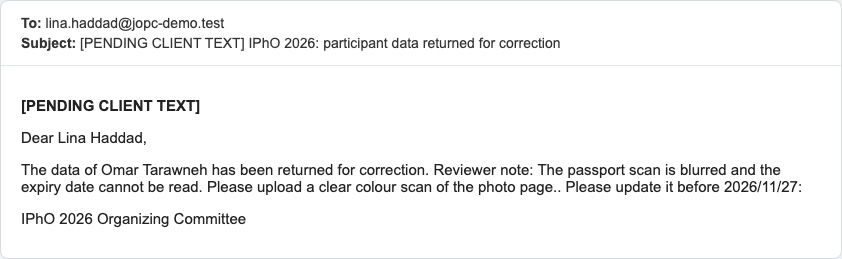
The reviewer checks every participant and their passport. If something is wrong, the reviewer returns the participant with a note. You receive an e-mail with the note and the stage end date.
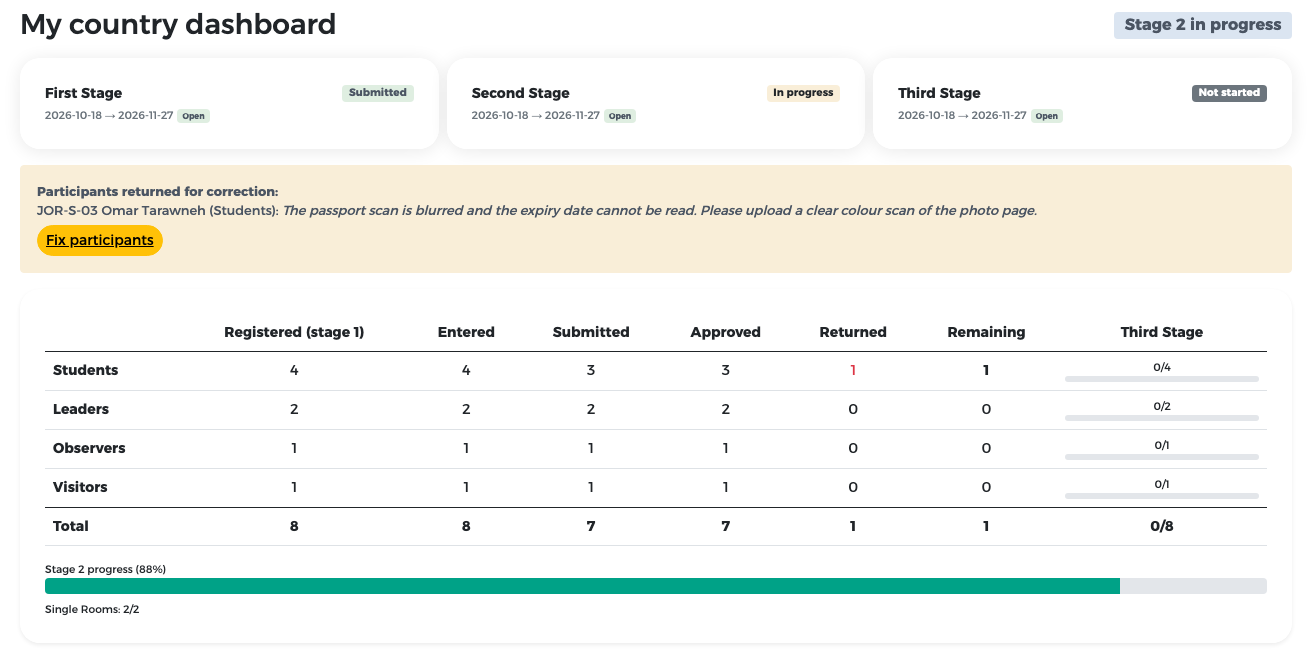
On My country dashboard, a yellow box Participants returned for correction lists each returned person with the reviewer's note. The Second Stage card goes back to In progress.
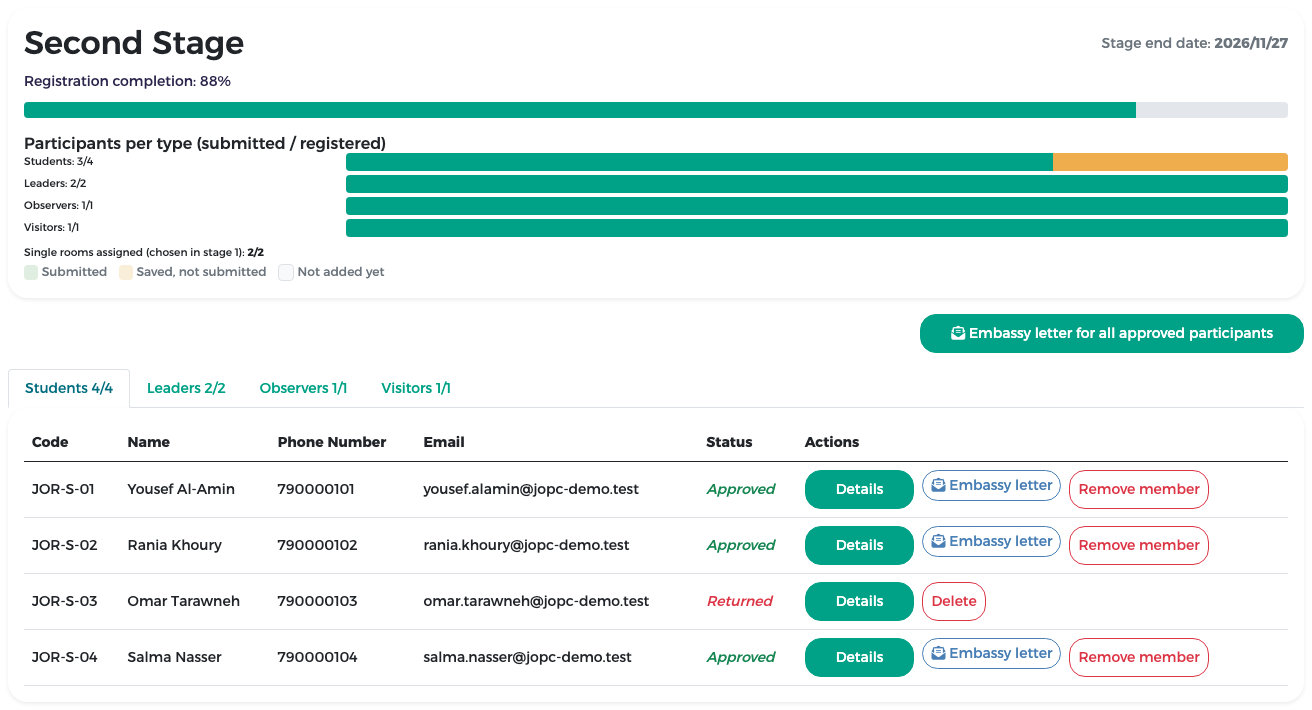
To correct a returned participant:
-
Click Fix participants (or open the Second Stage tile). The participant shows the status Returned.
-
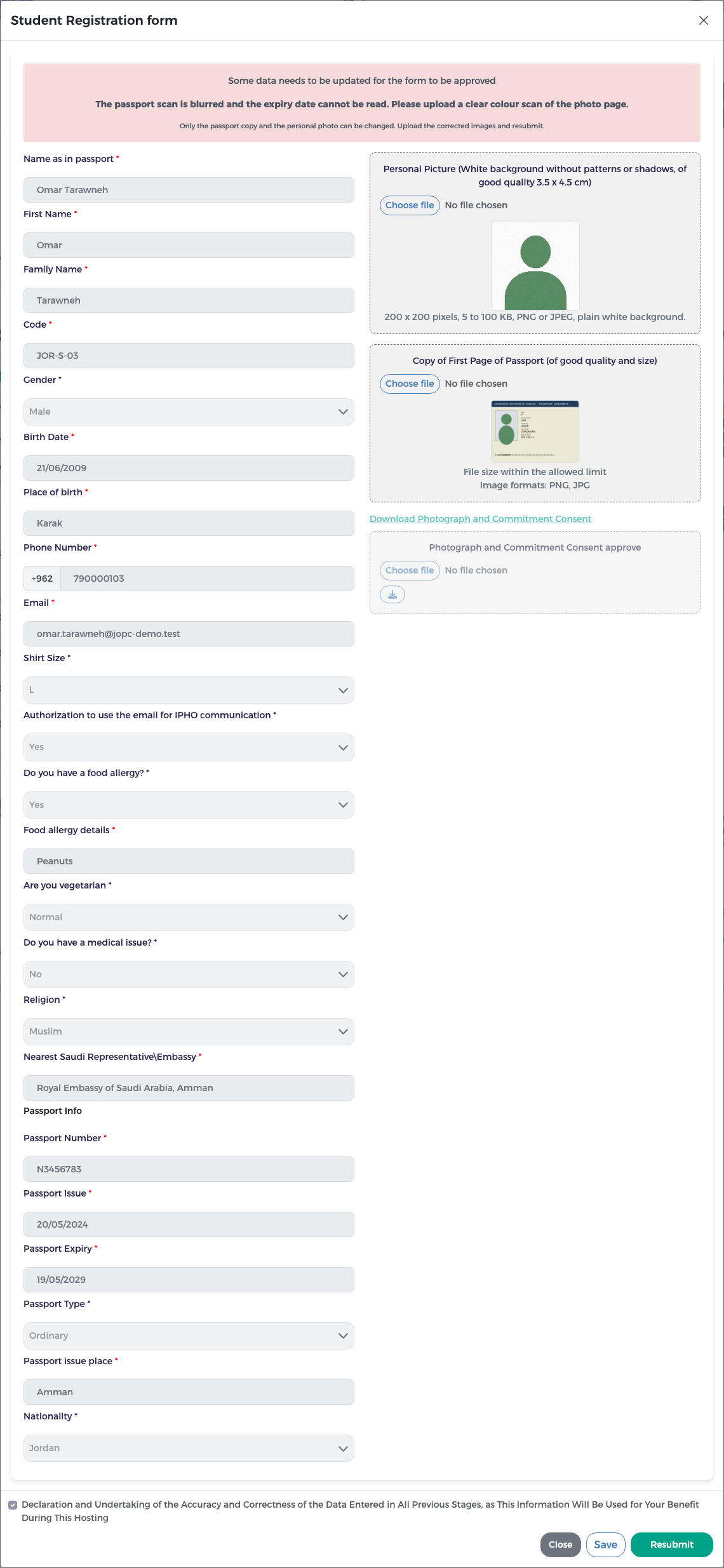
Click Details. A red box at the top shows the reviewer's note. Only the passport copy and the personal photo can be changed; the other fields are locked and shown in grey.
-
Upload the corrected file, for example a clear colour scan of the passport photo page.
- Click Resubmit. The participant goes back to Data under review.
For example, the reviewer returned Omar Tarawneh because his passport scan was blurred. Lina uploaded a clear scan and resubmitted; the reviewer then approved him.
Also after the stage's end date
You can correct and resubmit a returned participant even after the stage 2 end date. The date in the e-mail is then for information only. Still, only the passport copy and the personal photo can be changed.
When the administrator withdraws your submission
If you need to change participants you have already submitted, contact the organisers. An administrator can withdraw the submission. The participant then shows the status Pending with a yellow Submission withdrawn badge, and you receive an e-mail.
- Open the Second Stage tile and click Details on the participant with the Submission withdrawn badge.
- Correct the data.
- Submit the participant again. It goes back to Data under review, and the reviewer checks it again.
This works before and after the stage 2 end date. After the end date, the date in the e-mail is for information only.
What still needs stage 2 to be open
After the stage 2 end date a yellow note at the top of the page reminds you that nothing new can be added. You can still correct participants that were withdrawn or returned, but you cannot:
- add a new participant;
- remove or replace a participant;
- change a participant that is submitted (and not withdrawn or returned) or approved.
A typing mistake in the passport data?
The reviewer can correct small typing errors in the passport fields while checking the passport. If other data is wrong, contact the organisers.
When participants are approved
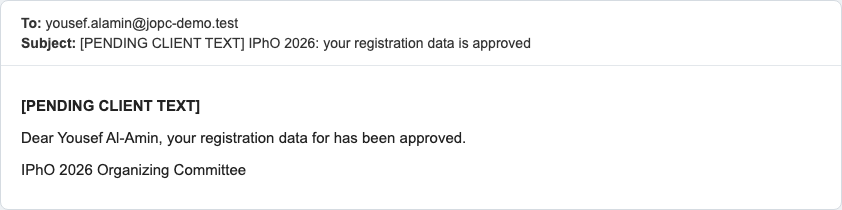
An approved participant shows the status Approved, and two new buttons appear on the row: Embassy letter and Remove member. Approved participants also receive an e-mail confirming that their registration data is approved.
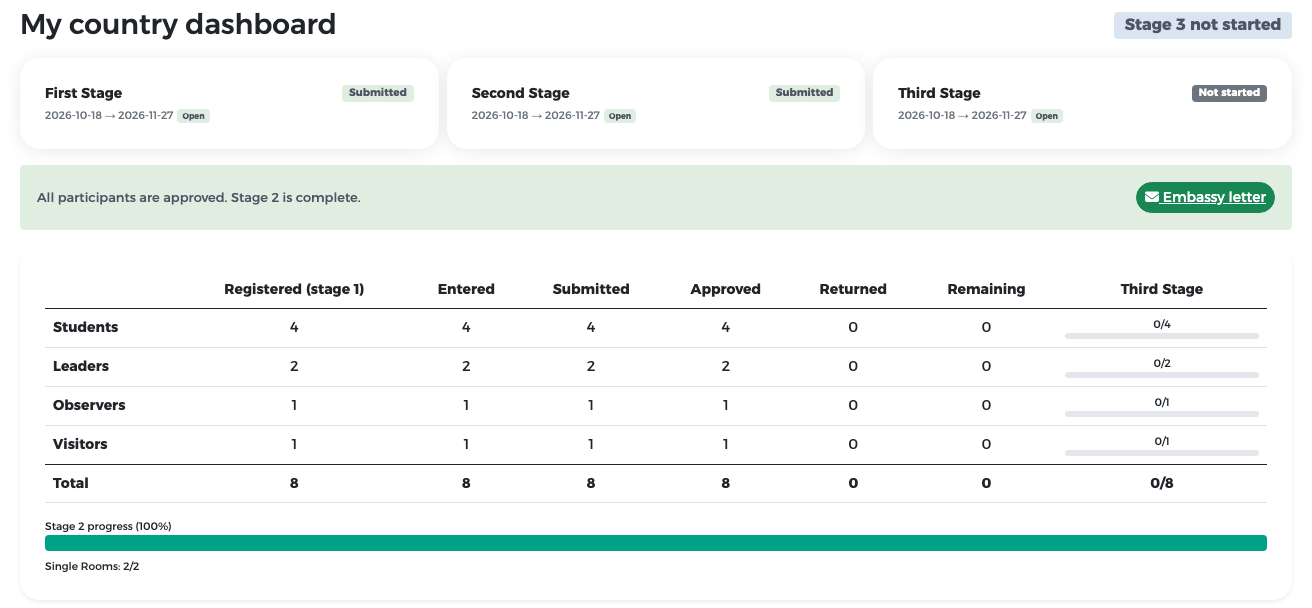
When everyone is approved, My country dashboard shows a green box: All participants are approved. Stage 2 is complete., with an Embassy letter shortcut.
On the stage 2 page every row is Approved and the button Embassy letter for all approved participants is available. See Embassy letters.
Changing an approved participant: remove and replace
Approved data cannot be edited. If a member cannot come or their data changes:
- On the stage 2 page, click Remove member on that person's row and confirm.
- The place becomes free. Click the create button on the same tab and add the replacement.
- Submit the replacement. They go through review again.
Before you remove someone
- Removing and replacing is possible only while stage 2 is open.
- If the person had a single room, the room becomes free. Stage 2 is incomplete again until you give the room to another leader, observer or visitor.
- The embassy letter of the removed person is no longer valid. Print a new letter after the replacement is approved.
- After your invoices are issued, the team cannot grow, and fees already invoiced or paid are not refunded.
What comes next
As soon as all participants are submitted and every single room is assigned, stage 2 is complete on your side and you can prepare your invoices. A blue note appears at the top of your pages with the Prepare proforma invoices button.
Next step: Proforma invoices.