Proforma invoices
Before you can pay, you prepare your proforma invoices. A proforma invoice is the draft of your bill: it lists what you will pay for and who the bill is addressed to. You send it to the Mawhiba reviewer, who checks it and issues it. Only issued invoices can be paid.
You decide how your country's bill is organised:
- keep one invoice for everything, or
- split the invoice over several invoices, for example because a ministry pays for the team and another organisation pays for an observer.
When you can start
You can prepare your invoices as soon as stage 2 is complete on your side: all participants are submitted and every single room is assigned. A blue note appears at the top of your pages: "Payment opens after stage 2 is complete and the invoice is issued.", with the button Prepare proforma invoices.
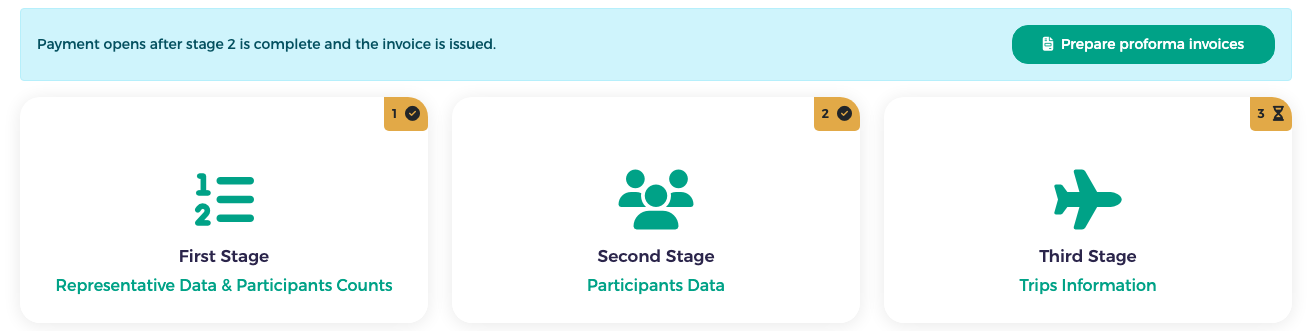
Note
The reviewer can issue your invoices only after all your participants are approved. You can prepare and submit the invoices while the last participants are still being reviewed.
The Proforma invoices page
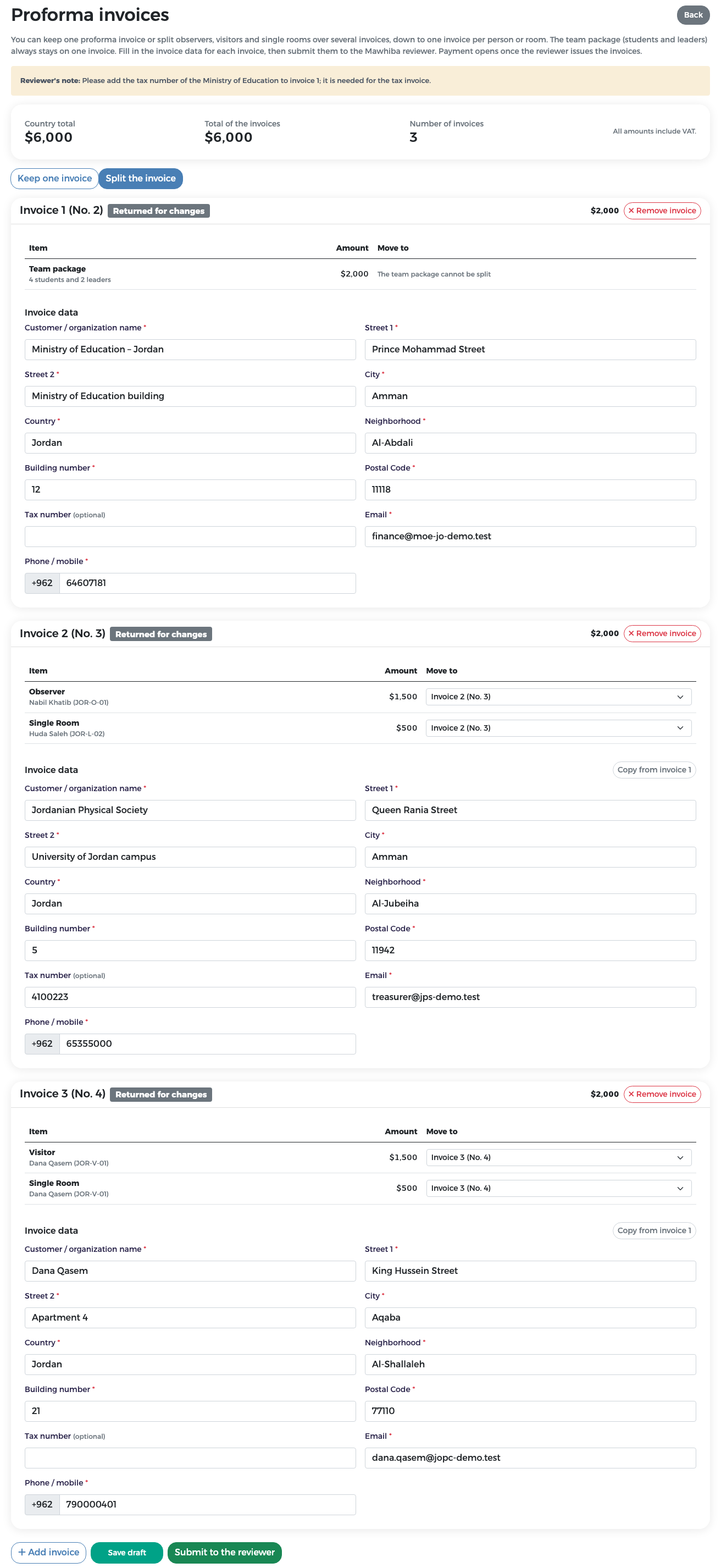
Click Prepare proforma invoices. The page shows:
- Country total: the total of all your fees, calculated from your participants;
- Total of the invoices: the sum of your invoices (it must always equal the country total);
- Number of invoices;
- the two choices Keep one invoice and Split the invoice;
- one card per invoice, with its lines and its Invoice data (billing data).
Each invoice card has a title such as Invoice 1 (No. 2). It contains two numbers:
- the first number (Invoice 1) is the order of the invoice within your country: your first, second, third invoice;
- the No. (No. 2) is the invoice's reference number in the system. Quote this number when you contact Mawhiba about an invoice or a payment.
The same label is used on the payment page, in e-mails and on receipts. A new invoice gets its reference number when you save it; until then its title is only Invoice 2, Invoice 3 and so on. A new invoice has the status Draft.
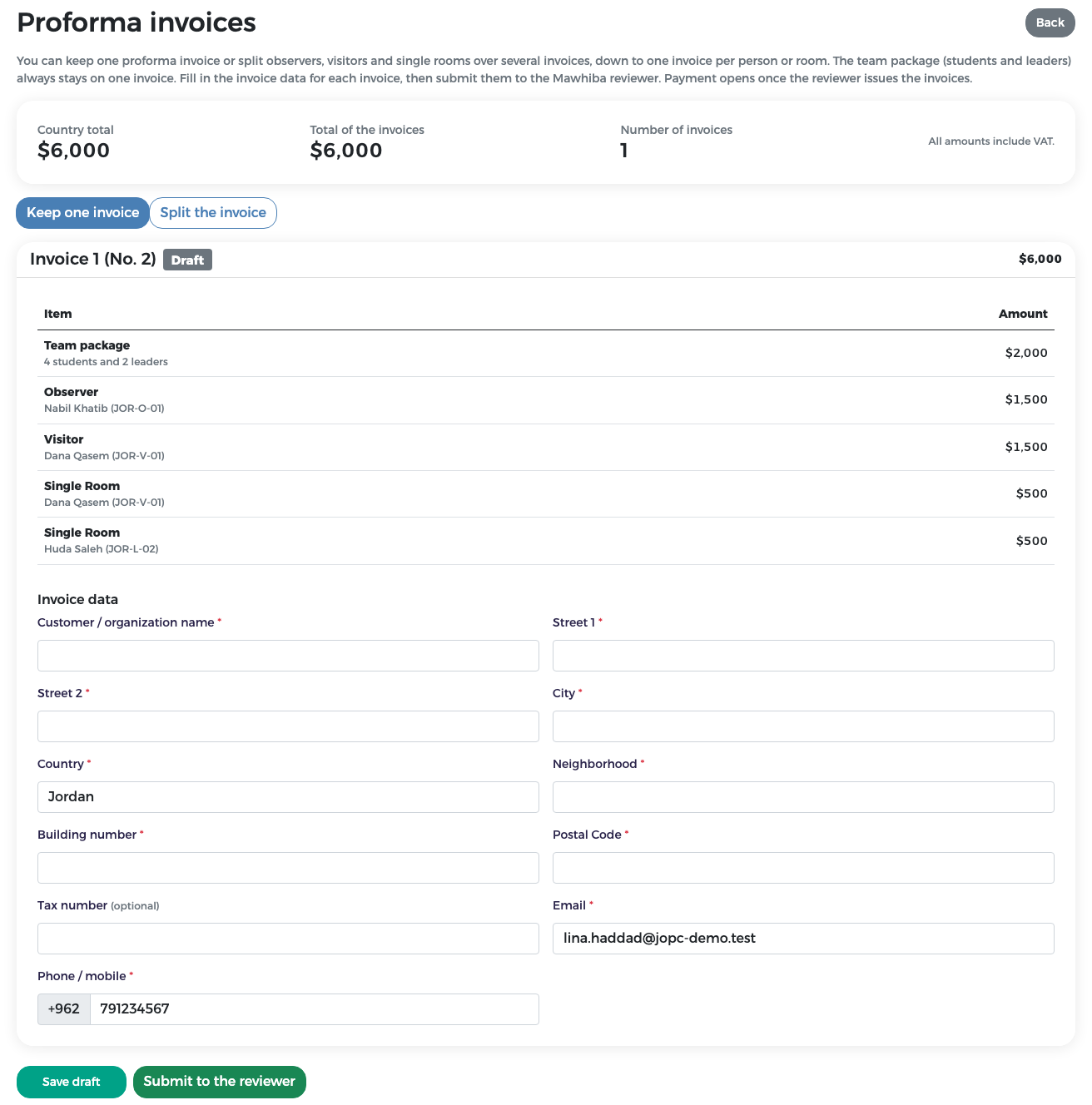
What the lines are
| Line | What it covers | Can it be moved to another invoice? |
|---|---|---|
| Team package | All students and leaders together (for example "4 students and 2 leaders") | No. The team package always stays together on one invoice. |
| Observer | One line per observer, with the name and code | Yes |
| Visitor | One line per visitor | Yes |
| Single Room | One line per person who has a single room | Yes |
Option 1: keep one invoice
- Leave Keep one invoice selected. All lines are on Invoice 1.
- Fill in the Invoice data (see Fill in the invoice data).
- Click Save draft to keep your work, or Submit to the reviewer when you are ready (see Submit to the reviewer).
Option 2: split the invoice
You can split observers, visitors and single rooms over several invoices, down to one invoice per person or per room. Each invoice can be addressed to a different payer and is paid separately.
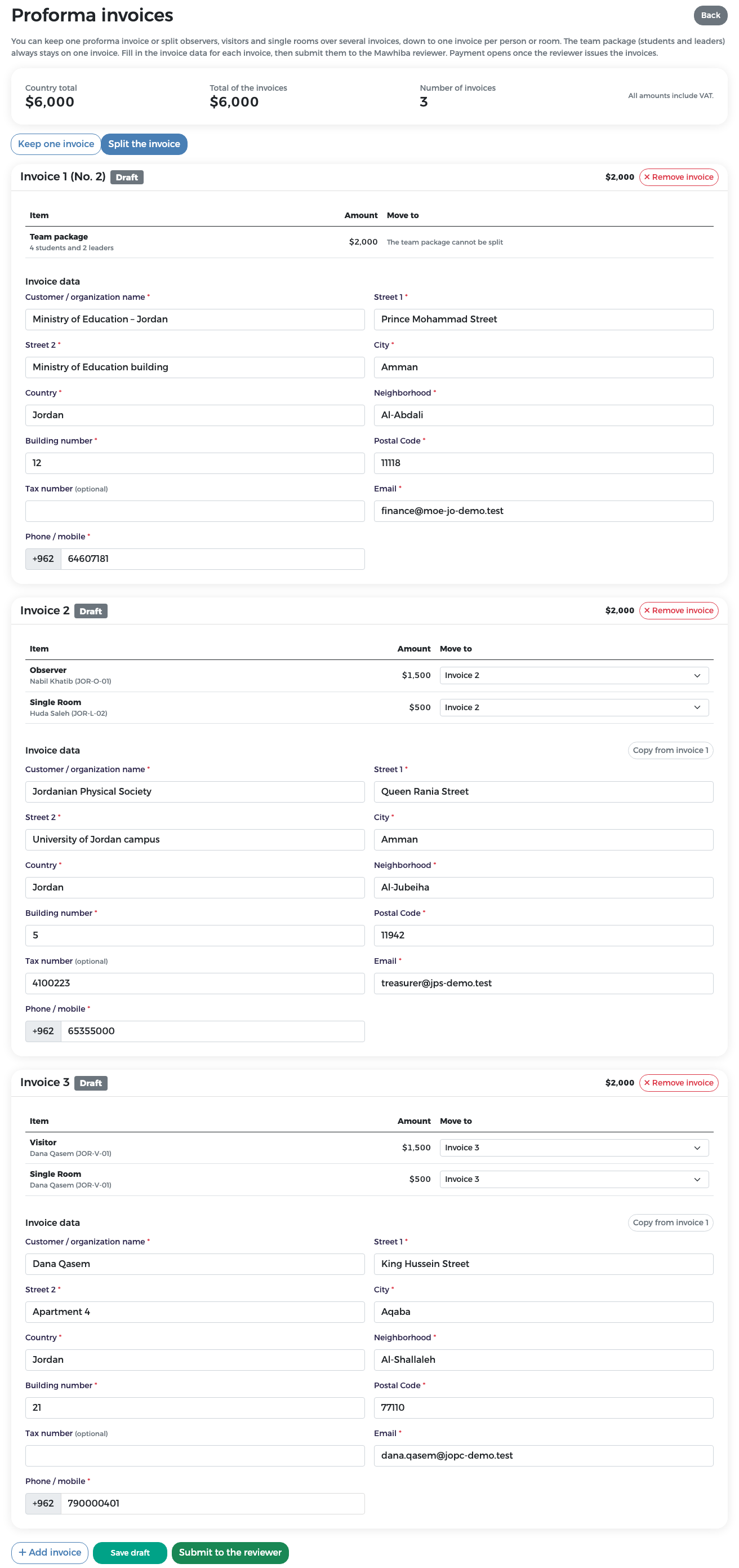
For example, Jordan split its bill of $6,000 into three invoices:
| Invoice | Lines | Billed to | Amount |
|---|---|---|---|
| Invoice 1 (No. 2) | Team package (4 students and 2 leaders) | Ministry of Education – Jordan | $2,000 |
| Invoice 2 (No. 3) | Observer Nabil Khatib + single room of Dr Huda Saleh | Jordanian Physical Society | $2,000 |
| Invoice 3 (No. 4) | Visitor Dana Qasem + her single room | Dana Qasem | $2,000 |
To split:
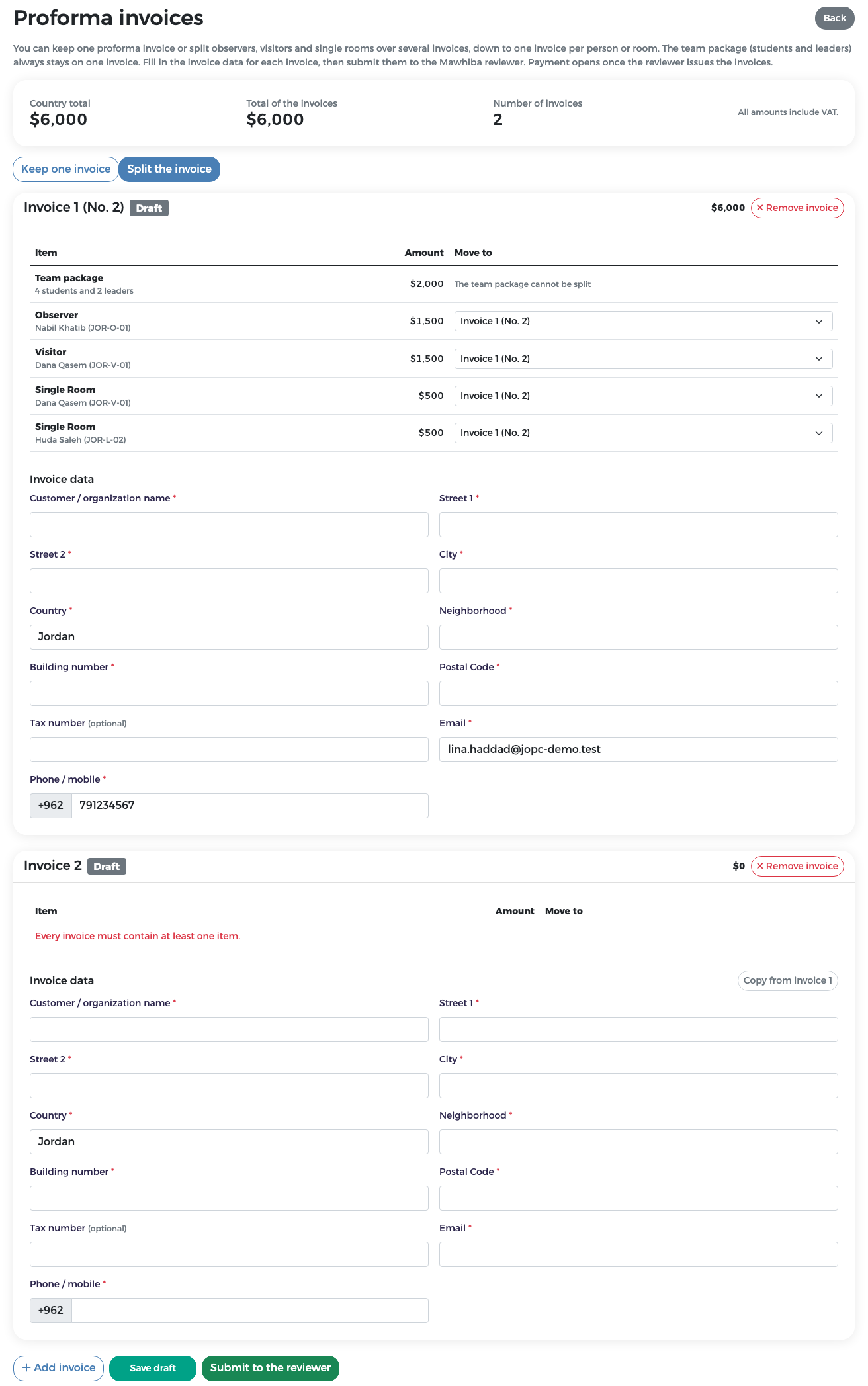
- Click Split the invoice. A Move to column appears next to each line, and the buttons Add invoice and Remove invoice become available.
-
Click + Add invoice. A new, empty invoice card appears (for example Invoice 2). It shows "Every invoice must contain at least one item." until you move a line to it.
-
On each line you want to move, open the Move to list and choose the target invoice (for example Invoice 2). The line moves to that invoice and both totals update.
- The Team package line shows "The team package cannot be split". It always stays where it is.
- Repeat Add invoice and Move to until each invoice holds the right lines.
- Fill in the Invoice data of every invoice. On the second and later invoices you can click Copy from invoice 1 to copy the billing data of invoice 1, then change what is different.
- Check that Total of the invoices equals Country total and that no invoice is empty.
- Click Save draft, then Submit to the reviewer when everything is correct.
Remove an invoice
Click Remove invoice on the card of an invoice you no longer need. Move its lines to the invoices you keep first, so that every line still belongs to an invoice.
Go back to one invoice
Click Keep one invoice to bring all lines back onto one invoice.
Rules for splitting
- The team package (students and leaders) is never split.
- Every invoice must contain at least one line.
- Your invoices together must add up to the country total.
- Each invoice is issued, paid and receipted separately.
Fill in the invoice data
Every invoice has its own Invoice data: the details of the person or organisation the invoice is addressed to. These details appear on the official tax invoice, so type them exactly as the payer needs them.
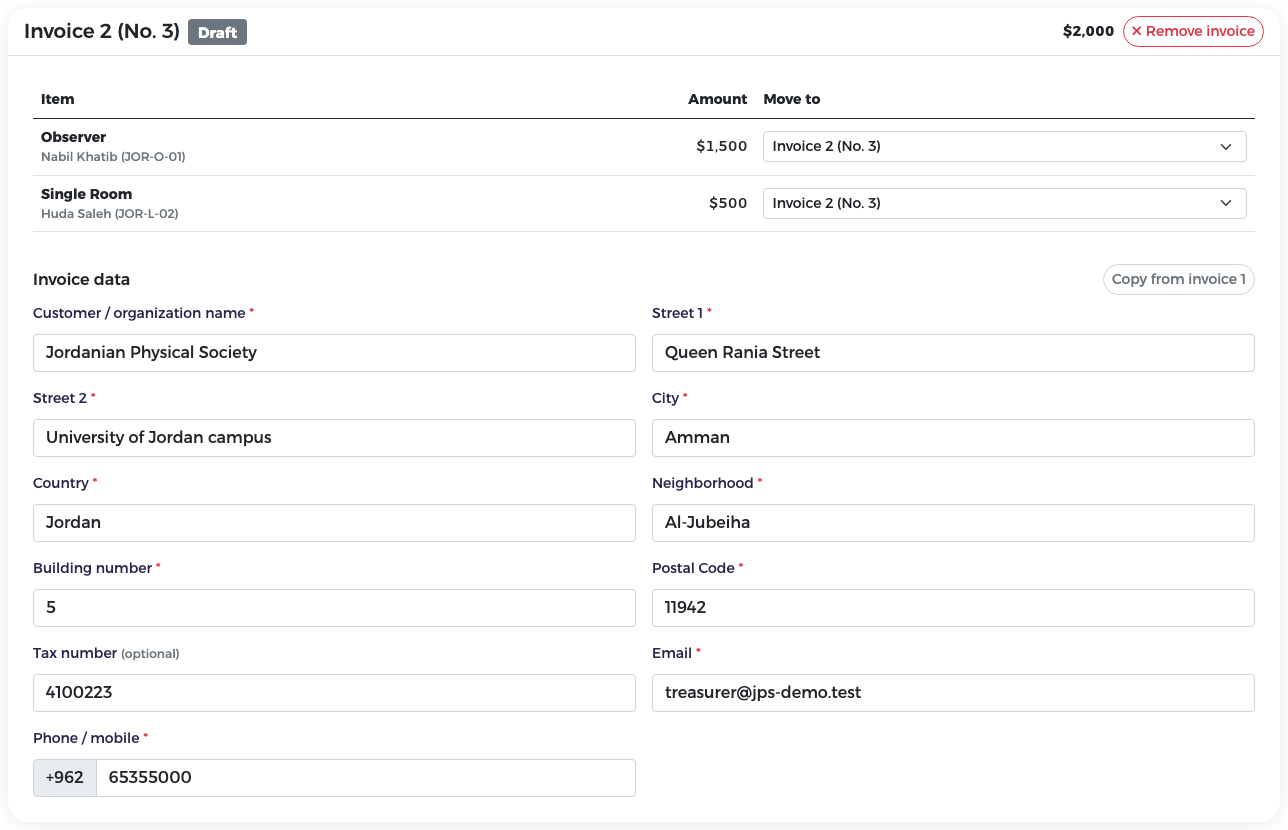
| Field | Required? | Notes |
|---|---|---|
| Customer / organization name | Yes | The payer, for example Ministry of Education – Jordan or a person's full name |
| Street 1 | Yes | |
| Street 2 | Yes | For example a building name or apartment |
| City | Yes | |
| Country | Yes | Filled in with your country |
| Neighborhood | Yes | |
| Building number | Yes | |
| Postal Code | Yes | |
| Tax number | Optional | Fill it in when the payer is an organisation that has one. The reviewer may ask for it. |
| Yes | Starts with your e-mail on invoice 1; change it to the payer's e-mail if needed | |
| Phone / mobile | Yes | The country code is fixed to your country |
Tip
Use Save draft often. It keeps your lines and billing data without sending anything. You can leave the page and come back later.
Submit to the reviewer
- Check every invoice: lines, amounts and billing data.
- Click Submit to the reviewer.
-
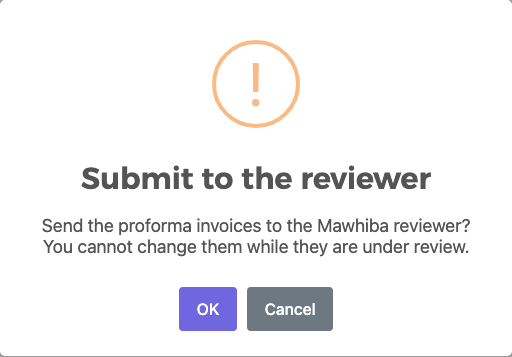
Confirm: "Send the proforma invoices to the Mawhiba reviewer? You cannot change them while they are under review." Click OK.
-
All invoices now show Pending review and the page says "The proforma invoices have been sent for review and cannot be changed now."
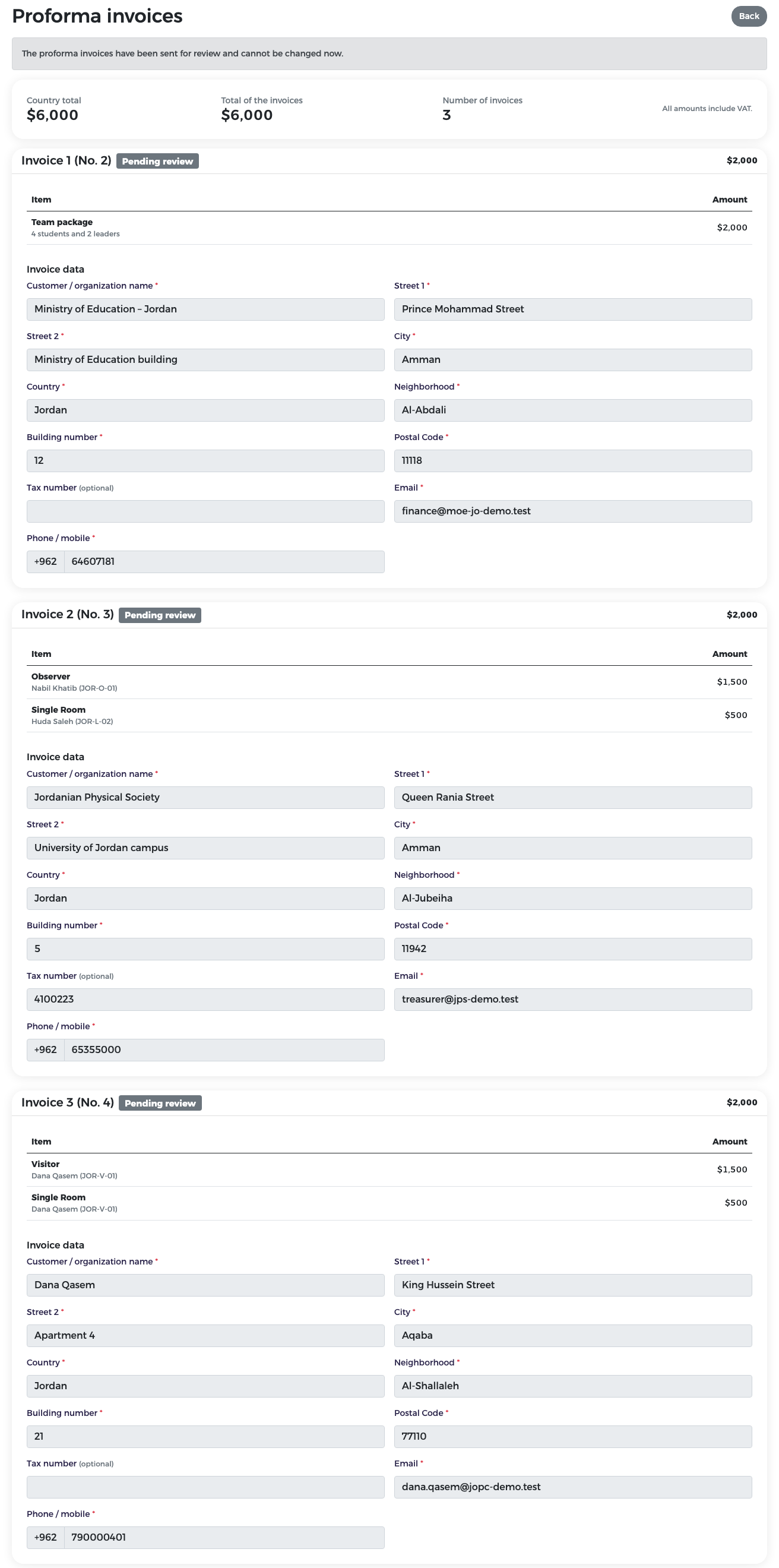
All your invoices are sent together. While they are under review, you cannot change any of them.
If the reviewer returns your invoices
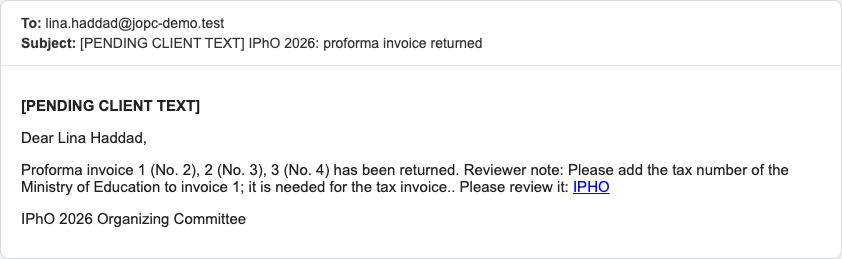
The reviewer may return your invoices with a note, for example to ask for a missing tax number. You receive an e-mail with the note.
A yellow banner Returned - action needed appears at the top of every page, with the reviewer's note and an Edit invoices button. It stays until you submit again.

To correct and resubmit:
- Click Edit invoices. The reviewer's note is shown at the top of the page and the invoices show Returned for changes.
- The invoices are editable again: you can change the billing data, move lines, add or remove invoices.
- Make the change the reviewer asked for. For example, Lina added the tax number of the Ministry of Education to invoice 1.
- Click Submit to the reviewer again and confirm.
Exemptions
Mawhiba may grant a country an exemption: a discount or a support amount that lowers an invoice. You do not request it in the system; contact the organisers. The reviewer or administrator applies it to a specific invoice, before the invoice is issued.
You see the exemption as a lower invoice amount on the payment page. For example, Jordan's Invoice 2 (No. 3) was $2,000. The reviewer gave a 50 % support exemption on the observer fee ($1,500 − $750), so Invoice 2 (No. 3) became $1,250. The country total to pay became $5,250 instead of $6,000.
Fully exempt invoices
If an exemption brings an invoice to $0, the invoice is closed as exempt when the invoices are issued. There is nothing to pay for it.
When your invoices are issued
When the reviewer issues your invoices:
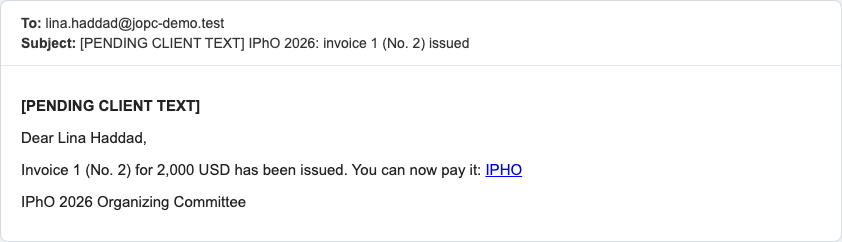
- you receive one e-mail per invoice, for example "Invoice 1 (No. 2) for 2,000 USD has been issued. You can now pay it";
- the invoices can no longer be changed;
- the payment page opens (button Payment Details);
- your team can no longer grow. You can still replace or remove members, but fees are not refunded.
Next step: Payment.