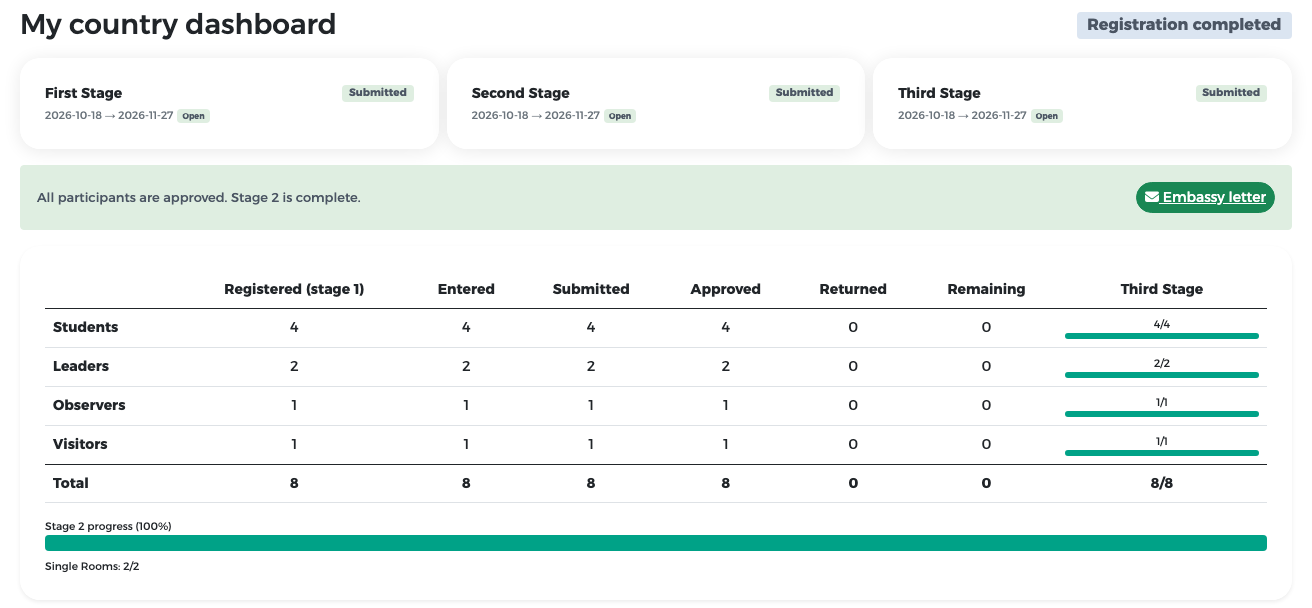
Stage 3 – travel details
In stage 3 you give the organisers the arrival and departure flights of every member of your delegation, so that they can meet you at the airport and plan your stay. Fill it in once the members of your delegation are entered in stage 2 and their flights are booked.
Open the stage
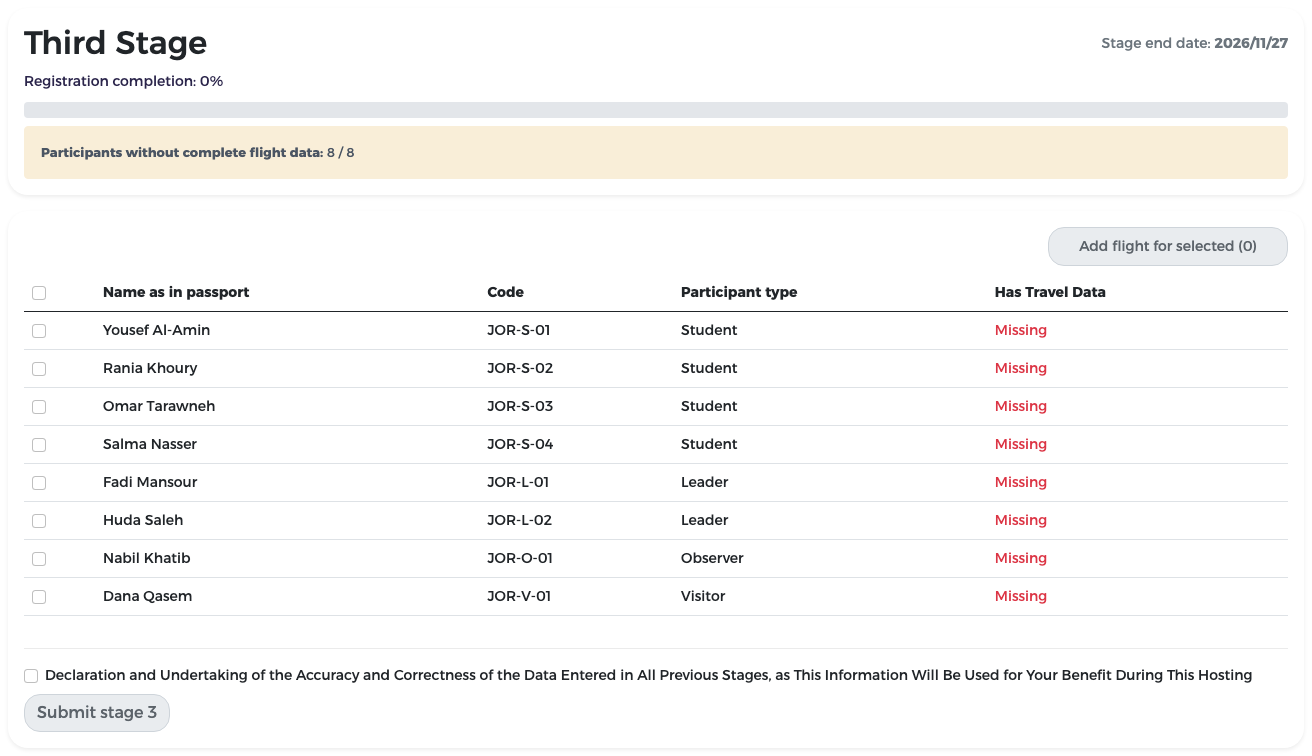
Click the Third Stage tile. The page shows:
- Stage end date and Registration completion;
- Participants without complete flight data, for example 8 / 8 at the start;
- the list of all members with Name as in passport, Code, Participant type and Has Travel Data (Missing or Complete).
Add a flight for several people at once
People who travel together share one flight form. You can enter the flight once for all of them.
-
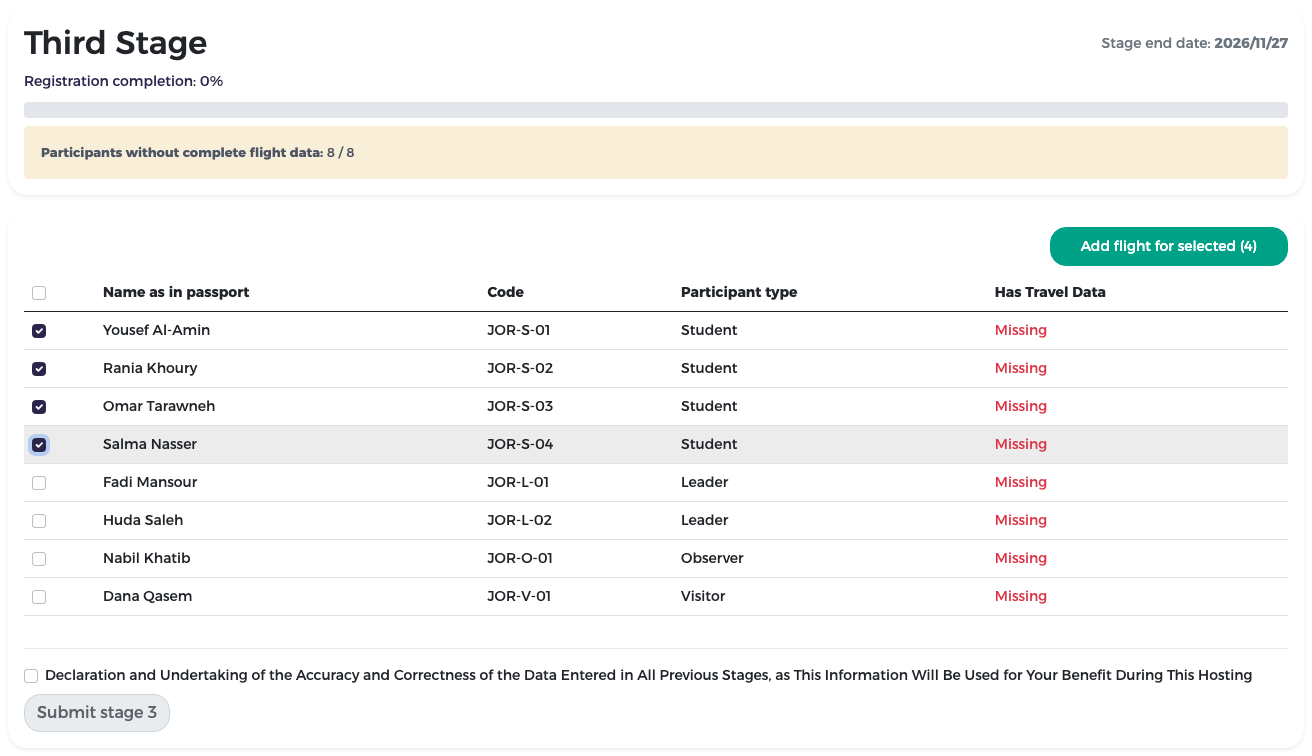
Tick the people who travel on the same flights. To select everyone, tick the box in the header row. The button shows how many are selected, for example Add flight for selected (4).
-
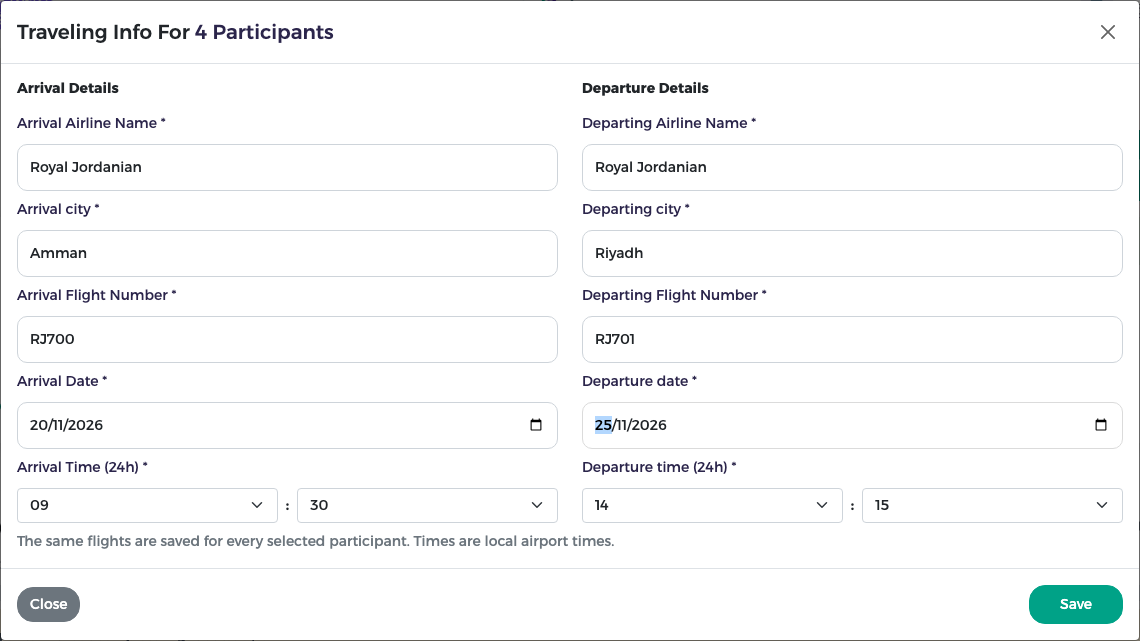
Click Add flight for selected. The Traveling Info For 4 Participants window opens.
- Under Arrival Details, fill in the flight that brings them to Saudi Arabia:
- Arrival Airline Name (for example Royal Jordanian);
- Arrival city (in Jordan's example, Amman);
- Arrival Flight Number (for example RJ700);
- Arrival Date;
- Arrival Time (24h): two boxes in the order HH : MM. Choose the hour in the first box and the minutes in the second.
- Under Departure Details, fill in the flight that takes them home:
- Departing Airline Name;
- Departing city (in Jordan's example, Riyadh);
- Departing Flight Number (for example RJ701);
- Departure date;
- Departure time (24h): hour and minutes, as for arrival.
- Click Save.
Times
Use the 24-hour clock (for example 14:15, not 2:15 pm). Times are the local times of the airport, as printed on the ticket.
The selected people now show Complete. Repeat for the other groups. For example, Jordan entered two flights: the four students on Royal Jordanian RJ700/RJ701 (arriving 20 November 2026 at 09:30, leaving 25 November 2026 at 14:15), and the leaders, observer and visitor on Saudia SV624/SV625.
To correct a flight
Before you submit stage 3, you can select the people again and save the right flight details.
Submit stage 3
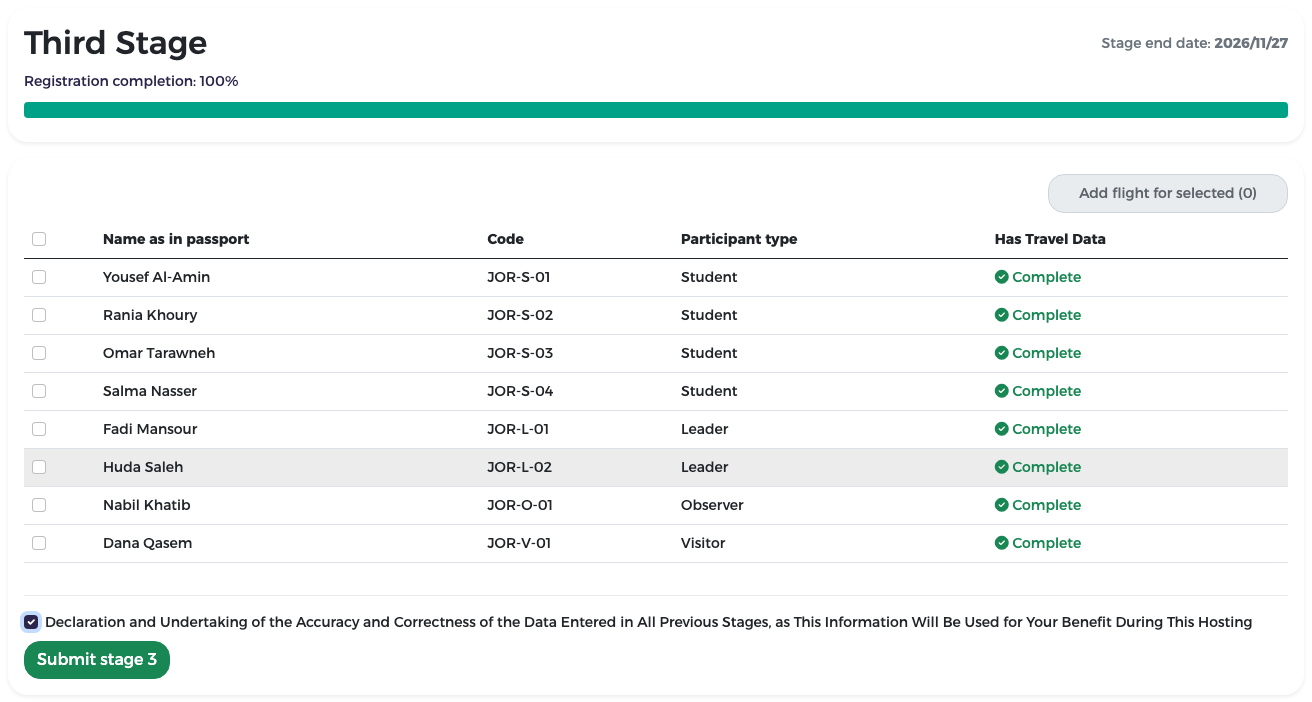
- Check that every member shows Complete and that the completion is 100 %.
- Tick the declaration Declaration and Undertaking of the Accuracy and Correctness of the Data Entered in All Previous Stages….
-
Click Submit stage 3.
-
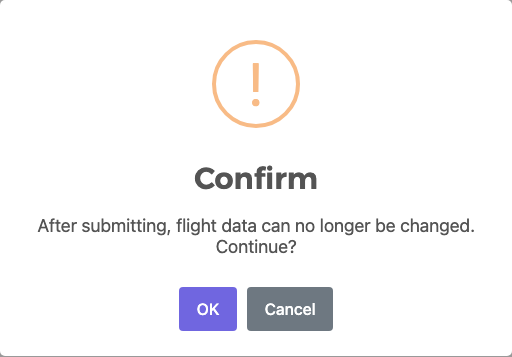
Confirm: "After submitting, flight data can no longer be changed. Continue?" Click OK.
-
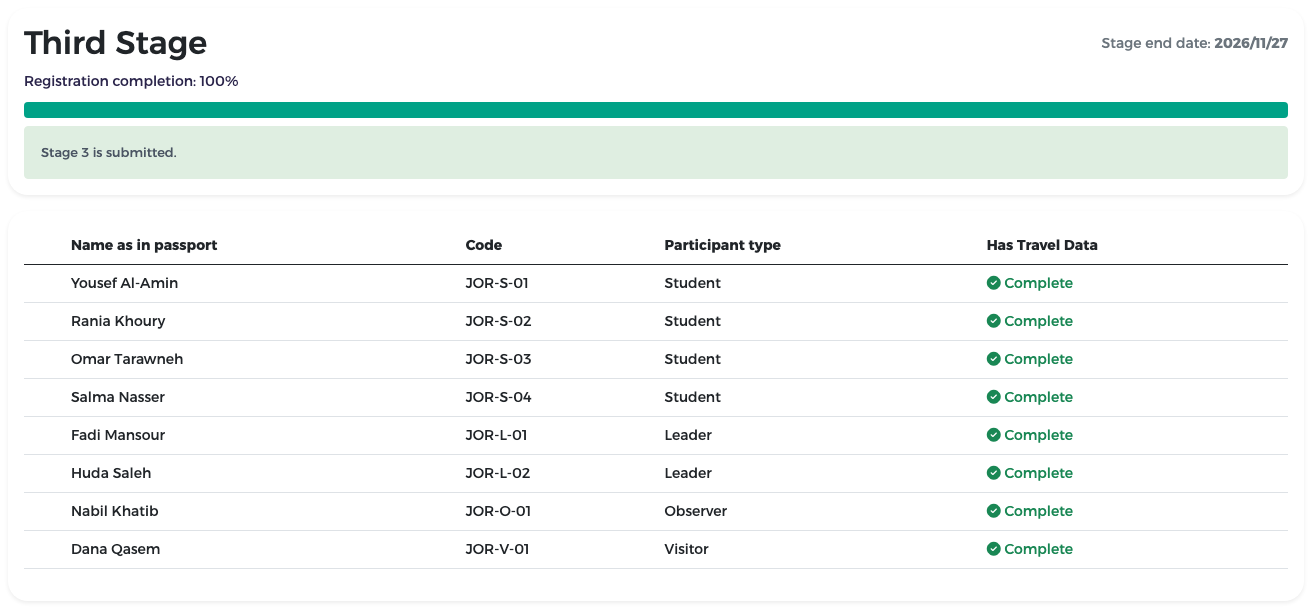
The page shows Stage 3 is submitted and the list becomes read-only.
Warning
After you submit, you cannot change the flights yourself. If your plans change, contact the organisers: an administrator can withdraw your submission, even after the stage's end date. You can then correct the flights and submit stage 3 again; a yellow note at the top of the page explains this. Once resubmitted, the stage is locked again.
After the end date you cannot submit stage 3 for the first time, or change it unless the administrator has withdrawn your submission.
Registration completed
On My country dashboard, all three stages now show Submitted, the Third Stage column shows 8/8, and the badge reads Registration completed. Your registration is done. Keep an eye on your e-mail for any message from the organisers.