Proforma invoices and exemptions
Nothing is invoiced automatically. When a country's stage 2 is complete, the representative prepares the proforma invoices: either one invoice for everything, or the bill split into several invoices (for example one per paying organisation), each with its own billing data. The students and leaders always stay together in one "Team package" line that cannot be split.
The representative then submits the invoices to you. You can:
- return them with a note, so the representative corrects them;
- apply an exemption (discount or support) on an invoice;
- issue the invoices. Only an issued invoice can be paid.
All amounts are in US dollars and already include VAT.
The review queue
- In the menu, choose Proforma invoice review.
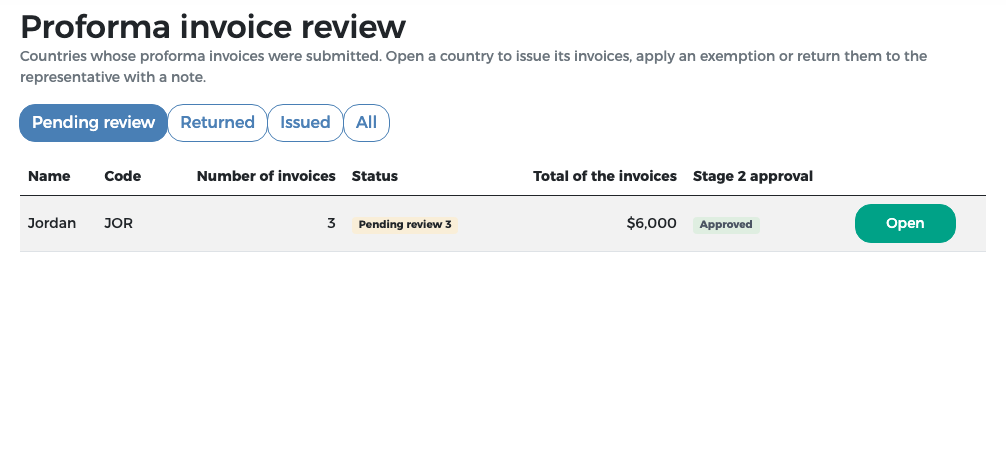
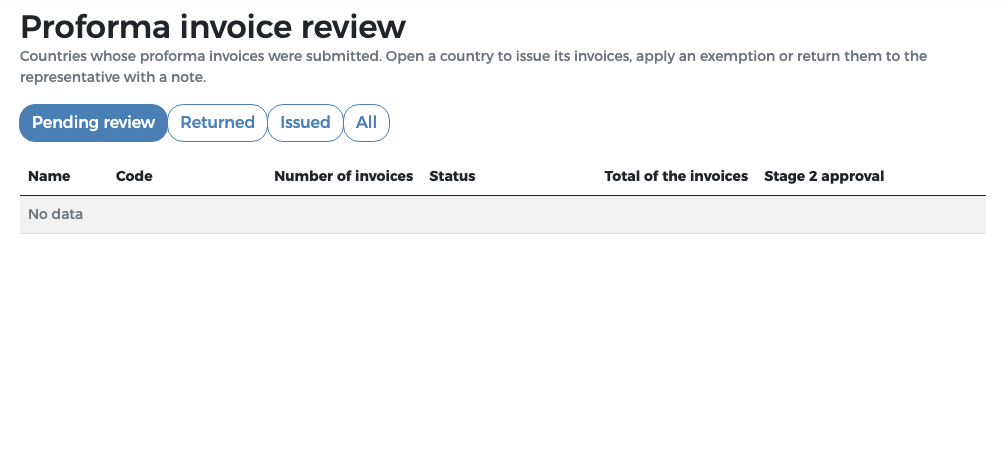
- The tabs filter the countries: Pending review (waiting for you), Returned, Issued and All.
- Each row shows the number of invoices, their status, the total and the Stage 2 approval. Press Open to review a country.
Review a country's invoices
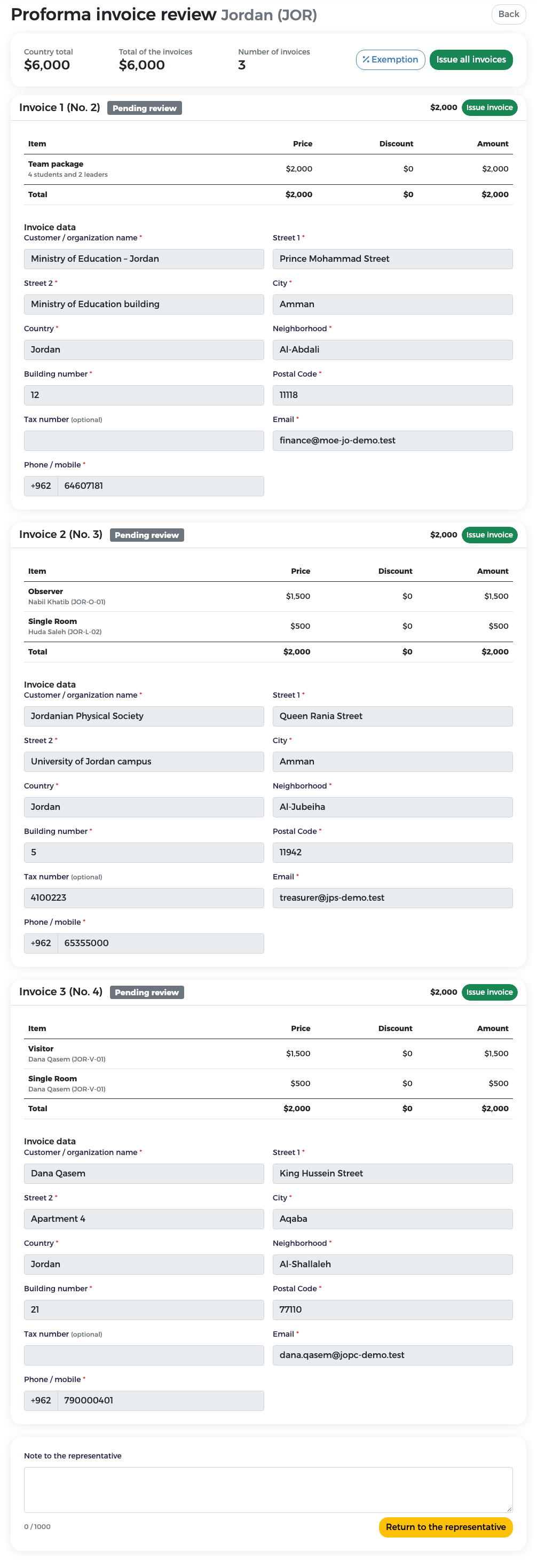
The review page shows at the top the Country total, the Total of the invoices and the Number of invoices, with the buttons Exemption and Issue all invoices. Below come the invoices one by one, each with a title such as Invoice 1 (No. 2) (the country's first invoice, reference number 2): each line with its price, discount and amount, and the Invoice data (customer or organisation name, address, tax number, e-mail and phone) that will appear on the invoice.
Check for each invoice:
- The lines are what the country registered (team package, observers, visitors, single rooms).
- The customer name and address are complete and correct for the paying organisation.
- A tax number is given where the paying organisation needs one on its tax invoice (it is optional in the form).
Return the invoices to the representative
If something must be changed by the country:
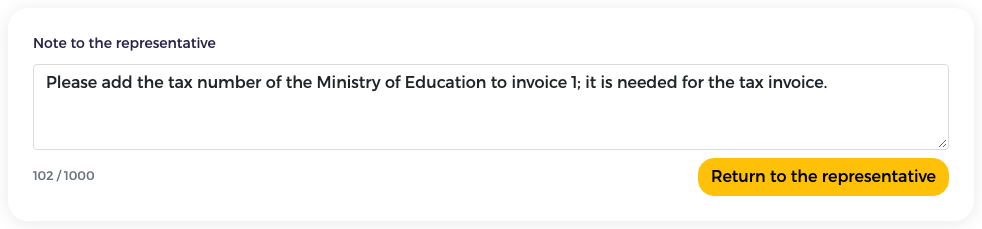
- At the bottom of the page, type the reason in Note to the representative (up to 1000 characters).
- Press Return to the representative and confirm.
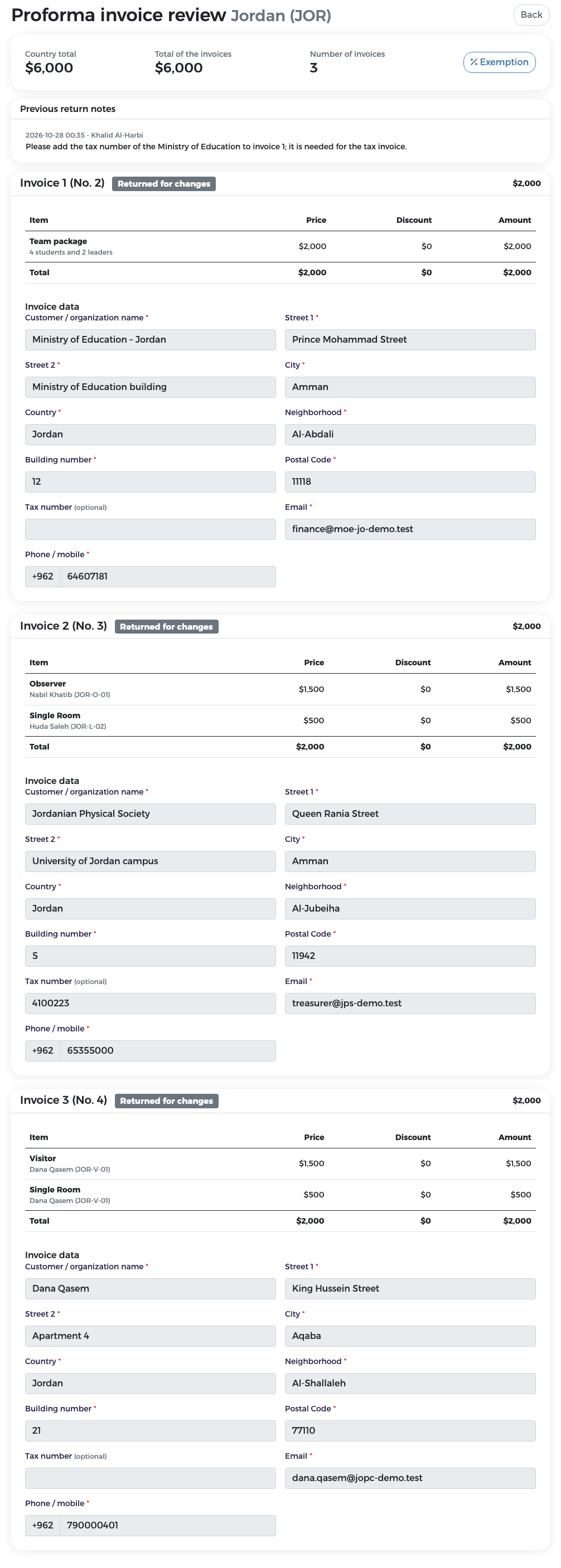
All invoices of the country that are not yet issued become Returned for changes. Your earlier notes stay listed on the page.
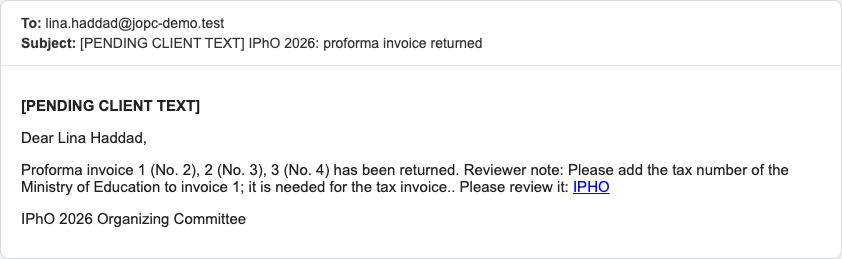
The representative receives an e-mail with your note, sees a "Returned – action needed" banner on every page, edits the invoices and submits them again. The country then appears again under Pending review.
Apply an exemption
An exemption reduces the amount of one invoice. It is either a Discount or Support. Both are calculated the same way; the classification only labels the exemption in reports.
Only before the invoice is issued
You can apply or cancel an exemption only after the country's stage 2 data is approved and before the invoice is issued. An issued invoice cannot be changed.
- On the review page press Exemption, or choose Exemption setup in the menu.
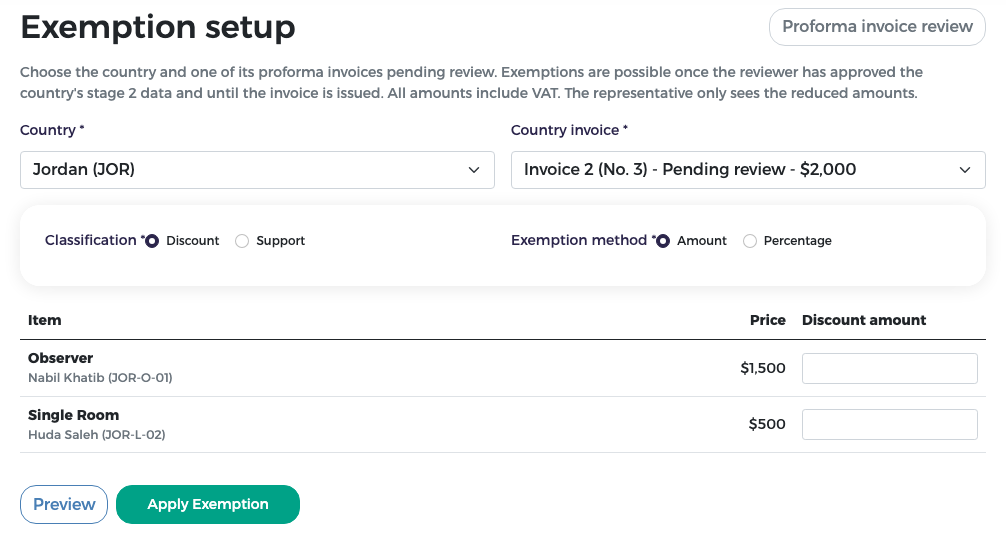
- Choose the Country and the Country invoice (only invoices pending review are offered).
- Choose the Classification: Discount or Support.
-
Choose the Exemption method:
-
Amount: type a Discount amount in dollars for each line of the invoice.
-
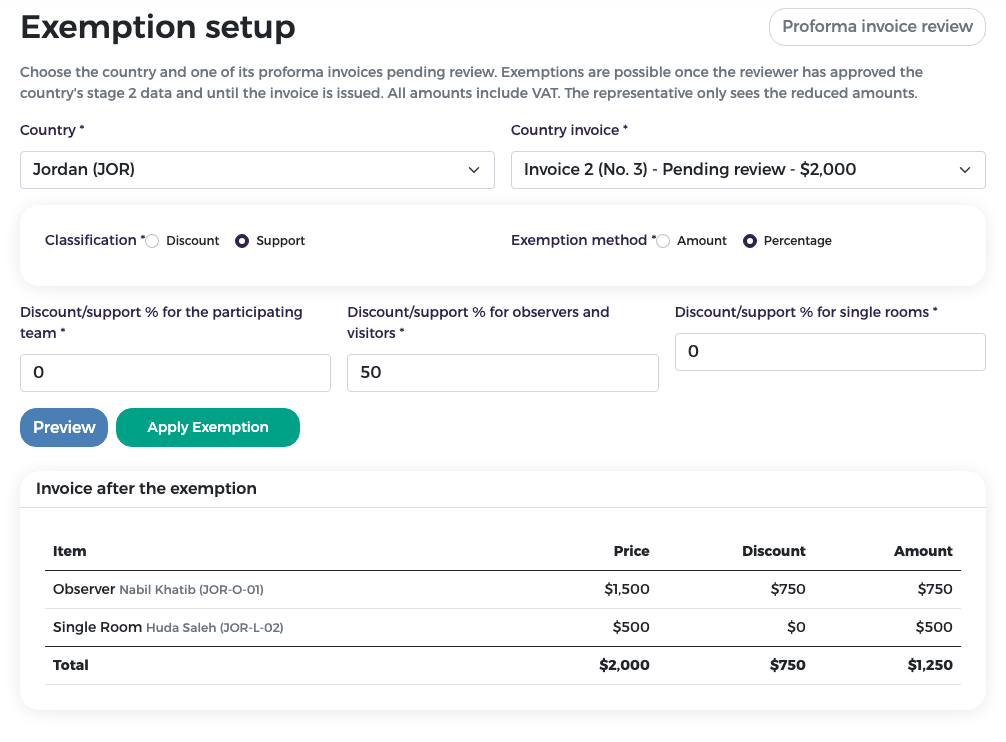
Percentage: type one percentage (0 to 100) for the participating team, one for observers and visitors, and one for single rooms.
- Press Preview. The table Invoice after the exemption shows the price, discount and new amount of each line.
-
-
If the result is right, press Apply Exemption.
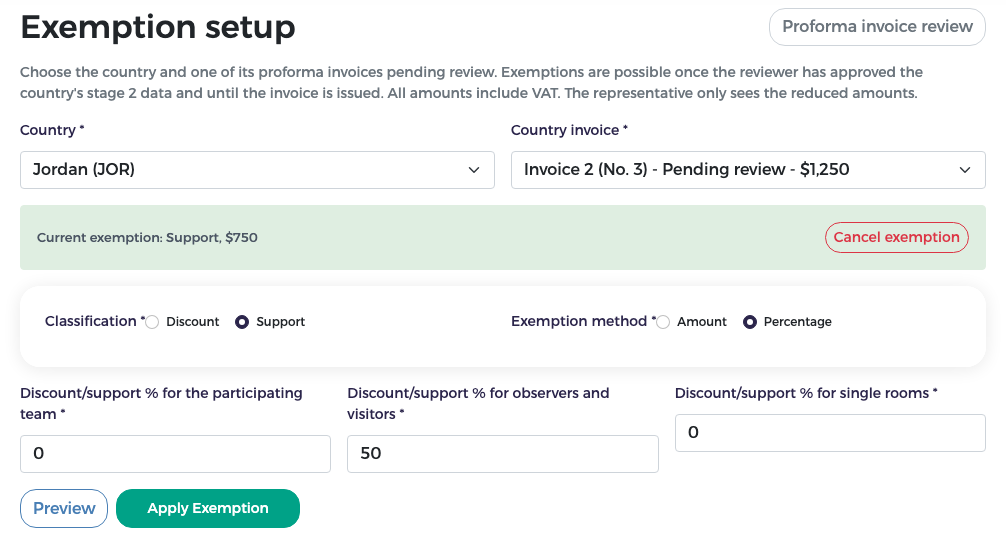
A green box now shows the current exemption (for example "Support, $750") and the invoice shows its new amount. To remove it, press Cancel exemption; the original amounts come back.
What the representative sees
The representative only sees the reduced amounts on the invoice, not the exemption settings.
Full exemption
If an exemption brings an invoice to $0, the invoice is not issued for payment: when you issue it, it is closed as Exempt. A country whose invoices are all exempt shows as "Exempt" on the finance dashboard and in the payment reports.
Issue the invoices
When the invoices are correct (and any exemption is applied):
-
Open the country from the queue. Check the resubmitted invoices once more.
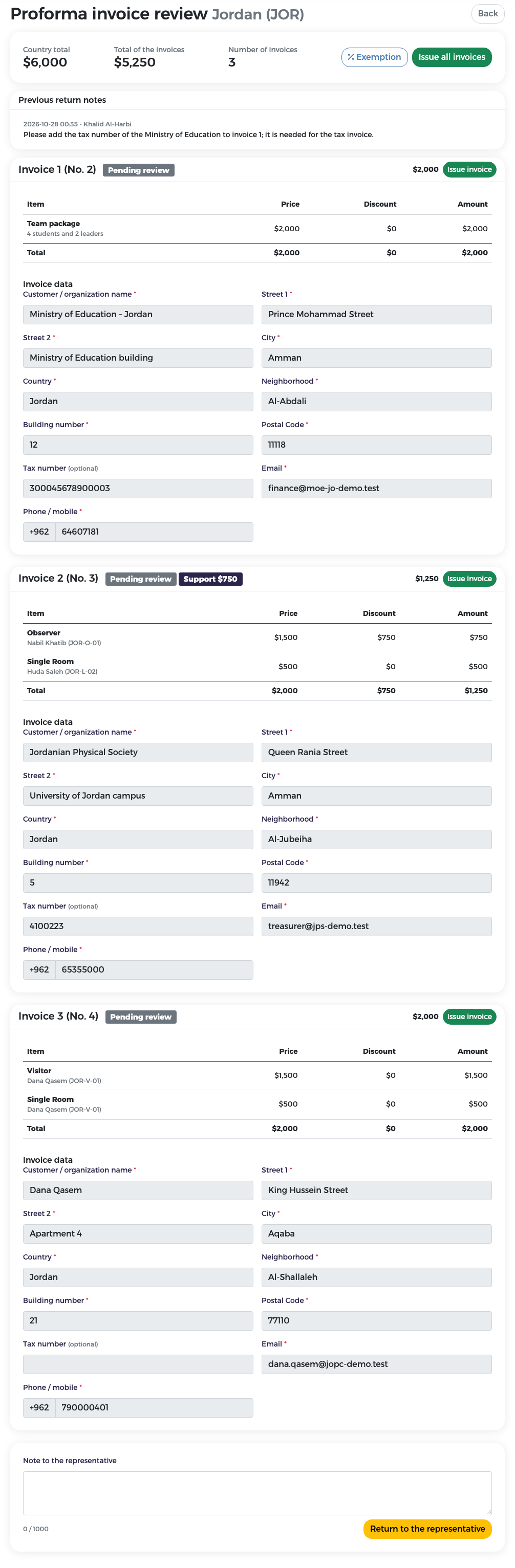
-
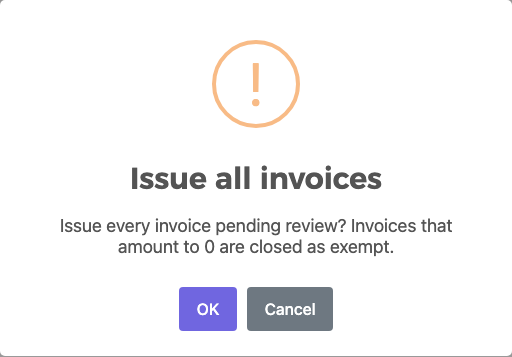
Press Issue invoice on one invoice, or Issue all invoices at the top to issue every invoice pending review.
-
Confirm with OK. Invoices that amount to 0 are closed as exempt.
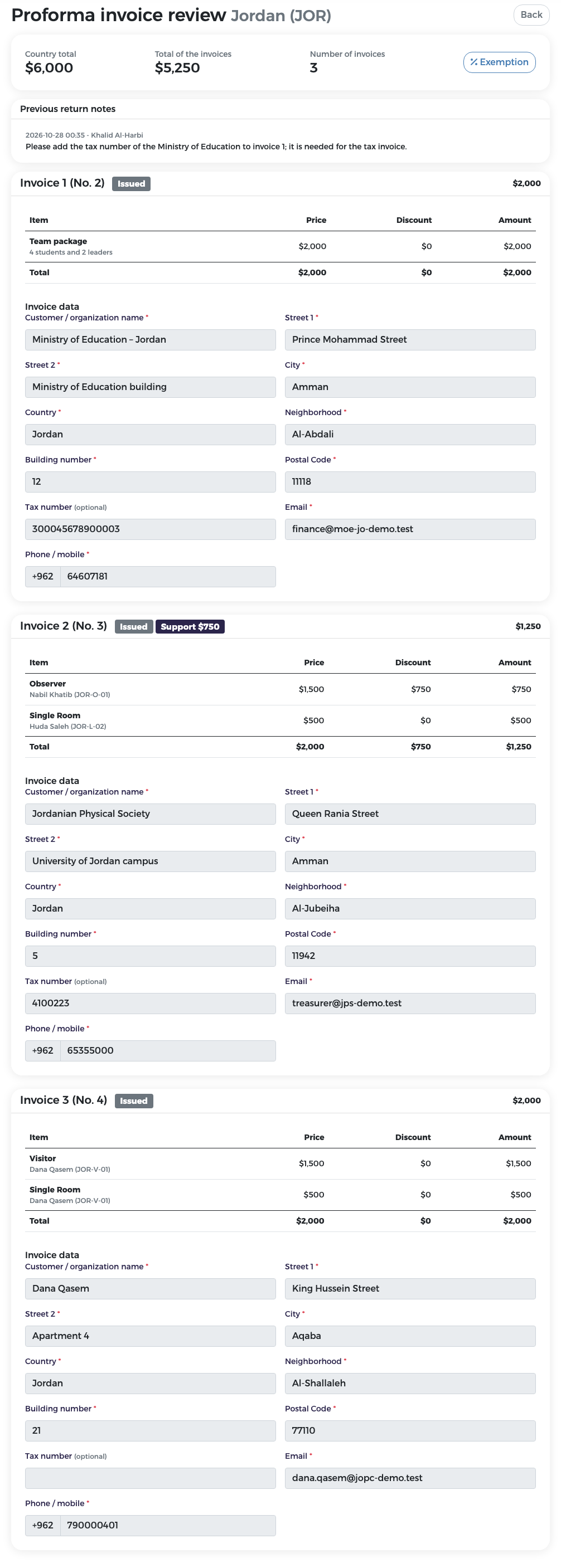
The invoices now show Issued (and the exemption badge where one applies).
Stage 2 must be approved
You can issue only when all the country's participants are approved. If the representative removes or replaces a participant later, the new person must be reviewed again.
The country leaves the Pending review tab.
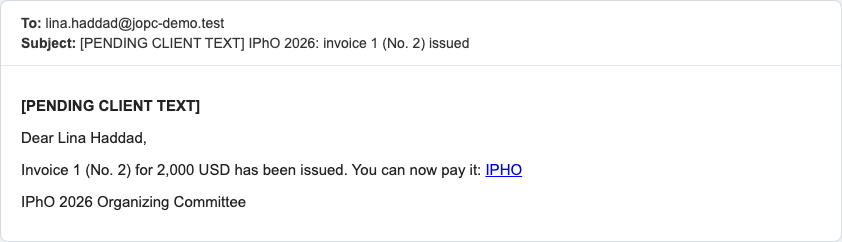
The representative receives one e-mail per issued invoice and can now pay it online, by bank transfer or, if the administrator has enabled it for the country, on arrival.
Jordan example
Lina Haddad split Jordan's $6,000 into three invoices: Invoice 1 (No. 2) the team package ($2,000, Ministry of Education), Invoice 2 (No. 3) the observer and a single room ($2,000, Jordanian Physical Society) and Invoice 3 (No. 4) the visitor and her single room ($2,000, Dana Qasem). The reviewer returned them asking for the Ministry's tax number, gave 50 % support on the observer fee of Invoice 2 (No. 3) (now $1,250), and issued all three. Jordan's total became $5,250.
To see how the representative prepares and pays the invoices, see Proforma invoices and Payment in the representative's guide.