Registration settings and staff accounts
Before the countries start, two things must be ready: the dates of the three registration stages, and the accounts of the Mawhiba staff who will review, confirm payments and receive delegations.
Stage dates for all countries
Registration has three stages, each with a start and a closing date:
| Stage name in the settings | What the representative does |
|---|---|
| Country Users & Counts Stage | Stage 1: coordinator data and the numbers of each participant type |
| Participants Info Stage | Stage 2: each participant's data and documents |
| Travel Info Stage | Stage 3: flight details |
A representative can fill and submit a stage only while it is open (from the start date to the closing date, both included). After the closing date the representative can only correct and resubmit what was sent back: a submission you withdrew, or a participant the reviewer returned. Anything new (a first submission, a new participant, removing or replacing a participant) needs the stage to be open. Reminders are sent automatically before a stage closes to countries that have not submitted it yet.
- In the menu, choose Registration Settings.
- In the table, set the Start date and Closing Date of each stage.
- If some countries must keep their own dates (see below), tick them under Exclude countries from this change. The selection applies to this save only.
- Press Save.
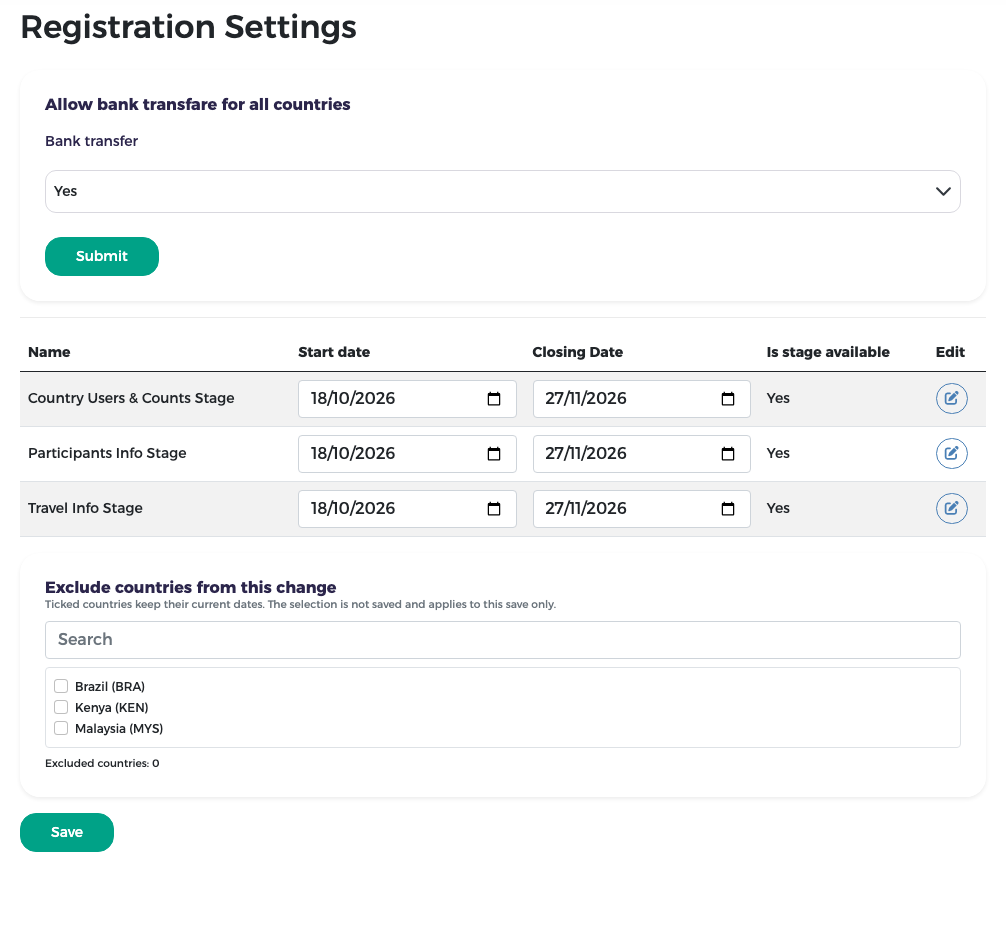
The new dates apply to every country except the ones you ticked.
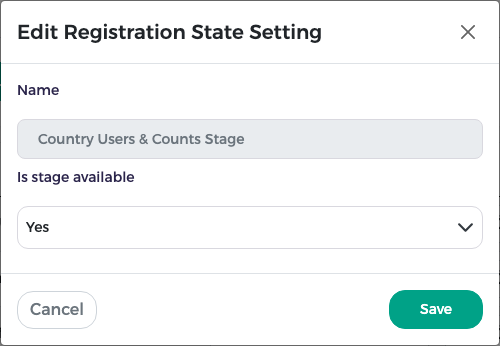
To make a stage unavailable without changing its dates, press the edit icon in the Edit column, set Is stage available to No and press Save.
Dates for one country (exception)
Sometimes one country needs more time. Give it its own dates:
- In the menu, choose Country Users, select the country, and press Registration Settings for it.
- The page title shows the country. Change the Start date / Closing Date of the stage and press Save.
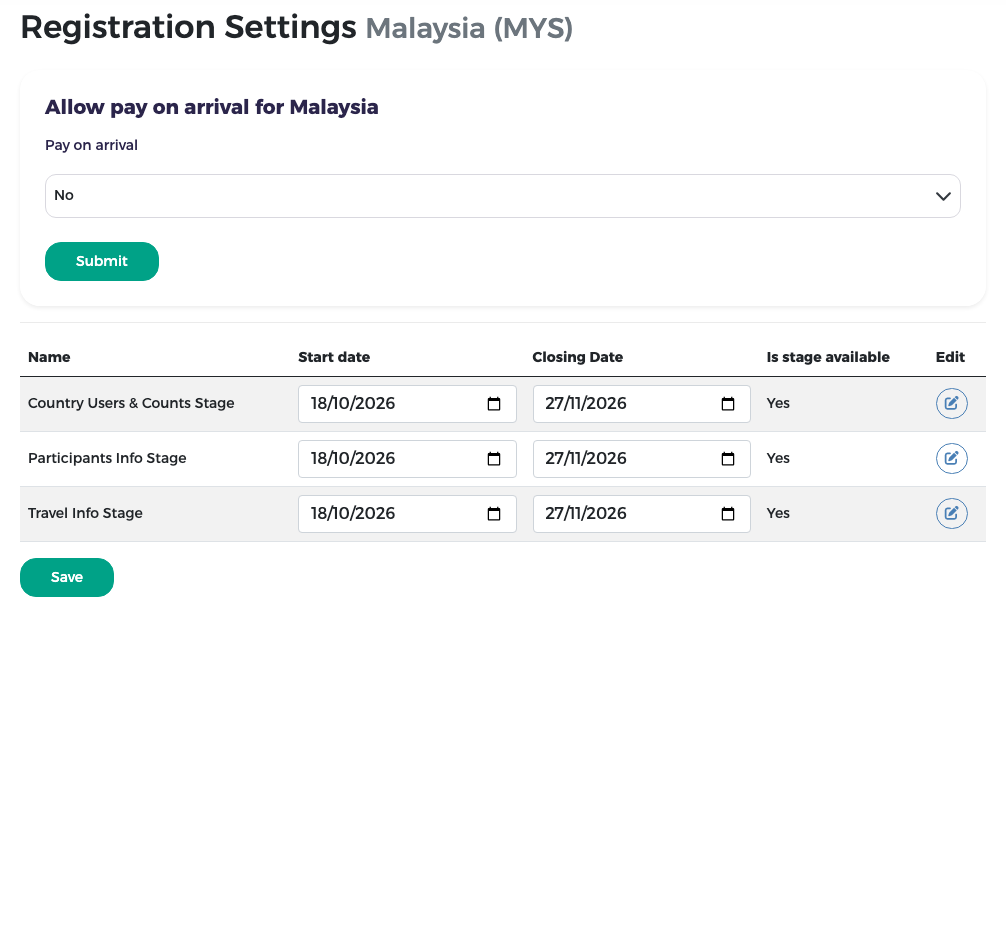
The same page also lets you allow Pay on arrival for this one country (choose Yes and press Submit); see Country operations for the rule.
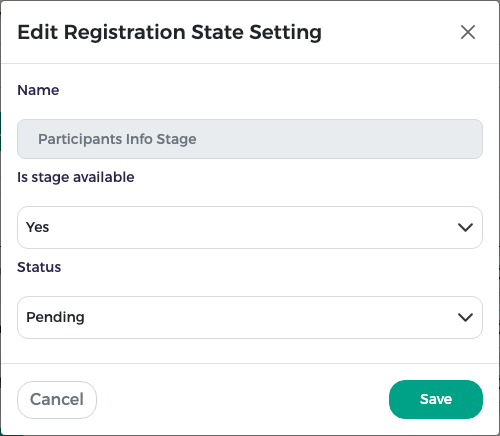
The edit icon opens the stage for this country, with Is stage available and the country's Status in that stage.
Tip
To let a representative change a stage they already submitted, do not change the status here: use Withdraw submission, which is logged and e-mails the representative.
Keeping the exception
When you later change the dates for all countries, tick this country under Exclude countries from this change so it keeps its own dates.
Bank transfer for all countries
At the top of Registration Settings, the Bank transfer box decides whether representatives may choose bank transfer as a payment method.
- Choose Yes or No.
- Press Submit.
The switch applies to all countries at once. Turning it off does not affect invoices that are already waiting for a bank transfer or for finance's confirmation: they continue as before.
Staff accounts
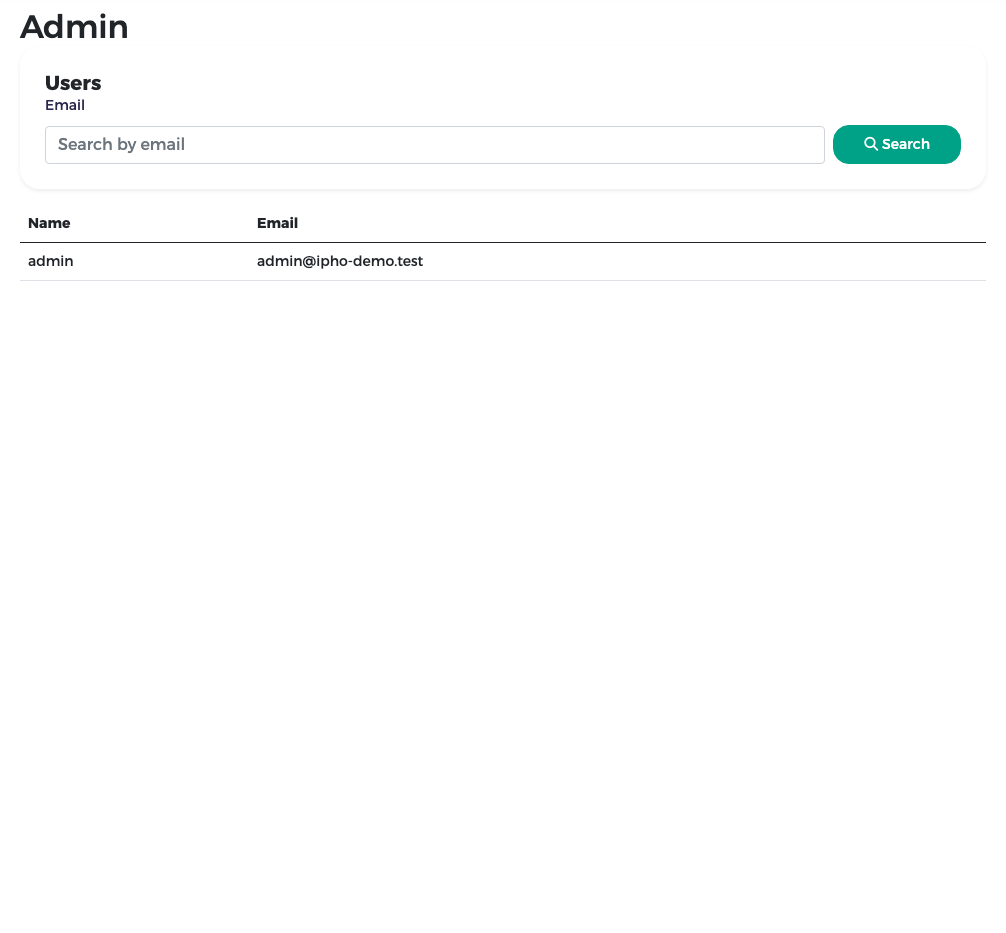
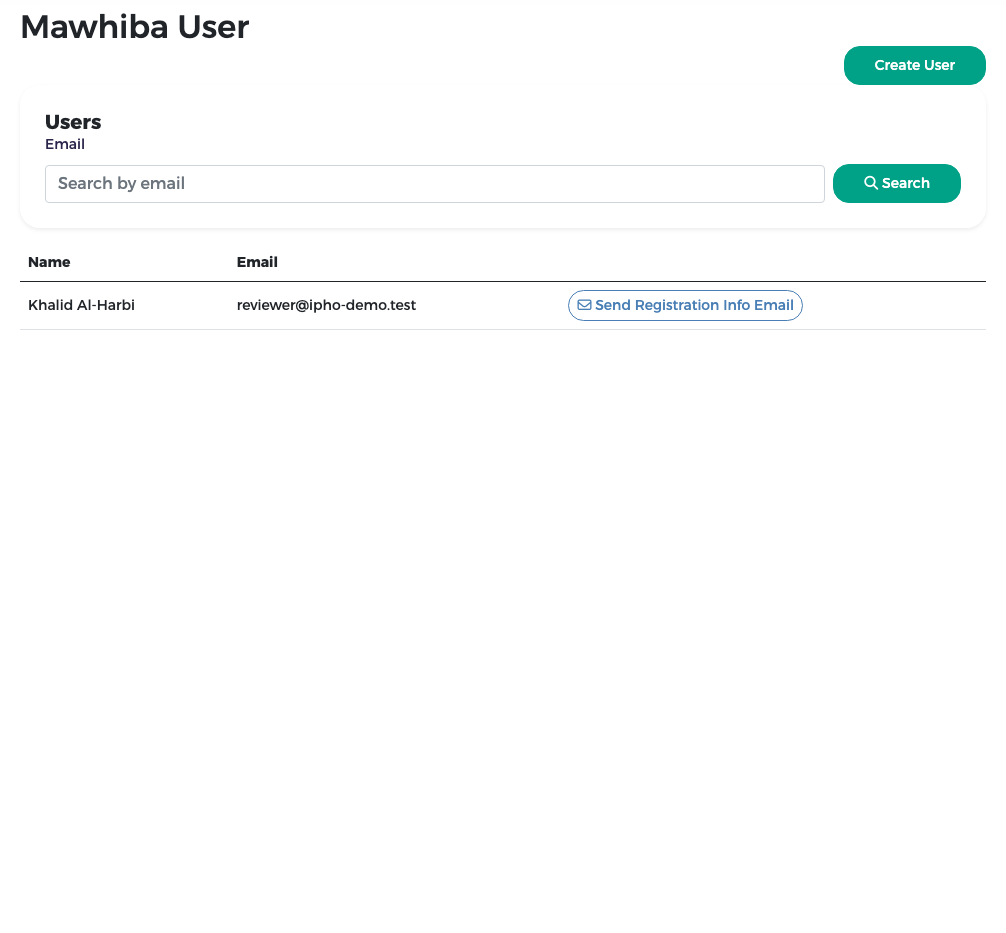
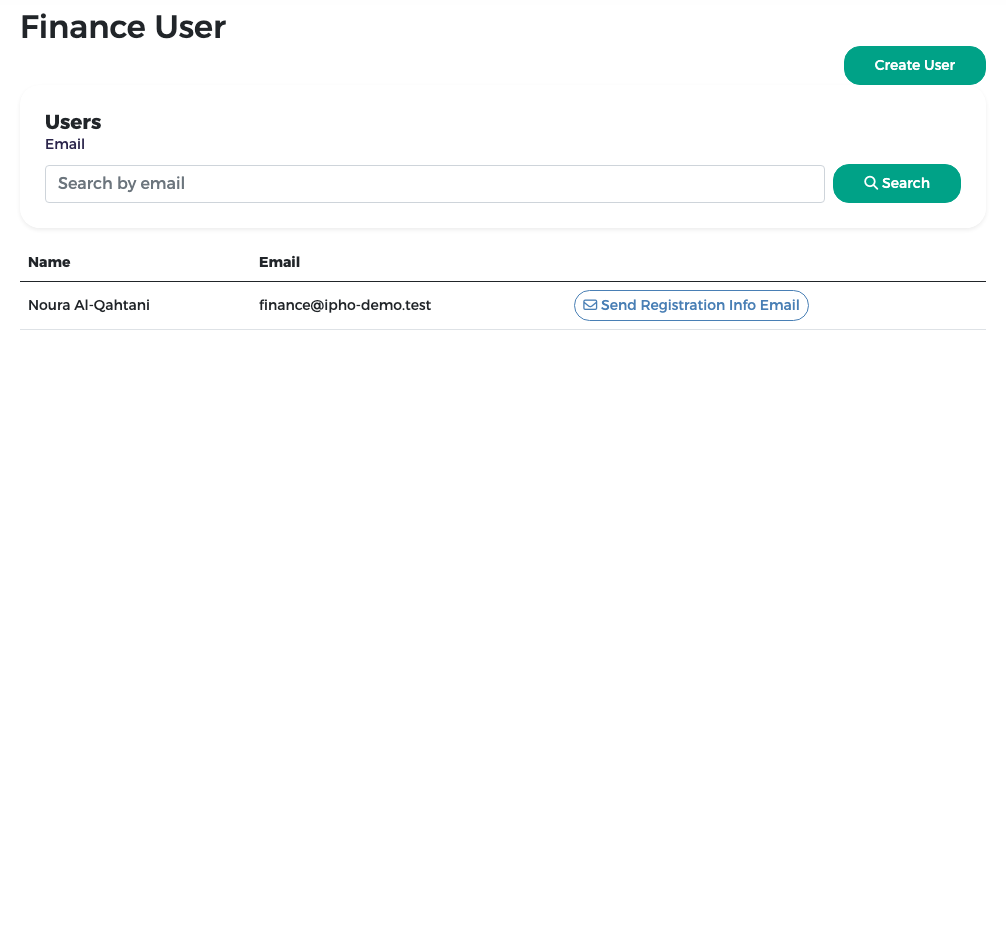
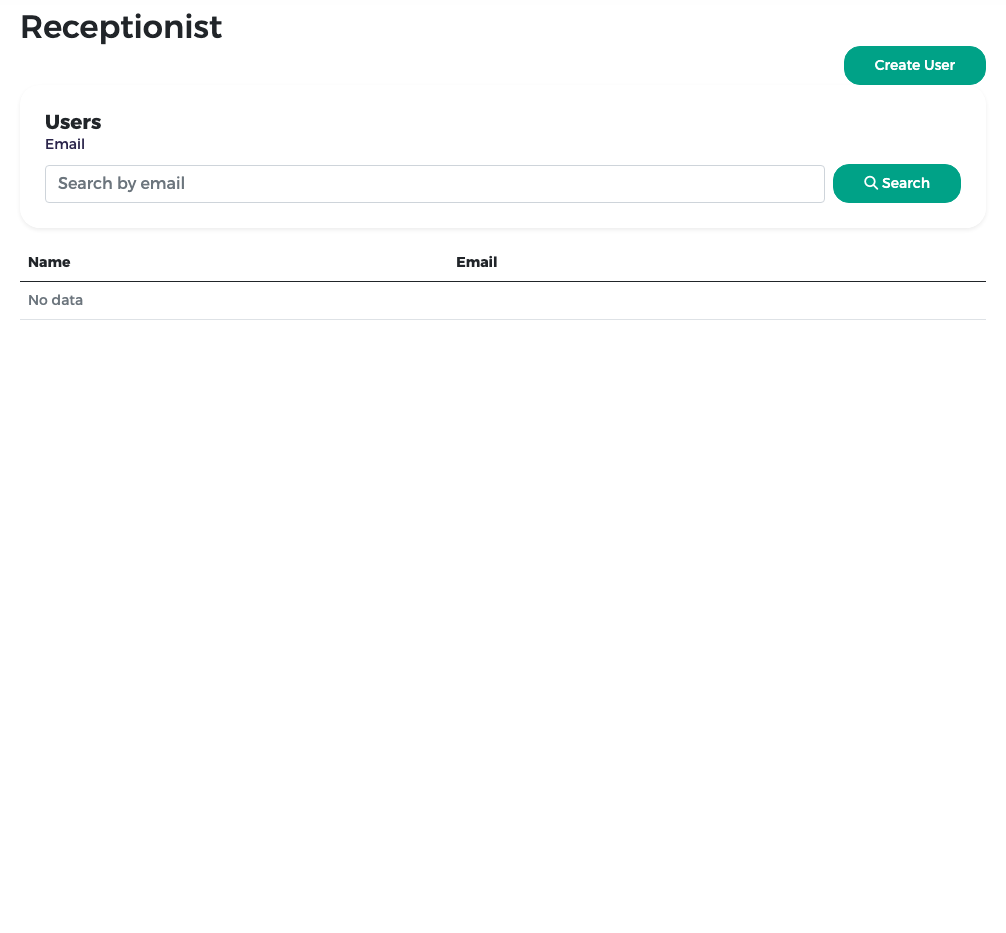
Each staff member has one role. The menu items Admins, Mawhiba User, Finance User and Receptionist (just below Finance User) list the users of each role.
| Role | Page | Can be created here? |
|---|---|---|
| Administrator | Admins | No. Administrator accounts are not created from the screens. |
| Mawhiba reviewer | Mawhiba User | Yes |
| Finance | Finance User | Yes |
| Receptionist | Receptionist | Yes |
Create a staff account
-
Open the page of the role, for example Receptionist.
-
Press Create User.
-
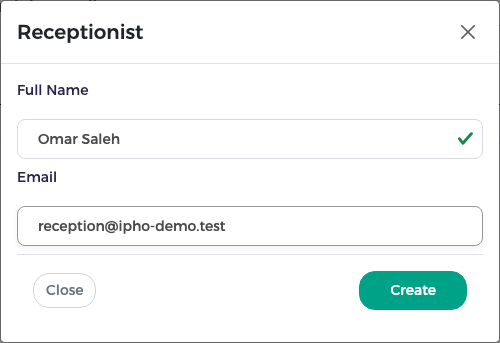
Type the Full Name and Email, and press Create.
-
The new user appears in the list. They receive a "Your IPHO account" e-mail with a link to set their password (see Getting started).
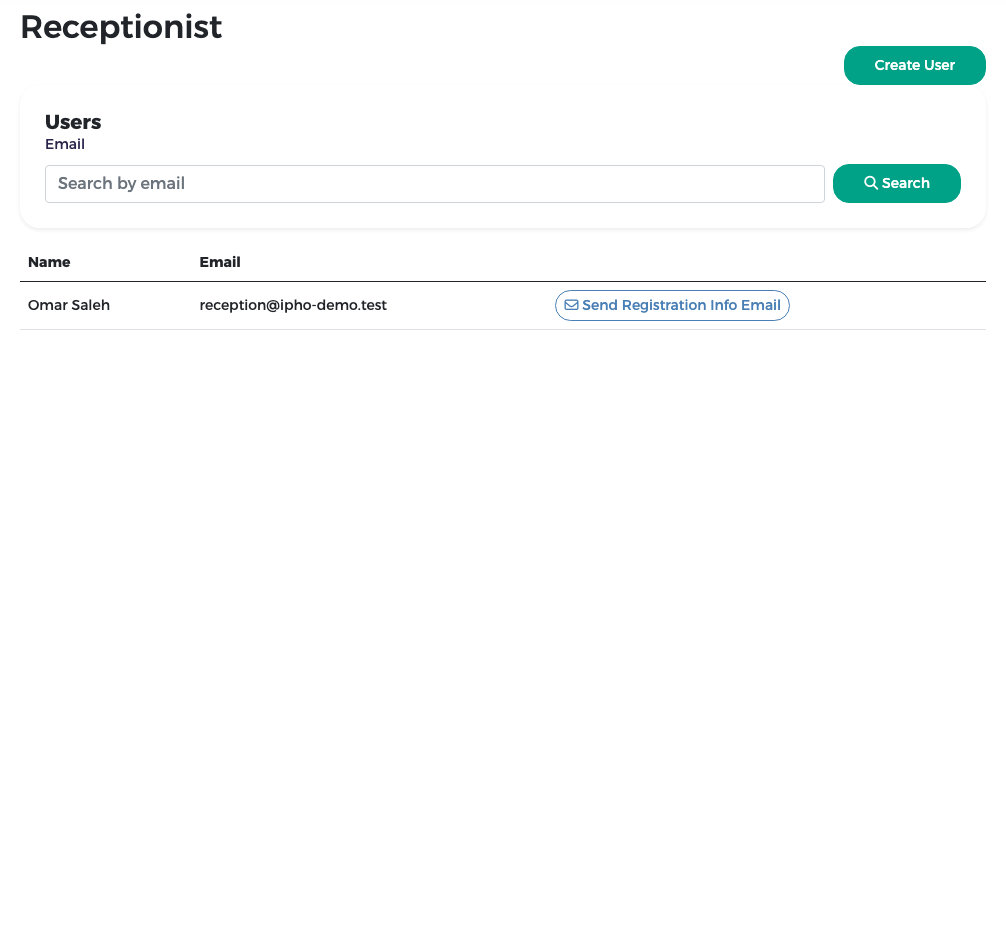
If the user did not receive the e-mail, or the link has expired, press Send Registration Info Email on their row to send a new set-password link.
Passwords
You cannot see or type another user's password. Users set it themselves from the link, and change it later from their user menu.
Find a user, change the role or deactivate
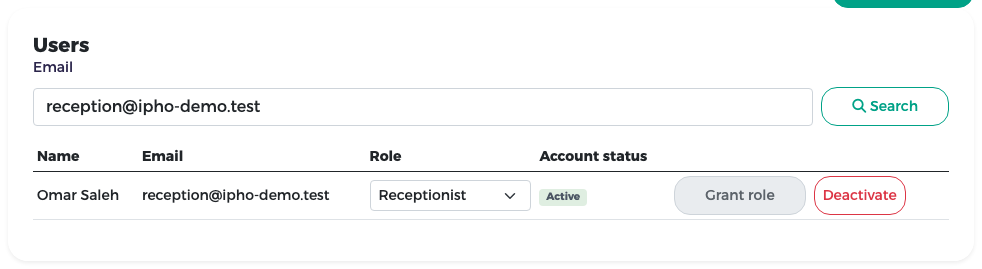
The Users box at the top of each staff page finds any staff account by e-mail.
- Type the e-mail in Search by email and press Search.
- The result shows the Role and the Account status (Active).
- To move the person to another role, choose it in Role and press Grant role. The change applies at once.
- To stop someone signing in (for example when they leave), press Deactivate. Their history is kept. A deactivated account can be reactivated from the same place.
Warning
You cannot grant or remove the administrator role, turn a country representative into staff, or deactivate your own account. Accounts are never deleted.