Confirming payments
Every issued invoice is paid in one of three ways, chosen by the representative:
| Method | Who confirms the money |
|---|---|
| Online | The payment gateway. The invoice becomes Paid automatically; you do nothing. |
| Bank transfer | You, after the money reaches the Mawhiba account. |
| On Arrival | You (or the administrator), when the delegation pays at the registration desk by POS terminal or in cash. Only for countries where the administrator enabled pay on arrival. |
All amounts are in US dollars and include VAT.
The finance dashboard
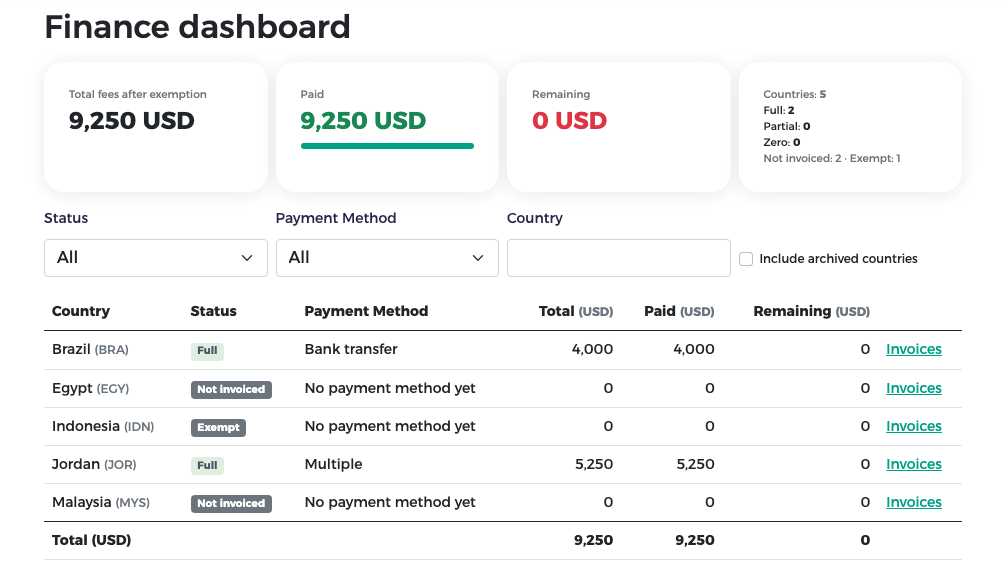
Finance dashboard is your home page. The tiles show the Total fees after exemption, the amount Paid, the amount Remaining, and how many countries are in each payment status.
The table shows each country with its Status, Payment Method, Total, Paid and Remaining (in USD), and an Invoices link to the country's invoices. The last row adds everything up.
| Country status | Meaning |
|---|---|
| Full | Every issued invoice is paid (or exempt). |
| Partial | Some money has been received, but not everything. |
| Zero | Invoices are issued, but nothing has been received yet. |
| Not invoiced | No invoice has been issued yet (none prepared, or still being reviewed). |
| Exempt | All the country's invoices were fully exempted; nothing is due. |
The Payment Method column shows the method of the country's invoices, Multiple when its invoices use different methods (for example Jordan: one by bank transfer, one on arrival, one online), or "No payment method yet".
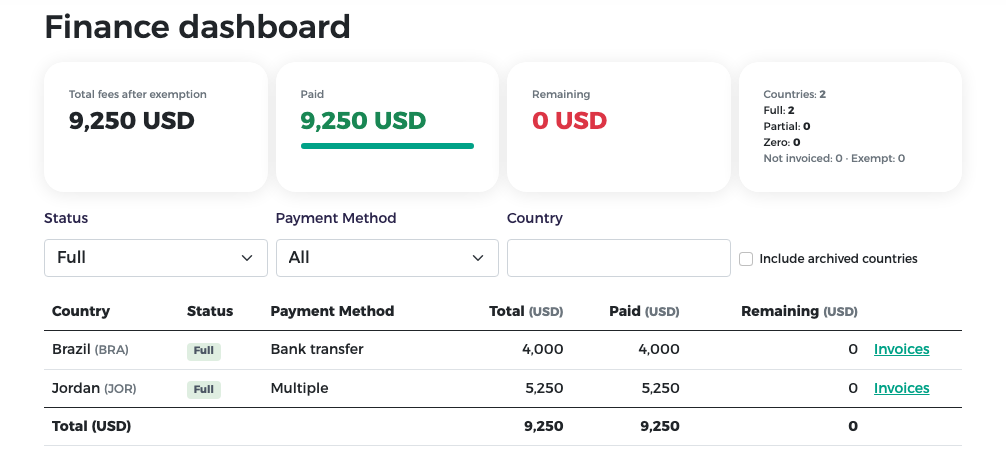
To narrow the table, choose a Status or a Payment Method, or type a Country. Tick Include archived countries to see withdrawn countries too.
Note
Only issued invoices count in the totals. Proforma invoices still being reviewed, and exempted amounts, are not counted.
The list of invoices to confirm
- In the menu, choose Confirm receipt of fees.
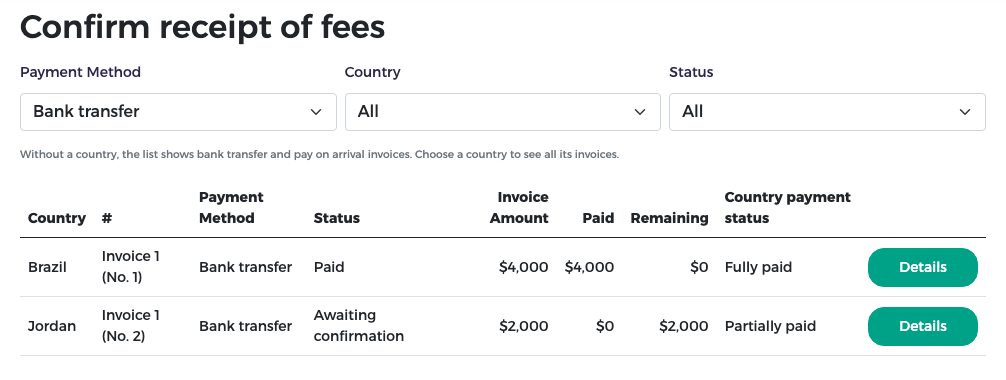
- Without a country, the list shows the bank transfer and pay on arrival invoices. Choose a Country to see all its invoices. You can also filter by Payment Method and Status.
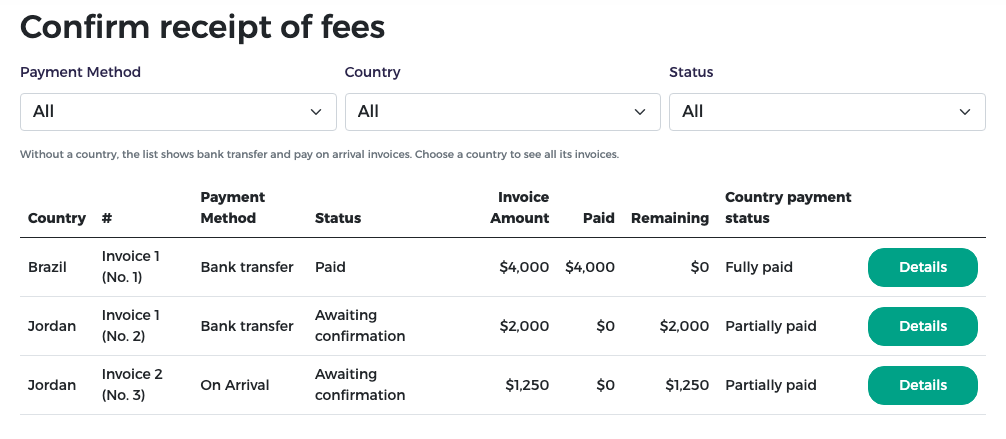
Each row shows the country and the invoice label, for example Invoice 1 (No. 2) (the country's first invoice, reference number 2), the method, invoice status, amount, paid and remaining amounts, and the Country payment status (all the country's invoices together). Invoices waiting for you have the status Awaiting confirmation.
Confirm a bank transfer
- Check your bank statement for the transfer.
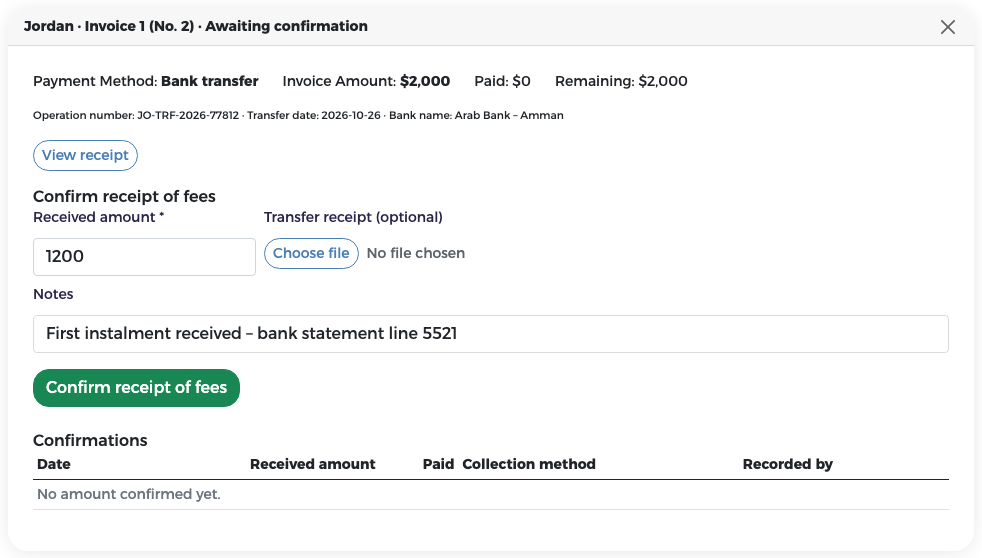
- Press Details on the invoice. The window shows the transfer details entered by the representative (operation number, transfer date, bank name). Press View receipt to open the transfer receipt they uploaded.
- In Received amount, type the amount that actually arrived, in whole dollars. It can be less than the invoice.
- Optionally attach a Transfer receipt (click Choose file) and write Notes (for example the bank statement line).
- Press Confirm receipt of fees and confirm with OK.
Only after the representative sends the transfer details
You can confirm a bank transfer only after the representative has submitted the transfer details, or after you upload the receipt for them. You cannot confirm more than the remaining amount of the invoice.
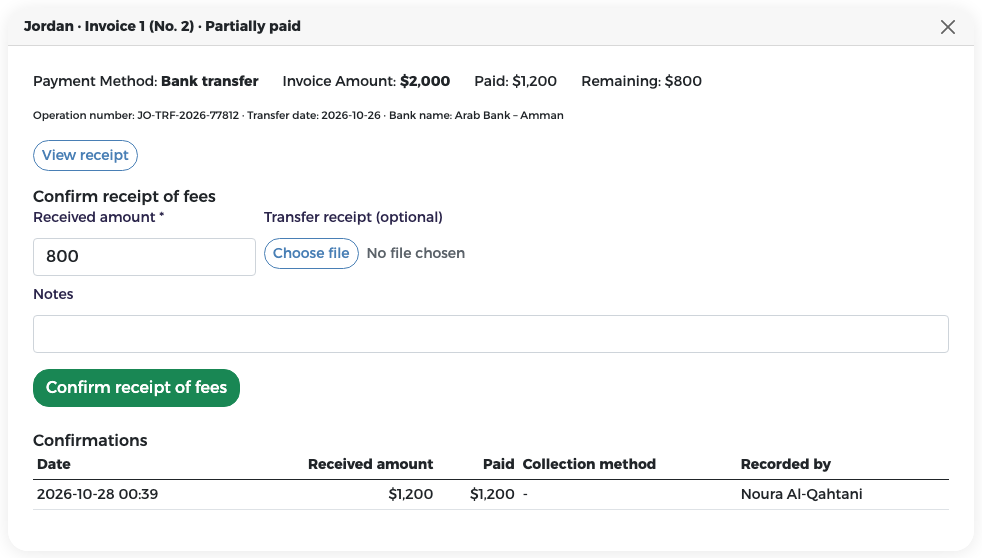
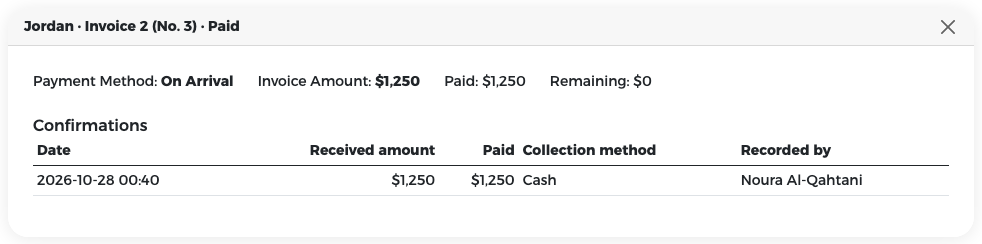
If you confirmed less than the invoice amount, the invoice becomes Partially paid and shows what is paid and what remains. Every confirmation is listed under Confirmations with the date and time (Riyadh time), amount and who recorded it.
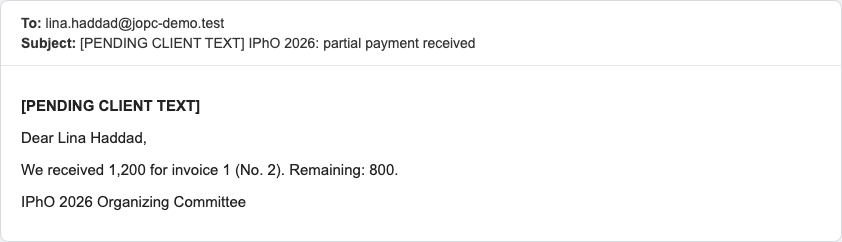
The representative receives an e-mail with the amount received and the amount still remaining.
For the rest you have two options:
- If a second transfer arrives, open Details again and confirm the new amount. Amounts add up; when nothing remains, the invoice becomes Paid.
- If the rest will be paid when the delegation arrives, send a settlement claim (see Settlement claims).
Confirm a payment on arrival
When the delegation pays at the registration desk:
- Press Details on the invoice (method On Arrival).
- Type the Received amount.
- Choose the Collection method: POS terminal or Cash.
- Optionally attach a receipt (click Choose file) and write Notes.
- Press Confirm receipt of fees and confirm.
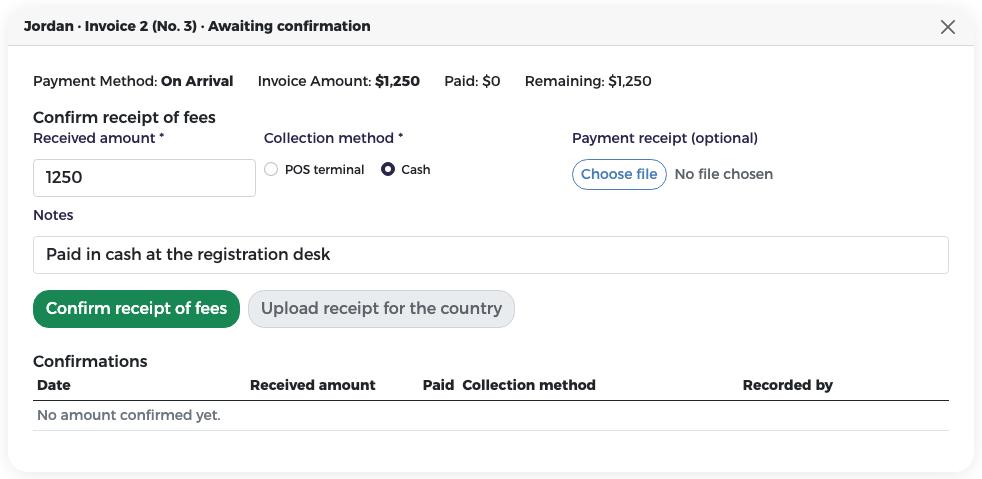
Upload receipt for the country attaches a receipt on the representative's behalf, for example when they paid but did not upload anything.
When the whole amount is confirmed, the invoice becomes Paid and the confirmation appears in the history.
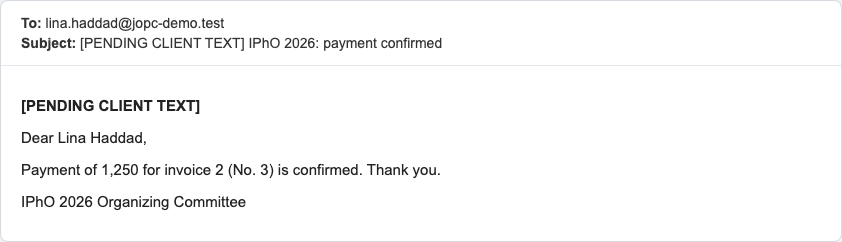
The representative receives an e-mail that the payment is confirmed, and then the payment receipt (see Payment receipts).
What "Paid" triggers
When an invoice becomes fully paid, the system automatically:
- issues the payment receipt for that invoice and e-mails it to the representative;
- requests the tax invoice from the e-invoicing service.
If the tax invoice could not be produced, a Retry tax invoice button lets you request it again.
Jordan example
Jordan paid Invoice 1 (No. 2) ($2,000) by bank transfer, but only $1,200 arrived; Noura from finance confirmed $1,200 and the invoice became Partially paid. Invoice 2 (No. 3) ($1,250) was paid in cash at the desk and confirmed in full. Invoice 3 (No. 4) was paid online and needed no confirmation.
For the invoice and payment statuses, see the Reference.