Following up countries
Besides reviewing, you can follow every country through the registration: the dashboard, each country's page, its timeline, embassy letters and report 16. The administrator sees the same screens.
The dashboard
Dashboard is the first item in your menu. At the top, summary tiles count the countries per stage, the stages submitted, the participants (registered in stage 1, entered and submitted in stage 2) and the review results (approved, returned, travel data complete). Type in Filter by country to find one country.
Below, every country has a card:
- the three stages (First Stage, Second Stage, Third Stage) with an icon and a status (Submitted, Not started …), and a badge at the top right for how far the country is (for example "Registration completed");
- Stage 1 team: the numbers registered in stage 1;
- Stage 2 progress: for each participant type, how many are entered and submitted and how complete their personal, passport, contact, health and consent data is;
- Stage 3 travel: how many participants have complete flight data;
- the links Details (the country page) and Timeline.
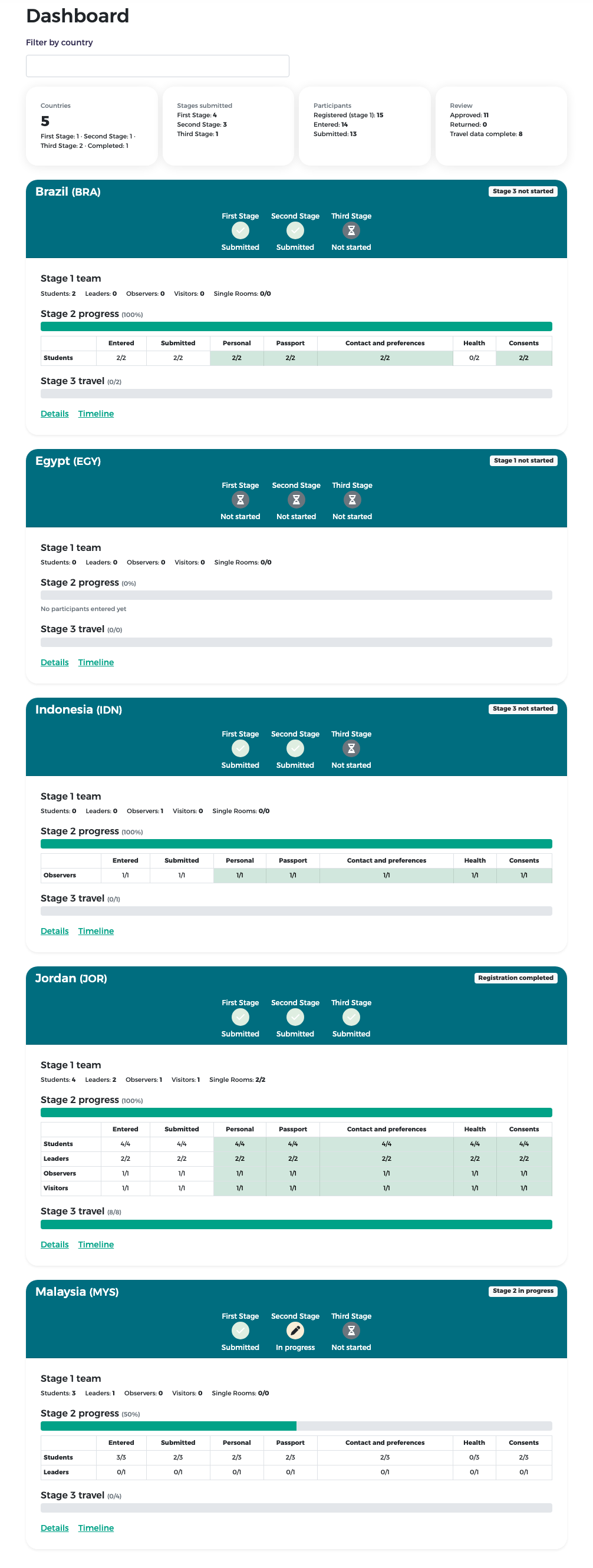
Withdrawn countries do not appear on the dashboard.
The country page
Press Details on a country card to open its page. It shows the flag and the representative, links to the Embassy letter and the Timeline, what the country still has to fill in, and the sections of each stage: the stage 1 counts and dates, then the stage 2 participants by type with their status and missing data. Each section folds open or closed when you click its title.
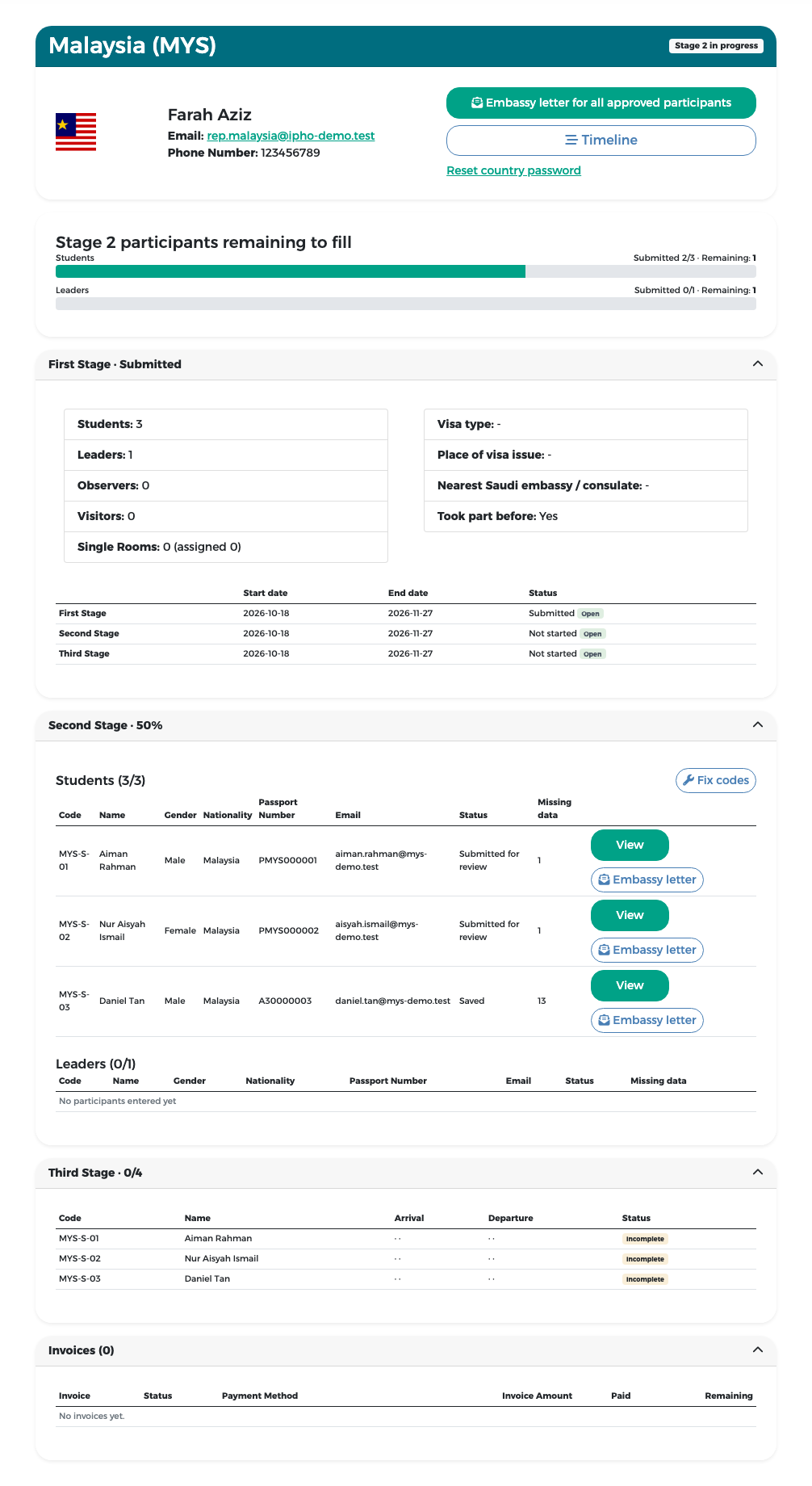
Press View on a participant to see all their data.
The timeline
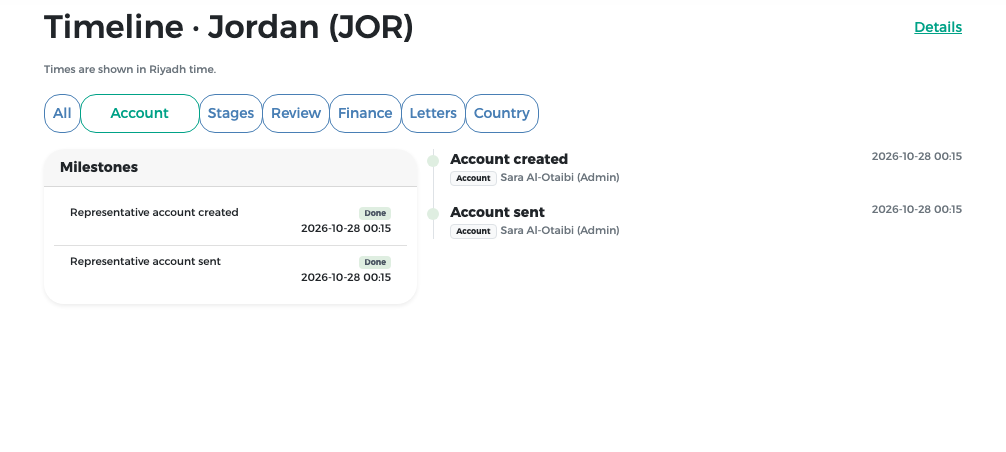
Press Timeline (on the card or the country page) to see everything that happened to the country, newest last, with who did it and when (Riyadh time). On the left, Milestones shows the main steps and whether they are done.
Use the filter buttons to show only one kind of event: All, Account, Stages, Review, Finance, Letters or Country.
Tip
The timeline is the quickest way to answer questions like "when did we return this participant?" or "who issued Invoice 2 (No. 3)?".
Embassy letters
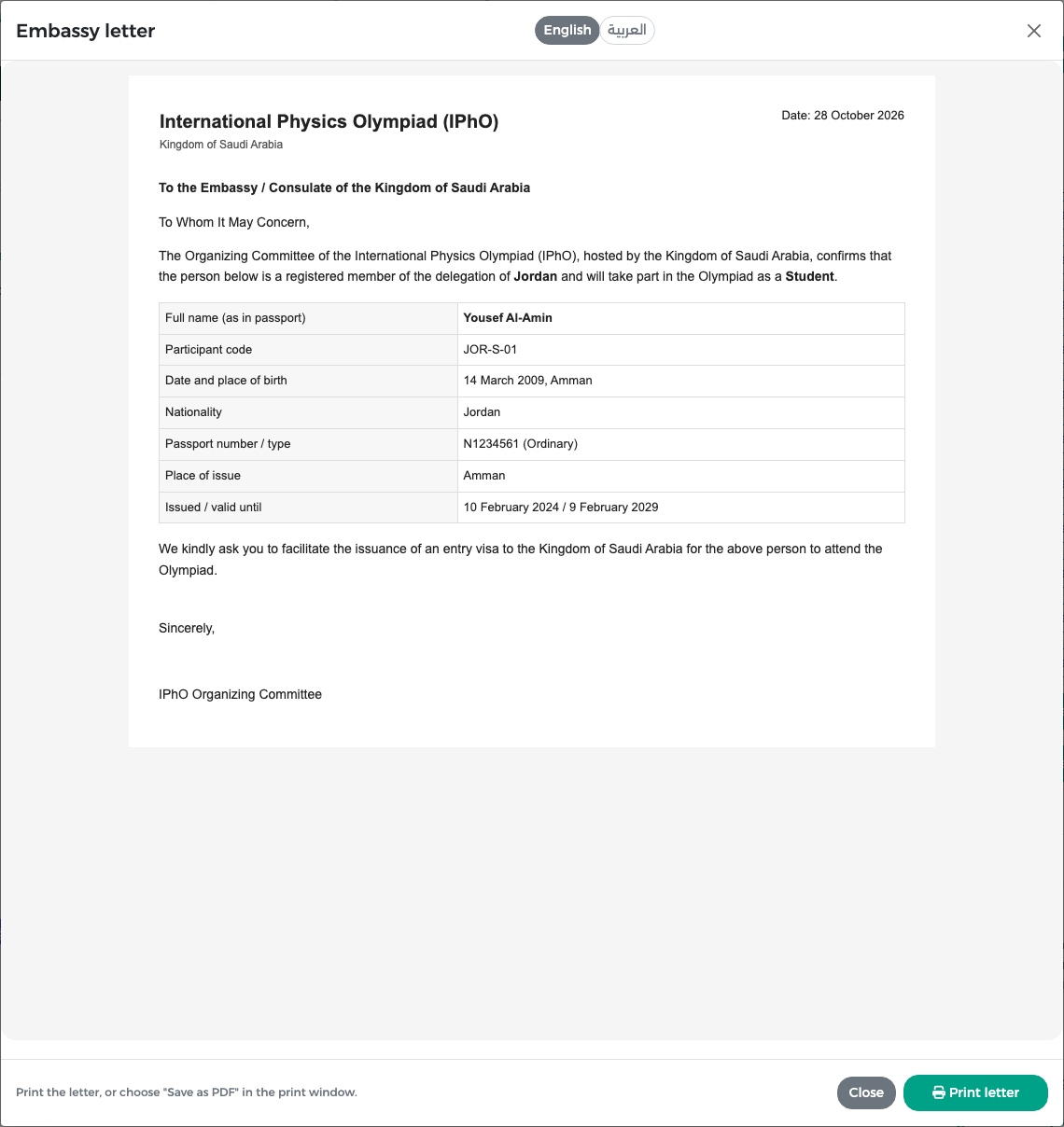
An embassy letter helps a participant obtain a visa. It lists the participant's passport data. It exists only for approved participants.
- For one participant: press Embassy letter on an approved row in Participants (stage 2) or on the country page.
- For the whole delegation: press Embassy letter at the top of the country page.
The letter opens in a window. Switch between English and العربية, then press Print letter to print it or save it as PDF.
Note
If the team changes later (a member is removed or replaced), the letter is created again from the current approved data, so always open it fresh rather than reusing an old copy.
Report 16 "Payment only"
In Reports you have one report: 16. Payment only. It lists only the countries that completed stage 2, with their country code and name, total fees, total paid, remaining amount, payment method, transfer receipt, registration status, payment status and Withdrawn. Withdrawn countries are not included in your report, so Withdrawn always shows No.
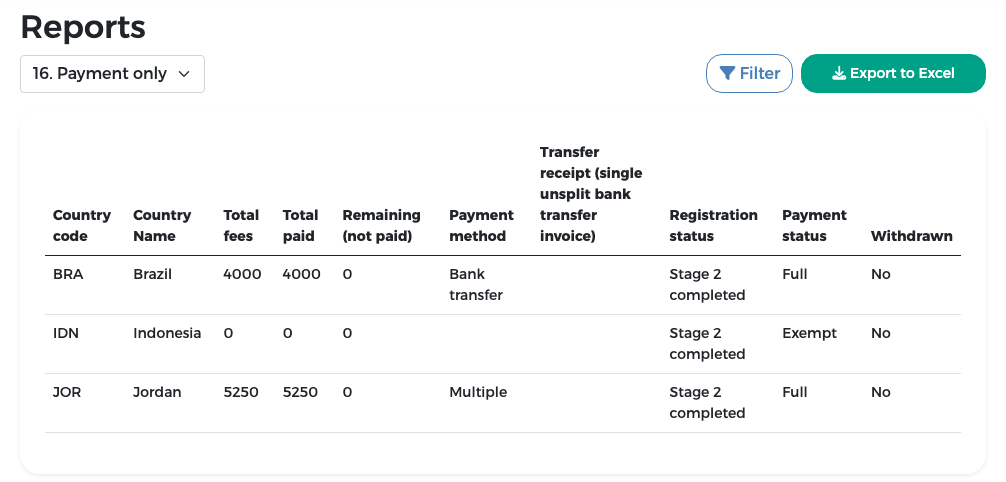
- Payment method shows "Multiple" when the country's invoices are paid in different ways (for example one by bank transfer and another online).
- Payment status is Full, Partial, Zero, Not invoiced or Exempt. See the Reference for their meaning.
- Filter narrows the list; Export to Excel downloads the table.