Payment
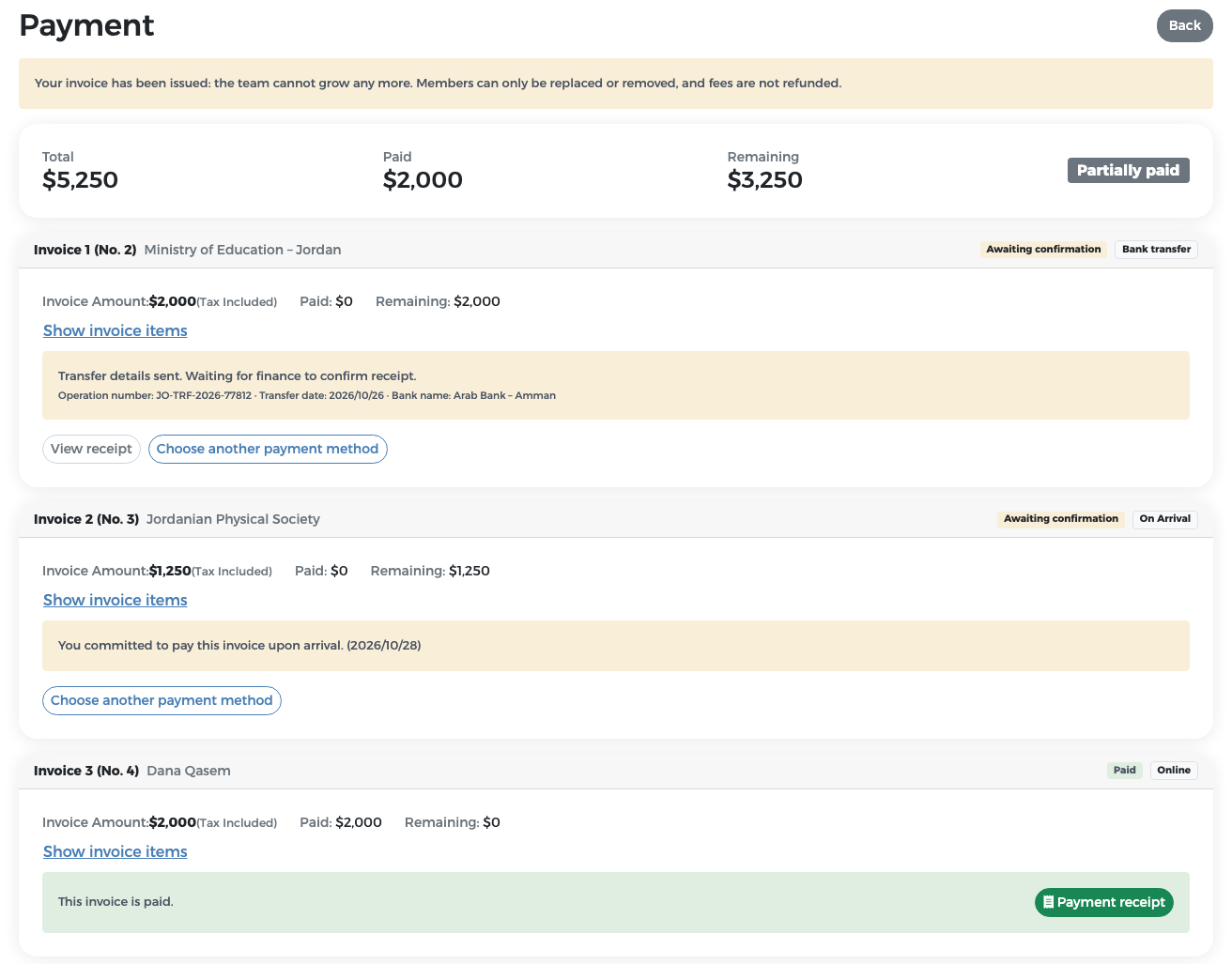
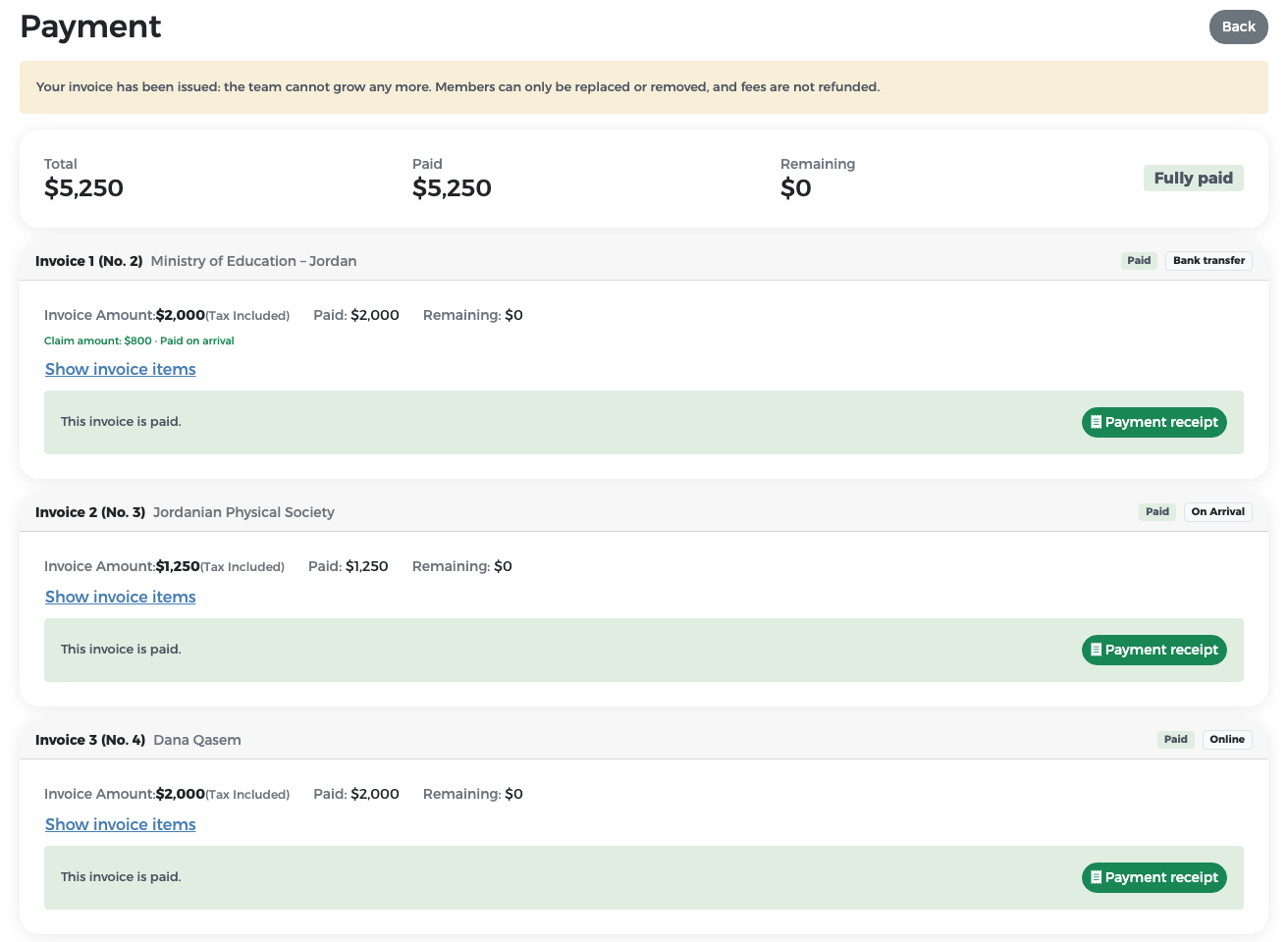
Once the reviewer has issued your invoices, you can pay them. Each invoice is paid on its own, and you choose the payment method for each one. For example, Jordan paid Invoice 1 (No. 2) by bank transfer, Invoice 2 (No. 3) on arrival and Invoice 3 (No. 4) online.
Open the payment page
Click Payment Details at the top of any page. The Payment page shows:
- a reminder: "Your invoice has been issued: the team cannot grow any more. Members can only be replaced or removed, and fees are not refunded.";
- the totals of your country: Total, Paid, Remaining, and the country's payment status (Unpaid, Partially paid or Fully paid);
- one card per issued invoice.
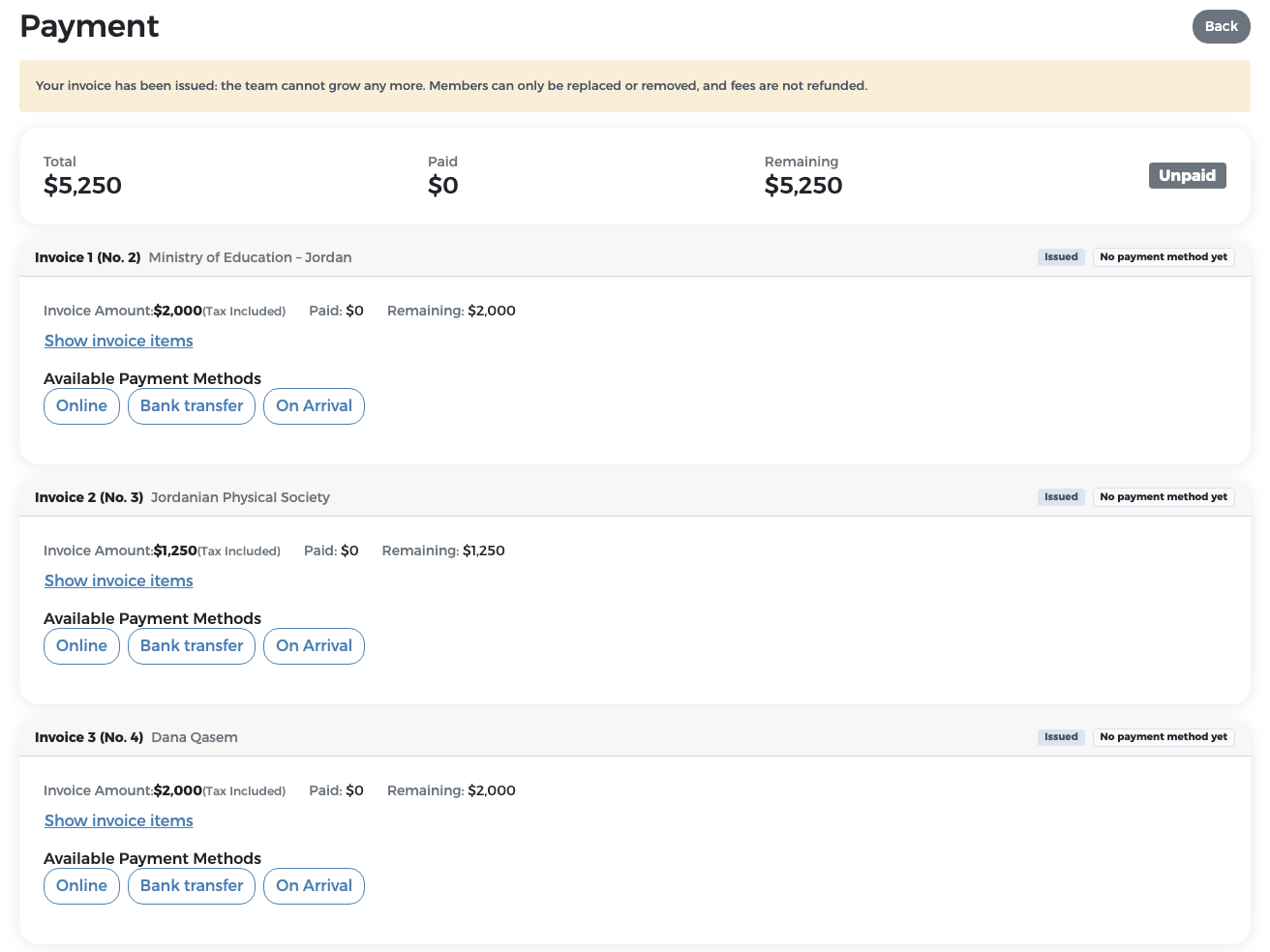
Each invoice card shows:
- the invoice label and the payer (for example Invoice 1 (No. 2) Ministry of Education – Jordan). The first number is the invoice's order within your country; the No. is the reference number to quote to Mawhiba (see Proforma invoices);
- two small labels at the top right: the invoice status (for example Issued) and the chosen method (for example No payment method yet);
- Invoice Amount (Tax Included), Paid and Remaining;
- Show invoice items, which lists the lines of the invoice (click Hide invoice items to close the list);
- Available Payment Methods: Online, Bank transfer and, when allowed for your country, On Arrival.
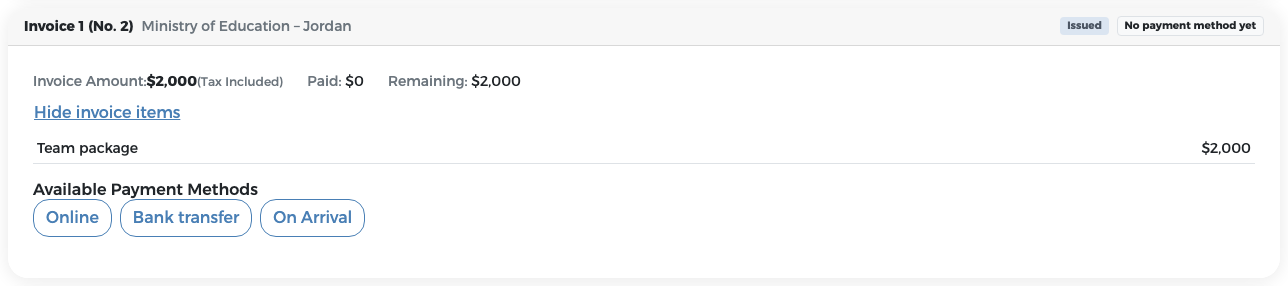
Which methods you see
- Online is always available.
- Bank transfer is available unless the organisers have switched it off.
- On Arrival appears only if the organisers have allowed your country to pay on arrival. Contact them if you need this option.
Pay online
- On the invoice card, click Online.
-
Click Pay Now.
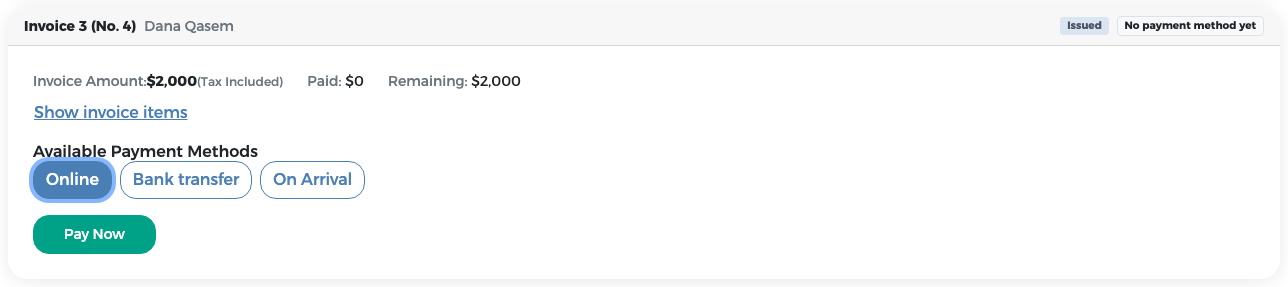
-
You are taken to the Mawhiba payment page. Enter your card details there and confirm the payment.
- When the payment is done, you are brought back to the system. The system checks the result automatically. If the result is not shown, click Check payment result.
- The invoice shows Paid and the message "This invoice is paid.", with a Payment receipt button.
An online payment is confirmed at once. You do not have to wait for finance.
Pay by bank transfer
- Make the bank transfer from your bank, using the bank details given by the organisers. Write your country name in the transfer, so that finance can recognise it.
- In the system, click Bank transfer on the invoice card.
- Fill in the form:
- Operation number: the reference of the transfer from your bank (for example JO-TRF-2026-77812);
- Transfer date;
- Bank name;
- Transfer receipt: click Choose file and upload the receipt from your bank (PDF, PNG or JPG, up to 10 MB). The receipt must show your country name.
- Click Send transfer details.
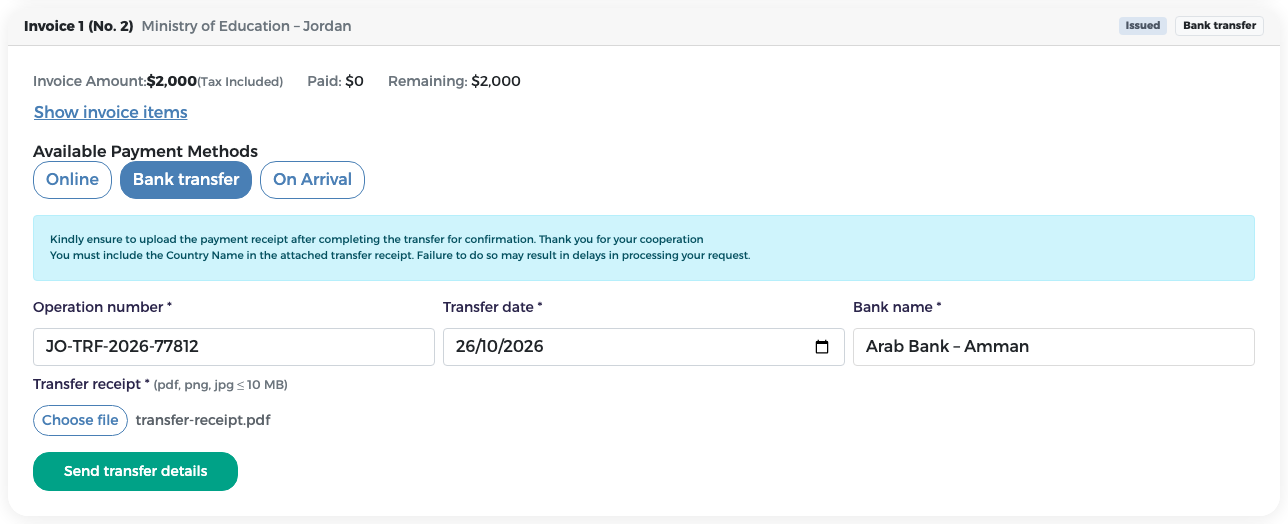
The invoice now shows Awaiting confirmation and the note "Transfer details sent. Waiting for finance to confirm receipt.", with your operation number, date and bank. View receipt opens the file you uploaded. Finance checks that the money has arrived and confirms it.
Tip
Pay the exact amount of the invoice. If you pay several invoices by bank transfer, send the details separately on each invoice.
Pay on arrival
This option is shown only when the organisers have allowed it for your country.
- Click On Arrival on the invoice card.
- Tick I commit to paying this invoice upon arrival.
- Click Will pay upon arrival.
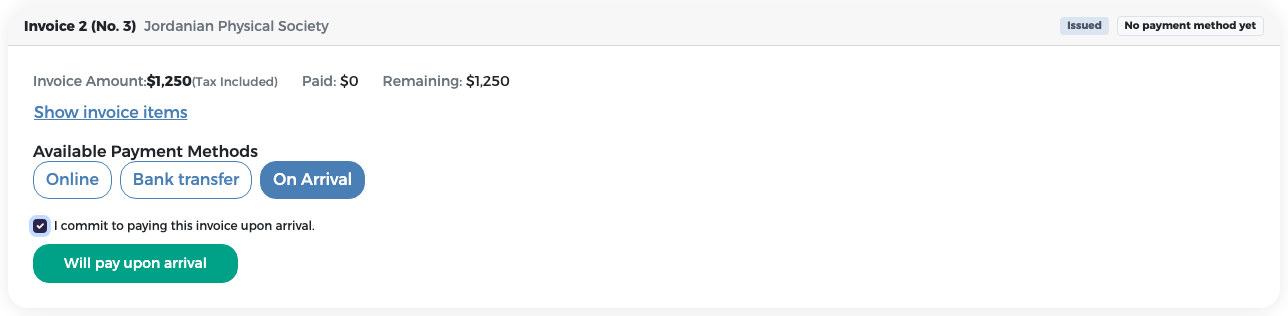
The invoice shows Awaiting confirmation and the note "You committed to pay this invoice upon arrival.", with the date. When your delegation arrives in Saudi Arabia, you pay the amount by POS terminal (card) or in cash. Finance then confirms the payment in the system.
After choosing the methods
The page shows the state of each invoice. In Jordan's example, Invoice 1 (No. 2) (bank transfer) and Invoice 2 (No. 3) (on arrival) are Awaiting confirmation and Invoice 3 (No. 4) (online) is Paid. Because one invoice is paid, the country status is Partially paid.
Change the payment method
While the invoice is Awaiting confirmation and no money has been received yet, you can click Choose another payment method and pick a different method. Once finance has confirmed any amount, the method can no longer be changed.
Partial payments
Sometimes finance receives less than the full amount of an invoice (for example, a bank transfer arrives with less money). Finance confirms the amount received, and the invoice becomes Partially paid. The card shows Paid and Remaining, and the note "Part of this invoice has been received. Finance will contact you about the remaining amount."
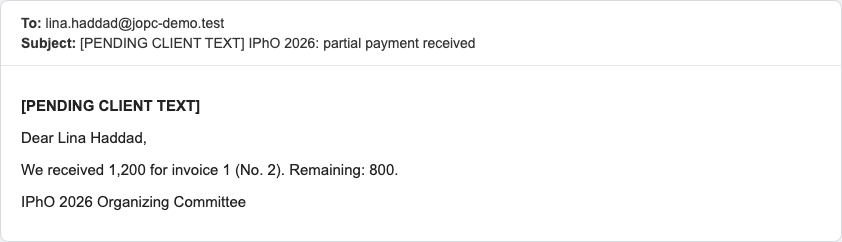
You receive an e-mail with the amount received and the amount remaining.
The remaining amount can be settled in two ways:
- you send another transfer, and finance confirms the rest; or
- finance sends you a settlement claim for the rest, to be paid on arrival.
Settlement claim: the rest is paid on arrival
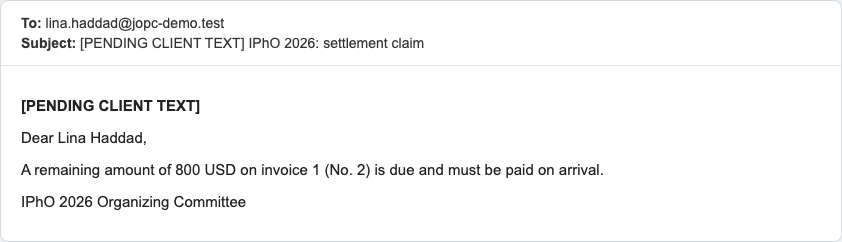
A settlement claim is a request from finance to pay the remaining amount of a partly paid invoice when your delegation arrives. You receive an e-mail, for example: "A remaining amount of 800 USD on invoice 1 (No. 2) is due and must be paid on arrival."
On the invoice card you see the claim: Claim amount: $800 · Payable on arrival (POS terminal or cash), with the date of the claim.
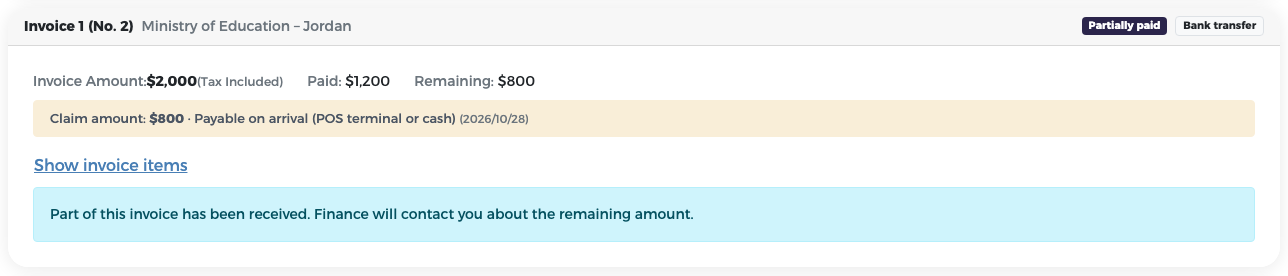
For example, finance received $1,200 of Jordan's Invoice 1 (No. 2) ($2,000) and sent a claim for the remaining $800. When the delegation arrived, the receptionist collected the $800 at the POS terminal and recorded it. Invoice 1 (No. 2) then became Paid.
When a payment is confirmed
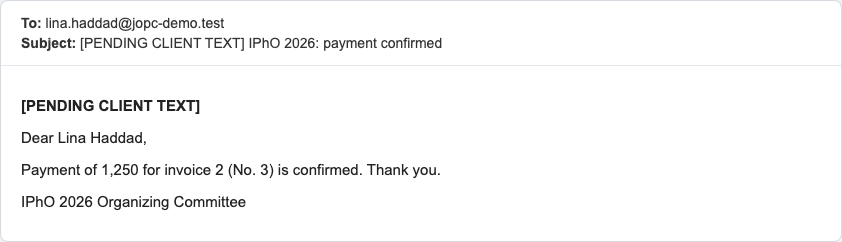
When finance confirms that an invoice is fully paid, you receive an e-mail, for example "Payment of 1,250 for invoice 2 (No. 3) is confirmed. Thank you."
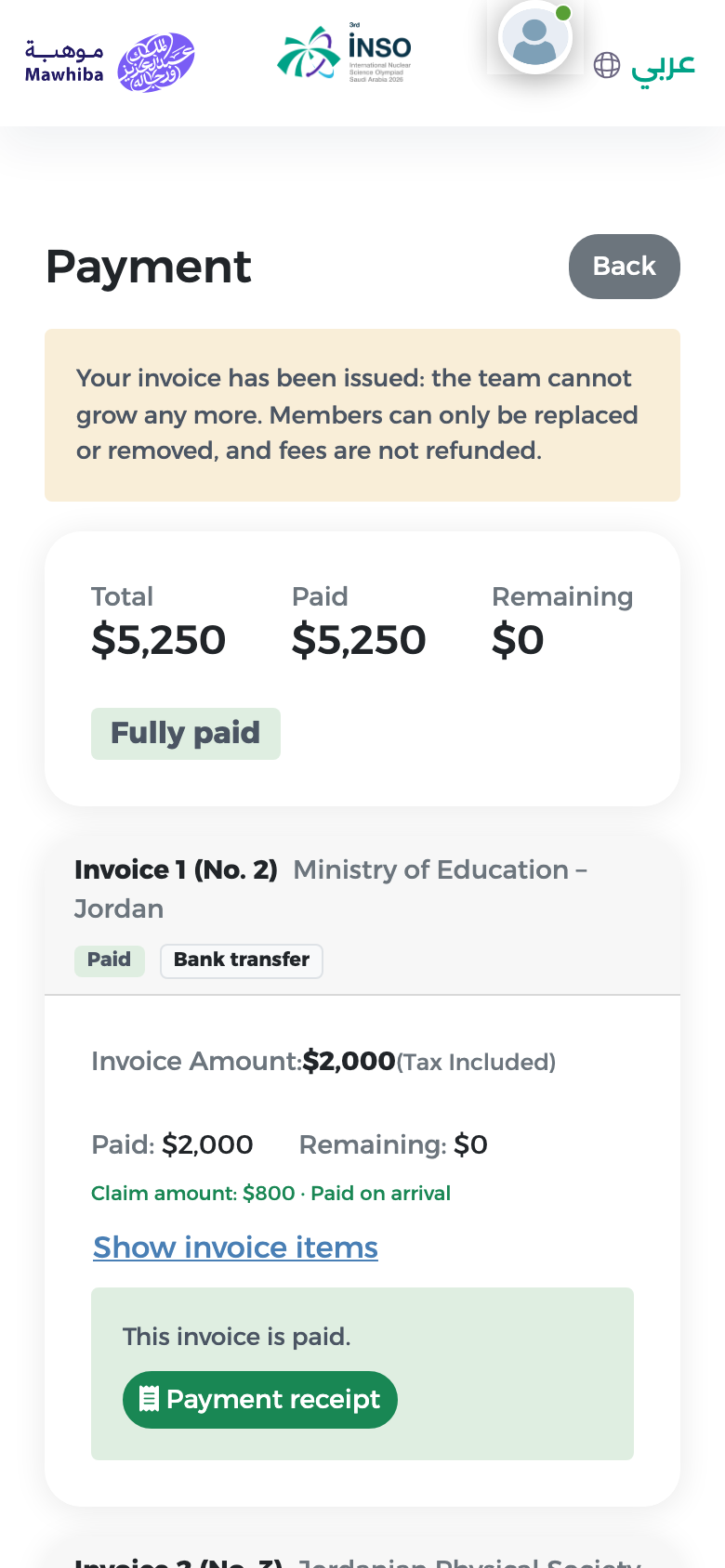
When every invoice is paid, the country status is Fully paid and each invoice shows Paid with a Payment receipt button.
Receipts and tax invoices
Payment receipt
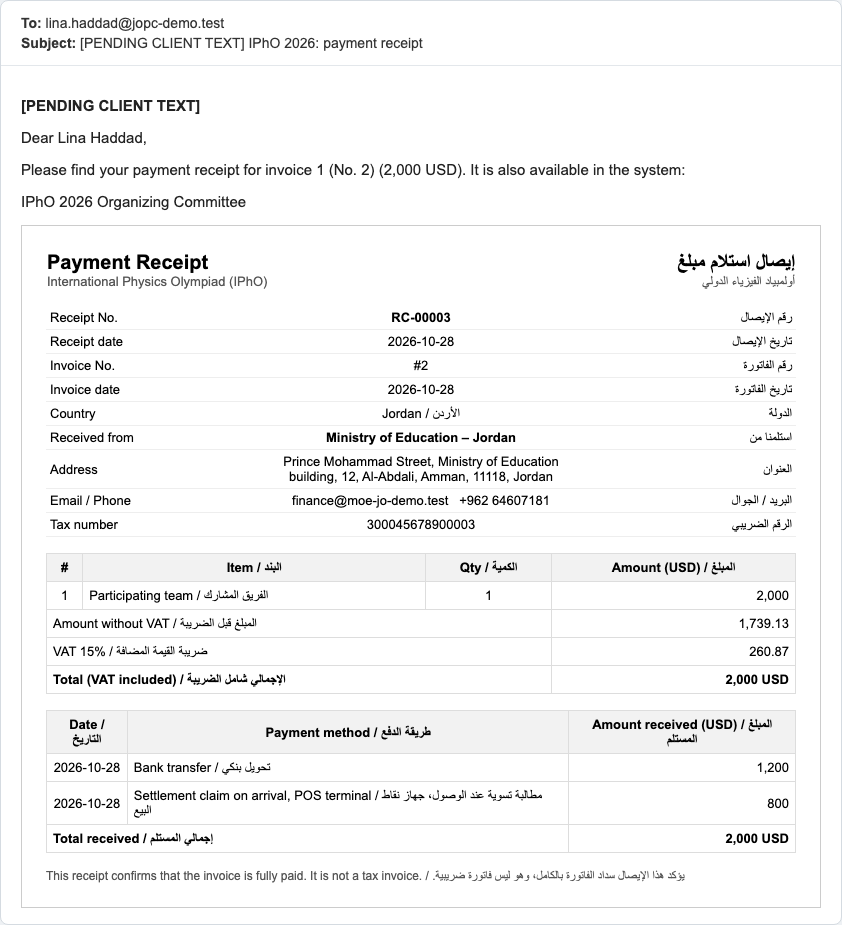
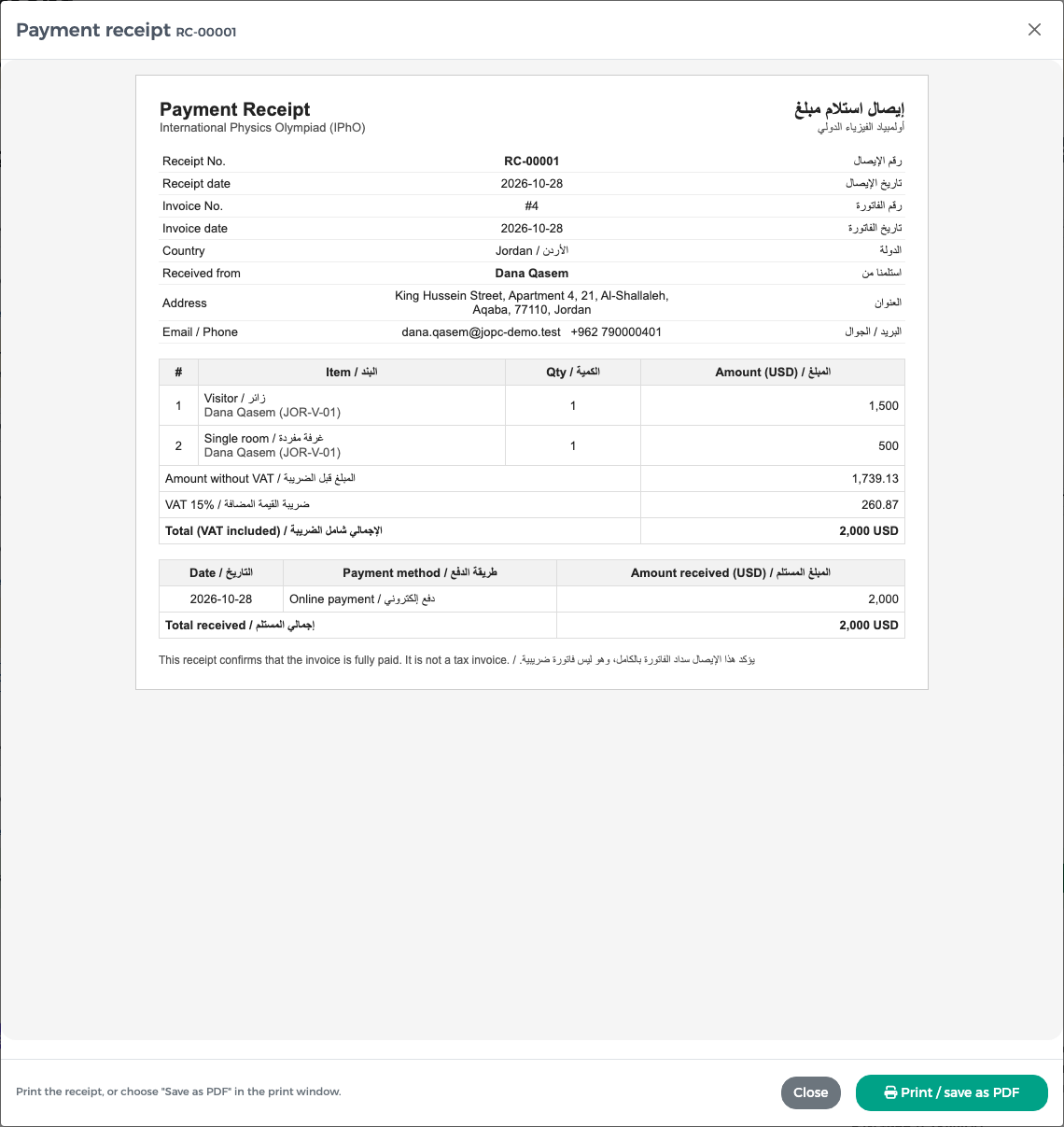
A payment receipt is issued for each invoice once it is fully paid. It is also e-mailed to you.
To view or print a receipt:
- Click Payment receipt on a paid invoice.
- The receipt opens. It is in English and Arabic and shows the receipt number (for example RC-00001), the invoice, the payer, the lines, the amount without VAT, the VAT, the total, and every payment received with its date and method.
- Click Print / save as PDF. In the print window, choose your printer, or choose "Save as PDF" to keep a file.
A receipt is not a tax invoice
The receipt confirms that the invoice is fully paid. The official tax invoice is a separate document.
Tax invoice
The tax invoice is produced when an invoice is fully paid: at once for an online payment, and when finance confirms full receipt for a bank transfer or payment on arrival. It uses the billing data you entered on that invoice. When it is ready, you can download it from the paid invoice on the payment page, and it is also sent to you by e-mail.
Payment statuses at a glance
| Status on the invoice | What it means | What you do |
|---|---|---|
| Issued + No payment method yet | The invoice is ready to be paid | Choose a method and pay |
| Awaiting confirmation | You sent transfer details or committed to pay on arrival | Wait for finance; pay on arrival if you chose that |
| Partially paid | Part of the amount was received | Pay the rest as agreed with finance (transfer or settlement claim) |
| Paid | The full amount was received | Download the receipt |
See all statuses on the Reference page.
Paying on a phone
The payment page also works on a phone. The totals and the invoice cards are shown one under the other.
Next steps: Embassy letters and Stage 3 – travel.